A style sheet enables you to define the colors and fonts to apply to the sheet, the prompts, the hints, and the data fields of your document.
From the Oracle E-Business Suite navigator, select the Define Style Sheet link. This may be under the Desktop Integration responsibility, or it may be located under a different responsibility assigned to you by your system administrator.
Choose Create to create a new style sheet, or select an existing style sheet and choose Update to modify it. To create a new style sheet based on an existing style sheet, select the existing style sheet and choose Duplicate.
To delete a style sheet that you no longer need, select the style sheet and choose Delete. Then choose Yes in the confirmation page.
Enter a name and description for the style sheet. The maximum length for the style sheet name is ten characters.
If you want to display a branding image in the documents created with this style sheet, enter the file name of the image. For example, MyCompanyImage.gif. Ensure that you have placed the image in the OA_MEDIA virtual directory. The image you define here for the style sheet overrides any image specified in the Corporate Branding Image for Oracle Applications profile option. However, an image defined at the layout level will override the image defined for the style sheet. See: Implementing Branding Images.
Select a read only color to apply to the background of read-only fields. Read-only fields take the font properties of data fields.
Use the color picker to select a color, or for additional color options, you can enter the hexadecimal value for the color in the field. For example, enter #A52A2A for brown.
Define the following properties for the sheet as a whole, for the prompts, for the hints, and for the data fields:
Background color - Use the color picker to select a color, or for additional color options, you can enter the hexadecimal value for the color in the field.
Font color - Use the color picker to select a color, or for additional color options, you can enter the hexadecimal value for the color in the field.
Font family - Enter the name of a font family supported by the viewer in which users will view the document.
Font style - Select Regular, Italic, Bold Italic, or Bold.
Font size - Enter the numerical font size.
Choose Apply.
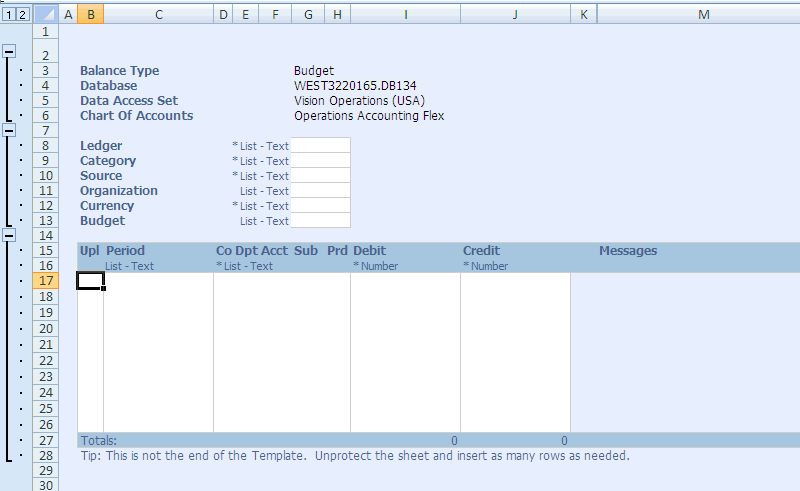
The following figure shows the style sheet items as they appear on a generated document: