A workday calendar defines the valid working days for a manufacturing organization and consists of repeating pattern of days on and days off and exceptions to that pattern. This allows you to, for example, designate a normal workday as a scheduled downtime day, or designate a holiday as a workday.
You can define one or more workday calendars and assign them to any number of organizations, and any number of organizations can share a calendar. You can specify the start and end dates, and the weekend schedule for each calendar.
You can also define a series of repeating workday patterns for a given calendar. For example, you have a repeating two-week pattern where you work five days the first week, and three days the second week. Or, you have a repeating pattern of 17 consecutive workdays, followed by four days off. When you build the calendar, Oracle Bills of Material automatically determines the valid workdays for you, based on the patterns you specify.
You can also specify repeating workday patterns for shifts (see below).
There are three ways to apply exceptions to the workday calendar:
selecting individual exception days
loading them from an exception template, another calendar, and another calendar shift
copying a set of exceptions from another calendar
An exception template allows you to create groups of exception dates and apply them to different calendars. You can define multiple workday exception templates that define different holidays and scheduled down times for different organizations. Multiple exception templates can be applied to the same calendar. As each template is applied, new exception dates are added to the exception list for that calendar.
Conflicts on a particular date between one template and another are resolved as follows:
if the exception date already exists in the target calendar, it is not copied
if the exception on day falls on a workday, the exception is copied but is redundant and has no effect on the calendar
if the exception off day falls on a non-workday, the exception is copied but is redundant and has no effect on the calendar
This allows you to define different holidays or scheduled down times, for example, for organizations in different countries. Different organizations can use the same calendar, but apply different exception dates. In addition, you can apply the same exception dates to different organizations.
You can optionally define exception templates, lists of exception dates, before you set up your workday calendar. Then when you define your calendar, you can choose an exception template, and apply its exception dates to that calendar.
For a given workday calendar, you can specify any number of shifts. Each shift can have a different weekend schedule and a list of specific work interval start and end times. For both calendars and shifts, you can assign sets of workday exceptions and repeating workday patterns.
Shifts inherit workday exceptions and workday patterns from the base calendar. Shift exceptions can either add to or override those of the base calendar.
If an exception on the base calendar changes, those shifts that do not have an overriding exception on that date will automatically reflect the change. Those shifts that do have an overriding exception on that date will not reflect the change and must be changed manually if they are to reflect the change in the base calendar.
Shift exceptions are applied to a calendar the same way as workday calendar exceptions by selecting individual exception days, by defining exception templates, or by copying a set of exceptions from another shift.
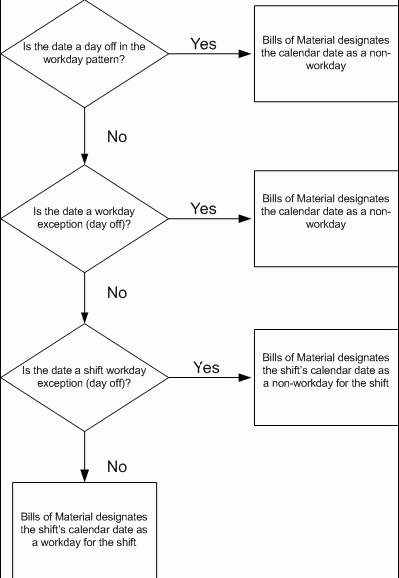
The following diagram illustrates the steps Bills of Material uses to determine workdays from an organization's workday calendar and exception template information.
For each organization, you specify the calendar to use. All scheduling functions use the calendar you specify. Detailed scheduling uses specific resource availability information by department and shift to schedule resources. Dynamic lead time offsetting, however, uses an organization's workday calendar and does not consider shift information.
Exception templates define and group deviations to your workday calendar, such as holidays, downtime, or scheduled maintenance.
When defining a workday calendar, specify which days (or shifts) are on and off. The workday calendar, in combination with the exceptions to it, determine the work pattern for each organization.
Navigate to the Exception Templates window.
Enter a unique name for the exception template.
Enter a date on which this template becomes inactive.
Enter all exception dates, and indicate whether each is an on or off workday.
A workday calendar consists of a start date, and end date, and on and off days that follow one or more defined workday patterns. A workday calendar can also include shift information and exception dates, such as holidays or scheduled down time.
Use a workday calendar for forecasting and planning material requirements, use shift information for job scheduling, and capacity analysis.
Workday exceptions identify deviations to the workday calendar. Shift exceptions identify deviations for a shift.
Attention: Shift exceptions take precedence over workday exceptions. (This is only relevant if a workday exception and a shift exception overlap.)
To assign workday exceptions to a workday calendar or calendar shift, either select them intuitively from the Calendar Dates (or Shift Calendar Dates) window, or apply them from an existing template, calendar, or shift.
Navigate to the Workday Calendar window.
Enter a name for the workday calendar.
Select a quarterly calendar type:
4/4/5 Week Pattern: Two four-week periods followed by one five-week period.
5/4/4 Week Pattern: One five-week period followed by two four-week periods.
Calendar Months: Twelve periods per year based on calendar months.
13 Periods: Thirteen four-week periods per year.
Note: If you use Oracle Master Scheduling/MRP, choose the 4/4/5 Weekly Pattern or the 5/4/4 Weekly Pattern to report MRP information in weeks and months. Otherwise, if you choose the 13 Periods calendar or Calendar Months, you can only report MRP information in monthly buckets.
Enter a date range for the workday calendar. The default end date is four years from the start date.
Note: Days on and off are calculated based on the start date and the day of the week. For example, if you want a standard five day workweek to start on 01-JAN, you must enter the start date as the Monday before 01-JAN (unless 01-JAN falls on a Monday).
Note: Set profile option BOM: Week and Period Start Day, to determine the start date. This profile option works in conjunction with the Workday Calendar. See: Bills of Material Profile Options.
Continue creating the workday calendar by choosing one of the following buttons:
Workday Pattern: Set workdays on or off.
Shifts: Assign shifts to the workday calendar.
Dates: Review your work so far and its effect on the workday calendar. Do this before you build or rebuild the workday calendar you are now creating. (You can only do this after you have defined a workday pattern.)
Once you have created a workday pattern, assigned shifts, assigned workday and shift exceptions, and reviewed your work, you must build the calendar and assign it to an organization.
Save your work.
You can copy the entire calendar, including workday patterns, exceptions, and all or none of its specific shift information. Or, you can copy a specific shift, including the workday patterns, exceptions, and shift times.
Exactly what is copied depends upon how you navigate to the Copy window:
From the Workday Calendar, Calendar Dates, and Workday Patterns windows, all workday patterns, all exceptions, and selected shift information are copied.
From the Shifts, Shift Times, Shift Dates, or Shift Workday Patterns windows, the shift workday patterns, shift exceptions, and all shift times for the specified shift are copied.
Note: If you copy calendar information to an existing calendar, all new information is appended to the existing calendar; existing information, in other words, is retained.
Navigate to the Copy window. Do this by choosing Copy from the Tools menu.
If you are copying calendar information, enter the calendar to copy information from and indicate if you want none, all, or specific shift information. If you select a specific shift, enter the shift number.
If you are copying shift information, enter the calendar you want to copy the shift information from and the specific shift number.
Navigate to the Workday Patterns (or Shift Workday Patterns) window. You can do this by choosing the Workday Pattern button from either the Workday Calendar or Shifts window.
Enter a sequence number in which the workday patterns are applied when the calendar is built.
Enter the number for consecutive workdays on and off. For example, if you want Monday through Friday on and Saturday and Sunday off, enter 5 for Days On and 2 for Days Off.
Enter a description for the sequence.
Repeat the previous three steps for each workday pattern to create. All defined sequences are repeated for the duration of the workday calendar. If there are two sequences, sequence 1 will be in effect first, then sequence 2, then 1 again, and so on.
For example, assume that sequence 1 is 5 on and 2 off, and sequence 2 is 4 on and 3 off. The calendar shows 5 on, 2 off, 4 on, and 3 off.
Save your work. Doing so ensures that you can view calendar dates.
Navigate to the Shifts window. You can do this by choosing the Shifts button from the Workday Calendar window.
Enter a shift number and a description.
Choose the Times button to open the Shift Times window.
Enter the start and stop times for each shift.
You can enter multiple start and stop times, but the start and stop times for a shift cannot overlap.
If you create a shift without first creating a workday pattern, a default workday pattern of 5 days on and 2 days off is created. You can then update that workday pattern.
Save your work.
Navigate to the Calendar Dates window (or Shift Calendar Dates window). Do this by choosing the Dates button from the Workday Calendar window.
Select individual days of the month to toggle them on or off. Days you change become either workday or shift exceptions, depending on how you entered the window.
The shift information displayed is specific to the date selected.
Save your work.
Navigate to the Exceptions window. Do this by choosing the Exception List button from the Calendar Dates window.
Chooses the Load button and select whether existing exceptions should be applied from a template, a calendar, or a shift.
If you select Template, enter a template name.
If you select Calendar, enter a calendar name.
If you select Shift, enter the calendar name that the shift belongs to and the shift number.
When finished, choose OK to save your work.
Navigate to the Calendar Dates window (or Shift Calendar Dates window). Do this by choosing the Dates button from either the Workday Calendar or Shifts windows.
Caution: Rebuilding an existing workday calendar affects all organizations that reference the same calendar and exception template. Changes to your workday information impacts your material plans, capacity plans, scheduling, and any other function in Oracle Manufacturing that uses the workday calendar. (This does not apply if you are building a calendar for the first time.)
From the Tools menu, choose Build (or Rebuild).
The Bill and Routing Interface program enables you to import bill and routing information.
Imported bills include revision, component, substitute component, and reference designator information.
Imported routings include routing revision, operation, instruction, and resource information. The Routing Open Interface program imports network routings (see: Creating a Routing Network and Creating a Network Routing, Oracle Shopfloor Management User's Guide) as well as single routings.
See: The Bills of Material Object Interface chapter and Integrating Your Systems, Oracle Manufacturing APIs and Open Interfaces Manual.
Navigate to the Submit Request window.
Indicate whether to include all organization codes in the bill of material and routing interface tables, or just the current organization.
Attention: If you specify just the current organization, rows in the interface tables that do not have either an organization code or an organization ID assigned are ignored.
Indicate whether to import routings from the interface tables.
Indicate whether to import bills of material from the interface tables.
Indicate whether to delete processed rows from the bill of material and routing interface tables.
Indicate whether to import bills of material and routings for only a certain batch ID.
Suggestion: You can segment your import data by assigning a batch identifier to each segment. This enables you to break apart large data sets and process them concurrently, which improves data loading efficiency.
