AutoSchedule lets you generate planning and shipping schedules automatically at predefined intervals. You can also run the AutoSchedule concurrent program on demand. Items that you want to schedule, using Autoschedule, must be associated with a supplier site in the ASL and have AutoSchedule enabled. When the AutoSchedule program is run, it generates schedules by supplier site for those items that
AutoSchedule uses the bucket pattern and schedule type assigned in the ASL to build schedules. AutoSchedule can confirm and print the schedule when defining the parameters of the program.
Attention: If you have set up an item for AutoSchedule, you will not be able to build a schedule manually for it with the Scheduler's Workbench, unless you disable it from AutoSchedule.
Attention: If an item is flagged as an AutoSchedule item in the ASL, you can only build its schedule as new (not revised), using the AutoSchedule process. This restriction prevents double counting of requirements. AutoSchedule items will not be included on new schedules built through the Scheduler's Workbench.
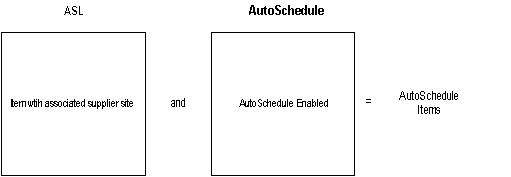
Stable items with consistent demand to a reliable supplier are good candidates for AutoSchedule because they often don't require review or modification before submitting to the supplier.
You can use the Submit Requests window to set the AutoSchedule processes to run automatically at any frequency you desire. You can also use the Submit Requests window to run the process manually.
When the planning and shipping AutoSchedule concurrent processes run, either at predefined intervals or on demand, new schedules are generated for those supplier site/item combinations that have AutoScheduling enabled and that match the AutoSchedule build parameters.
You can also specify whether AutoSchedule will confirm and print when you define the concurrent request in the Submit Requests window. The schedule types and bucket pattern used for AutoSchedule are taken from the ASL.