 To display asset number details:
You can display specific details about an asset number, such as an asset's configuration history, costs, hierarchy information, associated meter readings, quality information, associated work orders, and associated work requests. You can also view the asset number's associated asset group, parent, parent group, Category, Owning Department, Area, Accounting Class, Criticality, maintainability, the associated equipment serial number, attachments, associated activities, and asset attributes.
The asset number, description, criticality and work order priority are copied (in a concatenated format) from the work order to the Justification field on the purchase requisition.
Obtaining Asset Number Information
To display asset number details:Navigate to the Asset Details page (Maintenance Super User > Assets > Asset Numbers).
The Simple Search page appears by default where you can search based on Asset Number, Category, Asset Route (Yes or No), and Asset Status. You an also use the Advanced Search and select criteria such as Linear Asset (Yes or No), Segment Code, Segment Description, and so on.
Select an asset number to view.
You can select the specific asset number or you can select Details from the View list of values, to view associated asset number information, attributes, and activities.
Optionally choose View Equipment Details if the current asset number has associated equipment details. This link is next to the Equipment Serial Number field, and is available if there are associated equipment details. You can view all equipment details in the production organization.
Optionally choose the View Resource Usage glasses icon to view all Work Orders created against the asset number for the current equipment resource. This enables you to view resource demand (Work Orders) associated with the asset number. This information is eAM's integration with Process Manufacturing.
To track asset operational statuses:Maintenance organizations must track current and past operating statuses of their equipment, such as asset maintenance downtime and Check In and Check Out statuses. Maintenance organizations must track operational downtime and other critical information about an asset for a better understanding of its operations statuses and history. You can view current statuses, show operation and shutdown history, check in and check out assets, and view an Asset Operational log for analysis.
Navigate to the Asset Numbers page, and search for an asset number.
Select Asset Operational Log from the View list of values to view all current and past asset operational information, such as Check Out, Check In, associated work requests and work orders.
You can remove or add a child asset, remove a parent asset, activate or deactivate the asset, transfer the asset to another location, and receive or issue the asset into and from Inventory. By default, logging is turned off for an asset (See: Defining Asset Numbers and Defining eAM Parameters).
Select Asset Operational Log from the View drop-down list.
Click the Go button.
Optionally query information by a date and time period or Event. Choose Go.
Optionally choose Create Events to create events that occur for the asset. This information is important and needed to help you analyze the asset's lifecycle. Choose Apply when finished. These events are extensible; you can add to them.
Select the Return to Search link to return to the Asset Numbers page.
Optionally select the Check Out icon to check out an asset from the Asset Search page. You can view asset details, enter collection plan data, enter meter information, and optionally create a work request from this page.
Choose Apply.
Optionally choose the Check In icon to check this asset in. You can view asset details, enter collection plan data, enter meter information, and optionally create a Work Request from this page.
Choose Apply.
To display configuration history:You can view specified parent and child information in a tabular format, as well as dynamically add parents and children to a hierarchy.
Navigate to the Asset Numbers page, and query an asset number.
Select Configuration History from the View list of values.
Choose Go.
Select whether to show the current asset number's Parents or Children information. The page defaults showing Children information. If you select Parents, choose Go to display the associated information.
Optionally narrow your selection criteria by selecting a date range.
Optionally choose Associate Child or Associate Parent (depending on whether you are showing Parent or Children information) to dynamically add a Child or Parent to the current asset number's hierarchy.
Select an asset number.
Enter a Start Date that this new configuration is effective. The system date defaults.
Optionally enter an End Date.
Choose Apply to save your work.
Choose Cancel to return to the Configuration History window.
Optionally select the Update icon to update configuration history information for the current asset number.
Optionally save and export your configuration results to a spreadsheet by selecting Export Configuration Results.
To view asset cost information:eAM integrates with Oracle Cost Management, honoring all costing rules set at the organization level, for example, the costing method used. You can view the costs of Material, Labor, and Equipment for maintenance Work Orders, associated with the current asset number. You can view different types of transactional cost information, including actual, estimated, variance, and summary. eAM maintains the hierarchy integrity. For example, when viewing the parent asset number, you can view just the parent's costs, or the costs of the parent, including all child costs rolled up to the parent level.
Navigate to the Asset Numbers page, and query an asset number.
Select Costs from the View list of values.
Choose Go.
Select an asset number.
Choose Go.
In the Cost View Options region, you can narrow your selection criteria.
From the View drop down list, select the type of cost information to view. Valid values are Actual Costs, Estimated Costs, Variance Costs, and Cost Summary.
Actual Costs: This is the accumulation of all cost for material and resource transactions for associated maintenance Work Orders, based on a specified period, or any specified selection criteria you entered in the Cost View Options region. When you select the Actual Costs from the list of values, the actual cost information for your specified criteria is provided. The Cost Manager process runs in the background to provide updated, actual cost information at user defined, periodic intervals, and/or when it is launched from the menu.
Estimated Costs: A BOM (material parts list) and routing (resources) can be associated with a Work Order. When you select Estimated Costs, the estimated costs of all materials and resources associated with a work order display, enabling you to budget costs. The Work Order Cost Estimation process runs in the background to provide updated, estimated cost information at user defined, periodic intervals, and/or when it is launched from the menu. Estimated and actual costs might differ because all materials or resources associated with a Work Order might not actually be used when the Work Order is executed.
Variance Costs: When you select Variance Cost, the difference between the actual and estimated costs appear.
Cost Summary: When you select Cost Summary type, the cost information from all work orders associated with the current asset appear.
From the View Cost By drop down list, select how you would like to view your cost information. Valid values are Period and Cost Category.
If you selected Cost Category, you can view cost information by defined categories, such as Maintenance, Contract, or Operations.
Material:All material and material overhead transaction costs appear
Labor: All employee resource and resource overhead transaction costs appear.
Equipment: All material resource and resource overhead transaction costs appear.
If you selected Period, optionally enter the Period From and Period To. Accounting Periods are defined within Oracle Inventory (See: Maintaining Accounting Periods, Oracle Inventory User's Guide).
Optionally select the Include Child Assets or Include Related Assets option. You cannot select both options.
Select the Include Child Assets check box to roll up all costs for the current asset number and its children. See: Defining Asset Numbers to review how hierarchies are created.
Select a relationship type in the Include Related Assets drop-down.
Relationships form a functional grouping or network of linear assets or discrete assets. This option enables the reporting and tracking of asset costs at a network or group level.
Note: You can view related assets costs for only one relationship at time.
Choose Go to view cost element information. Summary totals, of material, labor, and equipment costs, appear.
Optionally save and export your cost information to a spreadsheet by choosing Export.
Optionally view asset cost information, broken down by specific Work Order, by choosing Work Order Cost Details.
These cost values are based on the respective work order route percentage assigned for the associated asset.
Optionally select the Actual Cost link to view the Work Order's actual cost details by Period/Cost Category.
Optionally choose View Transactions to view the transaction details.
Optionally select the Work Order Cost Details link at the top of the page.
Optionally select the Estimated Cost link to view the Work Order's estimated cost details by Period/Cost Category.
Optionally choose View Estimated Cost Details to view the Work Order's estimated cost details by Period/Cost Category.
Select the Work Order Cost Details hypertext link, at the top of the page, to exit.
Optionally select the Variance Cost link to view the variance between the estimated and actual costs.
To display the asset hierarchy:You can view asset number hierarchy information, enabling you to identify asset numbers using a navigator and the details of each asset number belonging to the hierarchy.
As Serialized Rebuildables are added and removed from a particular hierarchy, the asset genealogy is dynamically updated.
Navigate to the Asset Numbers page, and query an asset number.
Select Hierarchy from the View list of values.
Choose Go. The associated hierarchy for the current asset number appears in the shaded region.
Asset Hierarchy Example
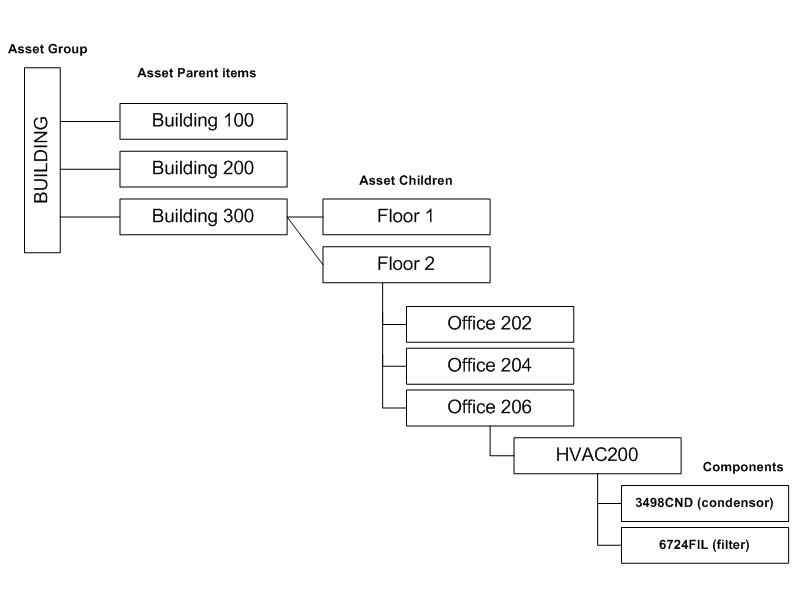
Optionally select any asset number in the hierarchy to view its details.
Optionally select the Parent Asset Number to view the complete hierarchy at the parent level.
Choose Return to Search to exit.
To view asset relationships graphically:You can view asset relationships in a graphical format using Oracle eAM.
Use this procedure to view asset relationships graphically:
Navigate to the Asset Search page, and query for a specific asset.
Select Graphical Hierarchy from the View list of values.
Click the Go button.
The Viewer appears displaying the asset relationship in a graphical format.
View the asset relationships.
You cannot view instance relationships.
Note: You can only view asset relationships using this navigation. If you want to add child assets or create other relationships for the asset, you must access the asset through Oracle Asset Tracking or Oracle Installed Base.
For more information about viewing asset relationships, see Viewing Item Instance and Asset Network Relationships, Oracle Installed Base User's Guide.
Right-click an asset relationship node to view the asset details.
To enter or view meter readings:Meters are defined and associated with asset numbers to measure an asset or rebuildable item's usage. Examples include odometers or counters. Meters are used in Preventive Maintenance Scheduling to schedule and generate Preventive Maintenance Work Orders.
You can enter and view meter readings for the current asset number.
Navigate to the Asset Numbers page, and query an asset number.
Select the asset number, and then select Meter Readings from the View list of values.
Choose Go. Meters that are associated with the current asset number appear. See: Associating Meters with Asset Numbers.
Enter a Value or Change Reading value for new meter readings, depending on the meter type. If the meter is an Absolute type, the Value column is enabled. If the meter is a Change type, the Change column is enabled.
Optionally enter any necessary Comments.
Optionally enter Reset information.
If you enter a Reset Reading value, you are resetting the source meter to this value. For example, if a motor must be replaced, you can reset the meter reading value of the pump, associated with the motor.
Companies can associate a source meter to an asset number and meter association. The Source Meter reading subsequently feeds corresponding meters that are associated with assets within the meter hierarchy (See: Defining Meters for more information on meter hierarchies).
Optionally select the Include Target Reset check box to reset the current asset's target meter to the source meter's Reset Reading.
Optionally enter a Reset Comment.
Choose Apply to save your work.
Optionally select the History icon to view all meter readings for the selected meter and current asset number. This helps you to make logical decisions when entering and updating meter readings. For example, you can view the last meter reading, enabling you to make a logical choice when entering the next meter reading.
Optionally select the Disable icon to disable a past meter reading for the current Reading. If meter readings are entered before resetting the meter, you cannot disable those meter readings. The most current reading before the meter is reset cannot be disabled, unless the meter reset reading entry is disabled.
Note: Preventive Maintenance Scheduling does not use any disabled information. After a meter reading is disabled, you cannot re-enable it.
To view quality information:You can view a list of Quality collection plans and enter quality results for the current asset number.
Navigate to the Asset Numbers page, and query an asset number.
Select the asset number, and then select Quality from the View list of values.
Choose Go.
A list of collection plans, associated with the current asset number and requiring completion, appear (See: Creating eAM Quality Collection Plans When the collection plan was created, it was specified whether the collection plan required completion. Also, during the eAM collection plan creation process, triggers are specified to make specific asset numbers eligible for the collection plan (See: Creating eAM Quality Collection Plans). See: Quality Integration Setup
Optionally enter quality results by selecting the Enter Quality Results icon. You can enter quality results for a collection plan or update a collection plan's quality results multiple times.
Required fields depend on the Collection Plan's collection element specifications (See: Creating eAM Quality Collection Plans).
Optionally choose Add to attach any necessary files, URLs, or text to the chosen collection plan. Each collection plan can have an unlimited number of attachments.
Choose Apply to save your work or Cancel to return to the Quality Plans page.
Select the View Quality Results icon to view or update any results entered for the current collection plan.
Select either the Show table data when all conditions are met or Show table data when any condition is metradio button.
Show table data when all conditions are met: Quality results containing all of the following entered parameters appear in the results set table.
Show table data when any condition is met: Quality results containing any of the following parameters appear in the results set table.
Optionally specify parameters to filter the data displayed. The parameters are the collection elements defined for the current collection plan. See: Creating eAM Quality Collection Plans.
Optionally select an additional parameter from the Add Another list of values. Choose Add.
Choose Go to view the entered parameters' results. Optionally choose Clear to enter new parameters.
Optionally select the Attachments icon to attach any necessary files, URLs, or text to the chosen collection element (result entry). Each collection element in the collection plan can have an unlimited number of attachments.
Optionally select the Update icon to update the current entry.
Select the Return To List Of Plans Page link at the bottom of the page to return to the list of quality collection plans.
The Visited column indicates whether the associated collection plan has been updated.
Note: Quality results are entered at Work Order Completion for an asset number's required collection plans.
To view or create work requests for an asset:You can view an asset's associated Work Requests, create new Work Requests, or update existing Work Requests for the current asset.
Navigate to the Asset Numbers page, and query an asset.
Select an asset number, and then choose View Work Requests.
Optionally select a work request Number to view its details, such as the log explaining the issue reported and priority code.
Optionally choose Update if you are within the details of the work request, or you can select the Update icon on the Existing Work Requests page.
Update fields as needed.
Choose Apply to save your work.
Choose Cancel to return to the Existing Work Requests page, without updating the work request.
Optionally choose Create Work Request to create a new work request, or click the Create button if you are viewing an existing work request.
If required, select an asset number. Depending on the current organization's parameter, defining an asset number on work requests may be optional. See: Defining eAM Parameters.
Select a Priority, for example High, Medium, or Low.
Select a Request By Date. The system date defaults.
Select an Assigned Department. The current asset number's associated Assigned Department defaults. See: Defining Asset Numbers.
Optionally select a Work Request Type.
Optionally select the user the work request is Requested For. The current user defaults.
Enter the detailed information about the work requested in the Additional Description field.
Enter your Creation Information, such as Phone Number, E-Mail address, and Contact Preference.
Optionally select a Context Value.
Choose Apply to create the work request.
Choose Cancel to return to the Existing Work Requests page, without creating a work request.
Optionally select Show in the Details column to display Work Orders linked to the current Work Request.
Optionally select the Work Order number to view the Work Order's associated information.
Choose Return to Existing Work Requests to return to the previous page.
Optionally save and export the Work Request information to a spreadsheet, by selecting Export Work Requests.
