Specify in the Style field whether to search for elements of a specific item style. If Style is set to null, then elements of all styles are searched. Note that the Style field displays only the styles used on the page elements of the current page.
Specify in the Title/Prompt/Text field whether to search for elements that contain a specific title, prompt, or text. You may specify a wild card character (%) in the search string.
Check Include Personalized Items Only if you want the search to return only matching results that have been personalized.
Search region for the Page Hierarchy Personalize page.
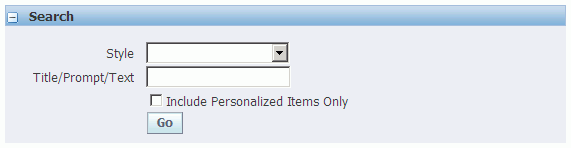
Select Go to perform the search.
The results are returned in a flat table, where the names of the matching page elements are sorted by style. This flat table has the same columns as the prior Page Hierarchy HGrid, so that you can launch the same personalization tasks from this presentation. However, it also includes a column called View in Hierarchy, from which you can select the Hierarchy icon for a page element to focus on the page element as displayed within the page hierarchy.
Select the Return to Personalization Structure link below the Search Results table if you want to return to the original Page Hierarchy Personalization page regardless of the focus you had before you selected Go to search for specific page elements.