This chapter describes the user interface features that are common to Oracle E-Business Suite Forms- based applications, including:
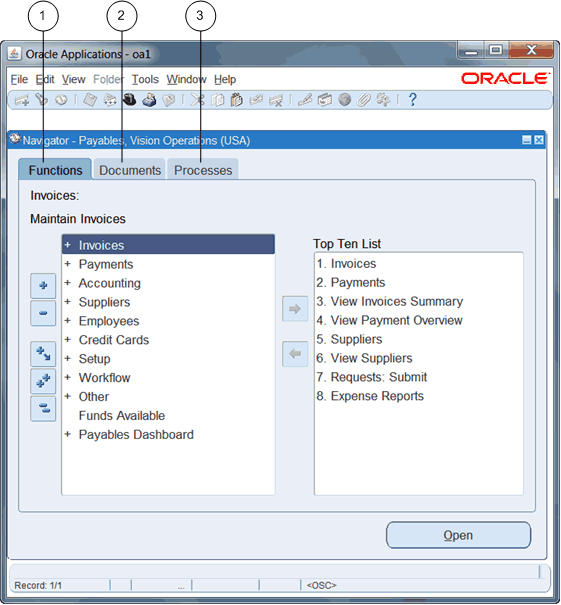
From the Navigator you can:
Open forms from the Functions tab.
Link to documents from the Documents tab.
Launch business processes from the Processes tab.
The Functions tab provides links to the forms accessible to your current responsibility.
To open a form, expand the function heading and double-click the form name.
Add forms that you use frequently to your Top Ten List. Create a different top ten list for each of your responsibilities.
To add a form to the Top Ten List
Select the form, then select the Add to List button or choose Add to List in the Tools menu.
To remove a form from the Top Ten List
Select the form, then select the Remove from List button or choose Remove from List in the Tools menu.
Create links to documents that you are working on for faster access. The Documents tab allows you to save as many links as you want. View the saved links as a list or as icons.
To add a document that is currently open
Choose Place on Navigator from the File menu
Important: The Place on Navigator command is not enabled for all forms.
To rename a link that you have created
Select its name (or icon) and select the Rename button.
Enter the new name in the Rename Label window and click OK.
To remove a document from the Documents tab
Select its name (or icon) and select the Remove button.
The Processes tab contains interactive step-by-step maps of business processes. Each step is a form or report that you can launch directly from the process map.
Each time you launch a business process, you create an instance of that process and assign it a name. As you complete each step in a process, the map is updated accordingly.
To open a process
Select the process, then select the Launch button.
Enter a name for the new instance.
The instance remains active until you complete or cancel it. The Processes tab lists your active instances.
The active step has a box drawn around it. More than one step can be active if your process contains multiple paths.
Click once on a step icon to display a description of the step.
Double-click on a step icon to open the related form.
Advance to the next step of a process from within a form by using the Next Step toolbar icon.