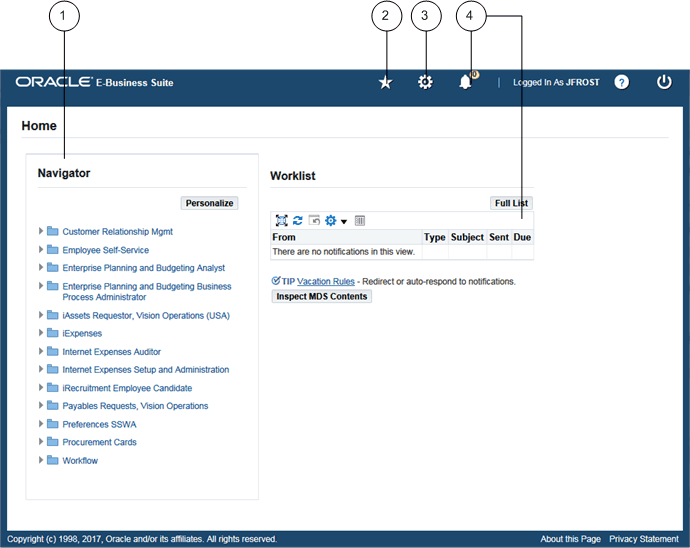
The Oracle E-Business Suite Home page is your entry point to Oracle E-Business Suite. To enable a preferred Home page style, set the preference Home Page Style to "Framework Only", "Framework Tree" or "Framework Simplified".
Oracle E-Business Suite Configurable Home Page with Tree-Based Navigator and Global Header with Iconized Buttons
Oracle E-Business Suite Simple Home Page and Global Header with Iconized Buttons
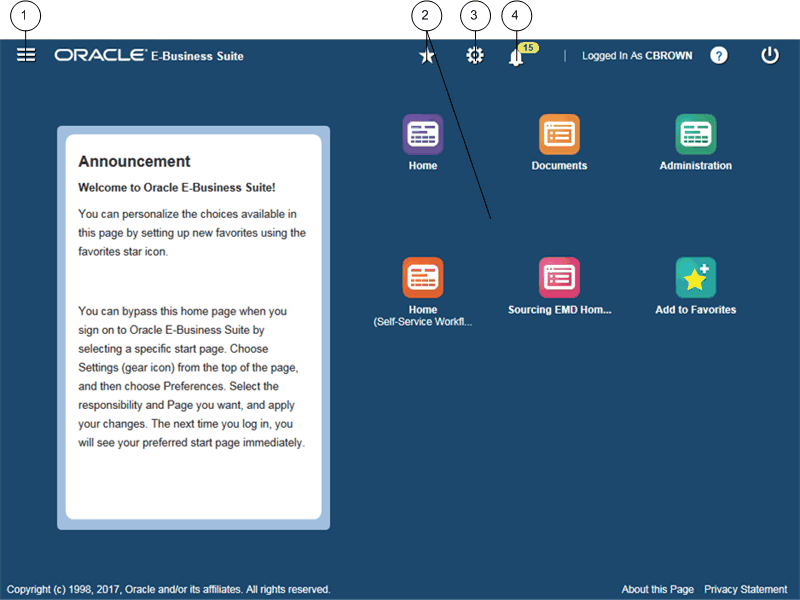
Navigator
Favorites
Settings
Worklist (Workflow Notifications)
If available, the Contact Admin button can be used to generate an alert for an administrator in Oracle Applications Manager. See: User Initiated Alerts.
From the Home page you can:
Access Oracle E-Business Suite functions from the Navigator. In the Simple Home page, select the global Navigator button to display the Navigation menu with Search input.
Navigate to frequently-used functions or Web pages from Favorites.
Select the global Settings button to access Preferences and other global setting functions from a menu.
View or respond to your most recent notifications from the Worklist.
Note: If you have privileges to create administrative-level personalizations, refer to Overview of Administrative-level Personalizations for more information on the Personalize Page feature.
Note: The global Navigator and Favorites buttons must be enabled by your system administrator through the profile option FND: Disable Navigator and Favorites Rich Menu in order for you to see them.
Note: If the Preferences menu option does not appear, contact your system administrator to enable this feature with profile option General Preferences Show Flag.
Use the Navigator to access Oracle E-Business Suite functions grouped by responsibility. In the Simple Home page, select the global Navigator button to invoke a drop-down menu of responsibilities and functions.
Note: A responsibility is a level of authority in Oracle E-Business Suite. It enables your access to those functions and data appropriate for your enterprise role. You can have one or more responsibilities.
To access a function
Select a responsibility to view its menu of functions.
Select the function to launch it.
Note: Enter characters for a function name in the Search field to find the function. The minimum number of characters needed to start the search is determined by a profile option set by your system administrator.
To show or hide responsibilities shown in the Navigator region from all responsibilities available to you, select the Personalize button. To personalize the Navigator in the Simple Home page, select the global Navigator button, then select the Personalize Navigator icon in the drop-down Navigator menu.
You can customize your Favorites by adding links to frequently-used functions and websites.
Note: This feature must be enabled by your system administrator through the profile option FND: Disable Navigator and Favorites Rich Menu.
There are three main ways you can do this type of customization:
Select the Manage Favorites icon from the drop-down menu of the global Favorites button.
Select the Add to Favorites icon on the Simple Home page.
Use the Add to Favorites icon for bookmarkable pages (pages that can be accessed without being in an HTML-based application).
If you are adding a link to a website, you can specify whether to open the URL in a new window.
The global Settings button has a drop-down menu with options such Personalize Page, Preferences, Diagnostics, Manage Proxies and Access Requests.
Select Preferences to set personal options, including language, territory, time zone, notification style, accessibility setting, and formats for dates and numbers. You can also reset your password from the Preferences page.
Optionally specify a Page Header Display Style for the global header. Options are:
Both Links and Icons
Icons Only
Links Only
Optionally specify a Top-level Menu Display Style. Options are:
Icons and Links - First-level menu choices appear as icons.
Icons and Links on Tablets Only - First-level menu choices appear as icons with links on a tablet, but as classic tabs with links on a desktop/laptop.
Links Only - First-level menu choices appear as classic tabs with links on all devices.
Optionally specify a username and password for Delivery Manager to use for concurrent request output. For information on Delivery Manager, see Delivery Options for Concurrent Request Output.
Optionally specify a Start Page for future sessions from a list of available pages (organized by responsibility).
Note: From the Forms interface, change your Start Page using the "Applications Start Page" profile option.
Set additional preferences using user profile options. For more information, see Defining Preferences with User Profile Options.
For example, set the profile option FND: Show Instance Name to "True" to display the instance name on the home page.
Access Oracle Diagnostics features, if enabled.
See: Diagnostic Tests.
If you use the Proxy User feature, navigate to the Manage Proxies and Access Requests functions.
See: Managing Proxy Users.
Depending on the features and Home page style enabled in your instance, the global Worklist button or Worklist region may appear.
You can check your count of open notifications and view your most recent notifications from the global Worklist button. In the My Worklist menu, select a notification subject to view details and respond, or select Go To Full Worklist to see all your notifications.
The Worklist region displays your most important notifications. Select a Subject to view details and respond, or select the Full List button to see all of your notifications.
The number of open notifications waiting for response is shown.
For more information about worklist features, see Accessing the Oracle Workflow Self-Service Home Page.