By default, all regions are displayed on the Oracle E-Business Suite local login page. As with all Oracle Application Framework-based pages, however, it can be personalized. Some of the personalizations that may be desired are:
Hiding "Register Here" and "Login Assistance" links
Hiding the language images region
Hiding the Cancel button
Setup Steps for Login Page Personalization
Set the profile FND_PERSONALIZATION_REGION_LINK_ENABLED to Yes
Select the Functional Administrator responsibility
Select the Personalization tab
Enter the document path for the Local Login page definition
Select a Region to customize
This takes you to the Choose Personalization Context page: select Apply.
The personalization structure is displayed where an item can be selected and its properties changed
For a description of how login pages can be customized, see "Custom Login Pages" in the Single Sign-On Profile Options section.
Login Page Personalization in Oracle E-Business Suite Release 12.2.5
In Oracle E-Business Suite Release 12.2.5, you can use the profile FND_LOGIN_HIDE to enter a comma-separated list of elements to suppress or hide from the login page. Elements can be named by their DOM object ID or by the message the element displays. The ID must be preceded by the '#' or pound sign.
For example:
FND_LOGIN_HIDE=#ForgotPasswordURL,FND_COPYRIGHT
This suppresses the display of the "Login Assistance" link and the copyright text at the bottom of the page.
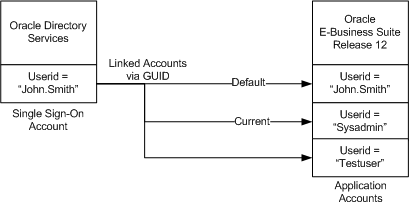
In most cases, a user's single sign-on account in Oracle Directory Services will correspond to a single application account in Oracle E-Business Suite Release 12.2. However, there may be special cases where a user has a single sign-on account in Oracle Directory Services and multiple application accounts in Oracle E-Business Suite Release 12.2. In such a case, it is possible to associate a single sign-on account in Oracle Directory Services with multiple application accounts in Oracle E-Business Suite Release 12.2:
This feature can be enabled by system administrators by using a profile option ('Applications SSO Allow Multiple Accounts'). To utilize this feature, proceeds as follows:
Log in to Oracle E-Business Suite using a valid single sign-on account in Oracle Directory Services.
Once logged in, access the 'Single Sign-On Account Settings' page by clicking the 'Account Settings' button from the 'Preferences' page.
To associate additional application accounts with an existing single sign-on account, choose 'Add Account' and enter the new application account user name and password when prompted.
Verification of the new application account information will result in redirection back to the 'Single Sign-On Account Settings' page, showing the newly linked account.
Failure to verify the new account information will result in redirection back to the 'Add Account' page.
The first linked application account is marked as the default application account for the single sign-on account, and is the account the user will be logged into after Oracle single sign-on authentication. If required, the default account can be changed by making the appropriate selection on the 'Single Sign-On Account Settings' page.
After logging into Oracle E-Business Suite using Oracle single sign-on, a user can view all currently linked application accounts using the 'Single Sign-On Account Settings' page, and can if desired switch to another linked application account by selecting that account and clicking on 'Make Current Account'. If this feature is disabled by the system administrator, the 'Add Account' button will not appear on the 'Single Sign-On Account Settings' page and users will not be permitted to link multiple application accounts to their single sign-on account.
Only one single sign-on account in Oracle Directory Services may be linked to a given application account in Oracle E-Business Suite Release 12.2 at a time; simultaneous linking of multiple single sign-on accounts to a single application account is not supported.
Oracle Access Manager and the Oracle E-Business Suite database machine system clocks should be accurate, and kept synchronized. If the clocks are inaccurate or out-of-sync, user provisioning flows may be affected.
Be aware of the following points:
Oracle Access Manager converts all times to GMT. If the orclStartDate attribute is defaulted, it will pick the system date and convert it to GMT.
The Oracle E-Business Suite database machine runs in the local time zone, so dates are also in the local time zone.
When a user is provisioned from Oracle Directory Services, the dates are converted to the local time zone.
It may be necessary to switch the user management master from Oracle Directory Services back to Oracle E-Business Suite for specific users. Credentials for these users will need to be switched back to being authenticated by FND_USER for local authentication. Special procedures to do this are necessary, because the FND User form as well as the User Preferences screen will not allow you to change the password once it has been set to "EXTERNAL".
To preserve the password and allow users to locally log in to Oracle E-Business Suite, follow these steps:
Ensure that the profile option 'Applications SSO Login Types' (APPS_SSO_LOCAL_LOGIN) is set to either 'LOCAL' or 'BOTH' for users to whom you want to keep the local access.
Use the AFPASSWD utility or FNDCPASS utility to reset the user's password. The new password then needs to be emailed to the user.
For more information about the AFPASSWD and FNDCPASS utilities, refer to the "Basic DBA Tasks" chapter of Oracle E-Business Suite Maintenance Guide.
The default nickname used for login is "uid", which can be verified in the Oracle Directory Services Delegated Administration Service Configuration screen, Attribute for Login Name field. "uid" corresponds to User Name in the Oracle Directory Services Manager UI.
Changing the nickname attribute is generally not recommended, but other unique attributes such as email address can be used in special circumstances. Oracle E-Business Suite currently supports setting of the nickname (login attribute) to either uid or mail.
The attribute set as the nickname in Oracle Directory Services is mapped to the FND_USER.USER_NAME column in the Oracle E-Business Suite database. If the nickname is changed in Oracle Directory Services, the Oracle E-Business Suite database must be restarted to force a refresh of the cached value.
Customizable Directory Information Trees (DIT) and Relative Distinguished Names (RDN) are supported for use with Oracle E-Business Suite single sign-on environments. Described further in Oracle Fusion Middleware Administrator's Guide for Oracle Internet Directory and Oracle Fusion Middleware Administering Oracle Unified Directory, the following parameters can be defined at realm level:
Name Attribute (NickNameAttribute)
UserCreateBase: one or more DN where the user entries are located
Attribute for RDN
UserSearchBase: in the hierarchical path for all defined UserCreateBases, this is the location to start searching for users of a given username
Caution: Implementing the Custom DIT feature in an existing infrastructure is not recommended, as it may result in data corruption. If there is such a need, contact Oracle Support for details of how to migrate existing data safely.
The Custom DIT feature should not be confused with Multiple Realm support.
Custom DIT Configuration Steps
The Custom DIT feature requires the following configuration steps within Oracle Directory Services and Oracle E-Business Suite.
In Oracle Directory Services (see the Oracle Fusion Middleware Administrator's Guide for Oracle Internet Directory or Oracle Fusion Middleware Administering Oracle Unified Directory for details):
Create the new DIT structure.
Optionally, configure the CommonNameAttribute to be used for the RDN (the default is cn).
Specify a single UserSearchBase where all UserCreateBases can be located.
Caution: The current implementation supports only one UserSearchBase. Using more than one may result in incorrect operation.
In Oracle E-Business Suite:
Register the Oracle E-Business instance with the desired deployment template. Note that this feature is only relevant for the deployments provisioning users from Oracle E-Business Suite to Oracle Directory Services.
From the APPS account, run the API fnd_oid_plug.setplugin from SQL*Plus to configure Oracle E-Business Suite for use with the new user repository.
For example:
sql> fnd_oid_plug.setPlugin(default_user_repository=>'cn=new_repository,dc=example,dc=com');
The Oracle Directory Services configuration attributes are now stored in Oracle E-Business Suite preferences.
Note: Any configuration changes in OID will require this API to be re-run so that the new values are picked up by Oracle E-Business Suite.
Stop and restart the application tier processes
Now, when new users are created in Oracle E-Business Suite, they will also be created in the User Repository. This will have no impact to the propagation of users from Oracle Directory Services to Oracle E-Business Suite. Note, however, that the same "user" cannot be created in multiple user repositories.