Most properties of blocks are form-specific, such as the ability to insert or update data. Only basic cosmetic properties are common to all.
For information on implementing blocks, see the Oracle Applications Developer's Guide.
Block titles should be displayed and chosen according to the following guidelines:
The title is the name of the object displayed in that block. It is optional, unless any of the following are true (OMS-73068):
The object represented by the block is not obvious and is not the same as the window title.
The block must be distinguished from another similar block in the same window.
Titles are singular if the block only displays one record, and plural when more than one record is shown. A single-record block may have a plural title if the user normally accesses more than one record during a single transaction, and the block is not shown in a multi-record format elsewhere in the form. (OMS-73069)
Titles for a block are rendered automatically as the title attributes of a "frame" object. This can be either a full square container, or a zero-height frame that renders as a horizontal line for delimiting blocks. The visual properties of these titles are inherited from the Application Object Library property classes.
Note: These settings apply specifically to titles that are displayed with a frame. Appropriate settings must be applied when the title is a display item, check box or radio button.
The widget that displays the title may be any of the following (OMS-73572):
Zero-height frame title (for static block titles)
A display item overlaying a frame, designed to look like boilerplate (for dynamic block titles)
A check box or radio button overlaying a frame
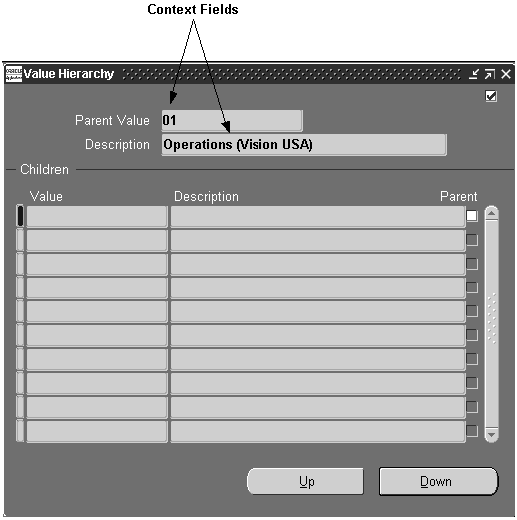
Each non-modal window must be designed so that a user can maintain context merely by viewing that single window. This is necessary because of the multitude of windows, possibly across several forms, that may be on the screen at any one time. Also, because a user may iconify the window containing the context of the data in the current window, each window must display its own scope. The window title is the preferred way to show context, but when it cannot meaningfully or fully display the context for a window, additional context is displayed in a context block.
Context blocks should have the following characteristics:
The context fields are placed at the top of the window to indicate primary key information of the master record(s). (OMS-73672)
Context fields are placed in a single-record format, with the highest master context located first. (OMS-73673)
Only the information that uniquely identifies the master record(s) is displayed. A user can access more information about the master by viewing the window that contains it. (OMS-73674)
Additional descriptor fields may be drawn in the context block only if space permits, without compromising the space made available to the primary contents of the window. (OMS-73675)
Whenever a master record is changed, or primary key information on a master record is changed, context shown in other windows should be immediately updated. (OMS-73676)
Dialog blocks are the blocks presented in modal windows. They require the user to interact with them before proceeding with other windows of the application.
Dialog blocks should have the following characteristics:
Dialog blocks always contain buttons to dismiss them, such as "OK" and "Cancel." (OMS-73773)
Only in exceptional cases should a Dialog block allow multiple records. (OMS-73774)
Most standard Oracle Forms functions do not apply in a Dialog block. However, some functions may be enabled under certain conditions.
Navigation to items outside a dialog block must be prevented while the modal window is open. The following guidelines prevent the user from navigating out of a Dialog block (OMS-73074):
The Next and Previous Navigation Data Block must be the same as the Dialog block within the window, and no fields of that block should be shown in other windows. (OMS-73874)
Navigation by [Tab] key must be restricted to fields within that window. (OMS-73875)
Navigation style of the block must remain on the current record. (OMS-73876)
Single-record blocks allow the user to see many attributes of a single record. The single-record format should be used when only one record is possible or the user only works with one record, or when it is necessary that the user see many attributes of one record at the same time.
Items on adjacent rows should be left-aligned where possible. (OMS-73174)
Items should be sequenced by order of precedence from left-to-right, then top-to-bottom (OMS-71005).
If the block contains multiple regions, the tabbing sequence should move between the items of a region before moving to another region within the block. Tab regions should be arranged to match the tabbing sequence. (OMS-73175)
Prompts should be placed to the left of the fields (OMS-75009).
Fields should be vertically stacked unless space permits gaps between rows. For more information on item spacing, see the chapter called Widgets. (OMS-74009, OMS-74020)
Gaps can be used to group logically related fields. Visually grouping fields by using gaps can be used as an alternative to a frame if the relationship between the fields in a group is clear.
Note: When information is shown in a single-record format, it is preferable to arrange the fields in as few columns as possible. In other words, if all the fields can be left-aligned in a single column, do so unless such an arrangement would break a strong field-placement consistency you have achieved among different forms. Left-aligning fields in as few columns as possible makes it easier for users to scan the information quickly. (OMS-73176)
In cases where there is only one record possible, QBE, View Find, and View Find All should all automatically bring up that one record. (OMS-73075)
In cases where the user must use the Find window to query records, QBE, View Find, and View Find All should all automatically bring up the Find window. (OMS-73076)
In cases where there is only one record possible, Edit Clear Record and Edit Clear Block should automatically requery that one record. These functions should issue a "beep" in this situation to indicate that their behavior is different from normal. (OMS-73077)
Multi-record blocks allow the user to see as many records of an entity as possible, usually at the tradeoff of seeing fewer attributes of each record simultaneously. For general information on when multi-record formats should be used, refer to the section General Design and Layout.
For information on implementing Multi-Record Blocks, see the Oracle Applications Developer's Guide.
Multi-record blocks display a record scroll bar, as follows (OMS-73078):
The left edge of the scrollbar should be 0.3" inward from the right edge of the window or Tab canvas.
Scroll Bar Orientation: Vertical
Scroll Bar Width: 0.2"
Height: Same as all the records in the block
Reverse Direction: False
Vertical position: Aligned with the top of the first row of items
Note: The only multi-record blocks that do not have a scroll bar are those that show enough rows on the screen to accommodate the maximum number of records.
The pictures in the next section, in addition to showing the current record indicator, show the position and width of the scroll bar.
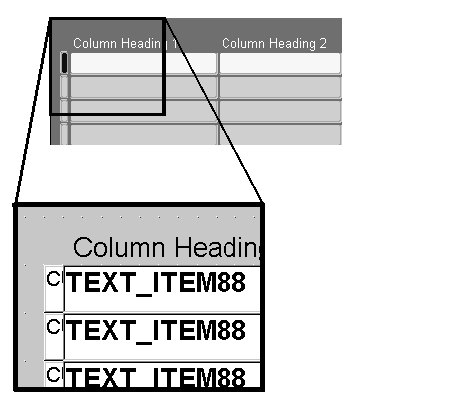
(OMS-73178) All multi-record blocks have an indicator to point out the current record. The indicator looks and behaves in the following ways (OMS-73079):
Width: 0.1" wide.
Position: Immediately to the left of the first column of the block with no blank space on either side of the indicator.
Color: Blue on the current row, and gray on all others.
Bevel: Raised
Clicking on it moves to the first item in the record.
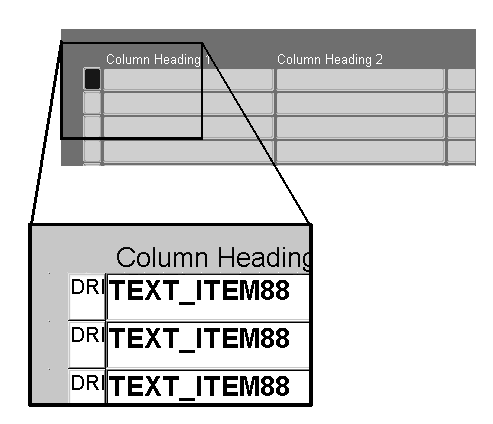
(OMS-73080) If the block supports a "drill-down" capability, then the indicator has the same characteristics as above, except for the following (OMS-73580):
Width: 0.2"
Clicking on the indicator should perform the appropriate "drill-down" function for that block.
If you are on a Combination block, drill-down takes you to the detail (single row) view of the record.
If it is not a Combination block, drill-down can go to any further details (the original transaction, for example), where it should autoquery those details.
In most cases, drill-down in a non-Combination block should take you to the same Detail block that you reach via the default button (if there is one).
If the drill-down cannot currently be performed, either a message must be displayed (the same as if the corresponding button were pressed), or it must issue a "beep" (if the corresponding button is disabled).
In both cases, single-clicking or double-clicking on the indicator should move the cursor to the first navigable field of the appropriate record.
For information on implementing the Current Record Indicator, see the Oracle Applications Developer's Guide.
Columns are generally stacked horizontally and aligned along their tops. (OMS-73180)
Multi-row blocks should display a minimum of three records, unless only a maximum of two records can ever exist.
Space may be left between columns where prompt sizes or region cosmetics require it. See the section Text for more information on cases where a field prompt is wider than the field.
If the window is wider than the multi-record block, then the multi-record block should be positioned on the left side of the window. (OMS-73280)
In cases where the maximum number of possible records is less than or equal to the number of rows shown in the window, QBE, View Find, and View Find All should all automatically bring up all possible rows. (OMS-73081)
In cases where the user must use the Find window to query records, QBE, View Find, and View Find All should all automatically bring up the Find window. (OMS-73082)
Combination blocks are hybrid formats, where fields are presented in both multi-record ("Summary") and single-record ("Detail") formats. The Summary and Detail formats are each presented in their own non-modal window. For general information on when Combination blocks should be used, refer to General Design and Layout.
For information on implementing Combination blocks, see the Oracle Applications Developer's Guide.
The Summary and Detail windows of a Combination block should behave as follows:
The Summary and Detail windows should have the same width. (OMS-73084)
The Detail window is positioned just below the title bar of the Summary window, with the left edges aligned. (OMS-73085)
Subsequent child windows are positioned cascaded relative to either the Summary or Detail window, depending on where the cursor is when the child window is invoked. (OMS-73086)
If the Detail window is opened directly from the menu without the Summary window, it will be positioned down slightly as if the Summary window were open, so that if the user subsequently accesses the summary window room is still available. (OMS-73087)
The user can close either the Summary or Detail window while leaving the other one up, and any child windows will remain open. If the user closes either the Summary or Detail window when the other is already closed, all child windows of that pair will close as well. If this is the top level pair, the whole form will close. (OMS-73088)
The Summary and Detail blocks of a Combination block should behave in the following manner:
The View menu contains a Summary/Detail command for the user to easily switch between the Summary and Detail windows. This command is enabled only for Combination blocks. (OMS-73089)
The Summary block has a current record indicator that supports drill-down, which moves the cursor to the Detail block for the current record. (OMS-73090)
Fields in both Summary and Detail format should allow updates. If that is not possible, only allow updates in the Detail format, reflecting these updates in the Summary display. (OMS-73590)
Selecting Find will open the Find window, and then will display the Summary view once rows are retrieved. The only exception to this occurs when the cursor was in the Detail window, and the Find only retrieves one record. In that case the cursor should remain in the Detail window. Closing the Find window will return the cursor to the block it was in previously. (OMS-73690)
Delete Record, QBE, or any other function that would normally move the cursor to the "first" item of the block leaves the cursor in the appropriate Summary or Detail window from which the function was invoked. (OMS-73091)
Changing to a different record in either block changes to that record in the other view as well. (OMS-73092)
Besides any product-specific buttons, the following buttons may also be coded on the Summary window (OMS-73592):
| New | Creates a new record. Adding a new row by pressing a "New" button will automatically bring the user to the Detail window. The button label may be qualified, such as "New Line," if necessary to clarify its intended function. |
| Open | Moves the cursor to the detail window. The "Open" button should always open to the detail level of the block that contains the button. For example, if the user has navigated to the line level of a Purchase Order and chooses the "Open" button in that window, then the details for the line should be displayed. |
Buttons on the Detail window may include additional actions not available from the Summary window.
Gateways offer the user flexible methods to locate, view, and operate on records. They are employed for all the major entities of a product, such as Purchase Orders, Sales Orders, Journals, and Quality Plans. The gateway is the first set of windows that a user sees when interacting with any of these entities. It is comprised of a Combination block and a Find window, with the following unique characteristics:
The summary block of a gateway is always a Folder block. (OMS-73093)
The Find window automatically appears when the gateway is opened. If, however, a default folder is defined for the block, and it is set to Autoquery, then the Find window does not appear. (OMS-73094)
A workbench is a gateway with sufficient functionality that the user will likely be able to accomplish much of their job from this form. It would typically be left open during a user's entire work session for repeated use.
The following picture shows the set of windows (Find, Summary, and Detail windows) associated with a gateway.
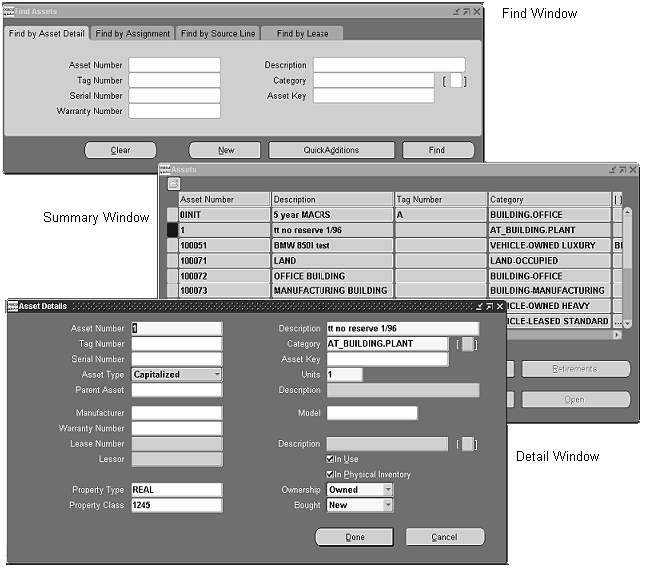
Note: The above picture is not intended to illustrate the actual position in which these windows initially open.
A Folder block is a block that allows the user to customize the set of columns and records displayed for a specific entity. It can be thought of as a "file cabinet" that holds all the records of a certain object, with each individual "Folder" being a specific subset of those records shown in a specific way. For example, if a developer provides a Folder block that shows "Requisitions," then a user could create a Folder called "Unapproved Requisitions" which only shows those requisitions with status "Unapproved," and displays the "Creation Date," "Preparer," and "Next Approver" fields. One or more Folder definitions can be saved per entity, such that screens can be designed appropriately for different tasks. Each Folder is, of course, restricted to data that the user is allowed to view based on the security rules of the product.
The Folder functions can be invoked from the Folder pull-down menu, the right-mouse menu, or the Folder Tool palette. A profile (Folders: Allow Customization) allows system administrators to prevent individual users from accessing all Folder tools other than Open. Following is a list of the Folder functions and their corresponding Folder Tool palette buttons (where applicable).
Note: Some Folder menu items do not function when you are in QBE mode.
| New | Creates a new Folder. The user must enter a new, unique (per entity and user) Folder name. |
| Open | Loads a previously defined Folder. A user can select from a list of his own Folders and any public Folders for the current entity. |
| Save | Saves the current Folder. If it has never been named, this function reverts to the "Save As" functionality. |
| Save As | Allows a user to save a Folder, specifying a name, whether it should autoquery upon loading, whether it should serve as the default for the user upon entry to this form, whether other users can use the same definition, and if the current query should be retained. Folder names must be unique per user. If a user modifies someone else's public Folder in any way, saving makes it a private definition. However, opening a public Folder, and saving it as the Default, with no other changes, merely saves the reference of the Folder as the private default. |
| Delete | Allows a user to delete any Folder for the current entity that they created. If another user is referencing the Folder as their default, that reference is deleted as well. |
| Show Field | Opens an LOV displaying fields that can be shown (and are not currently shown). Selecting a value adds the field after the current cursor position. |
| Hide Field | Removes the current field. The cursor moves to the field sequenced after the field that was just hidden. |
| Move Right | In multi-record blocks, swaps the current field with the one to its right. In single-record blocks, moves the current field one character cell to the right. |
| Move Left | In multi-record blocks, swaps the current field with the one to its left. In single-record blocks, moves the current field one character cell to the left. |
| Move Up | In single-record blocks, moves the current field one character cell up. |
| Move Down | In single-record blocks, moves the current field one character cell down. |
| Widen Field | Increases the width of the current field, up to a maximum size of 20 inches, in 0.2 inch increments. |
| Shrink Field | Decreases the width of the current field, to a minimum size of 0.3 inches, in 0.2 inch increments. |
| Change Prompt | Allows the user to alter the prompt of the current field. While in the Prompt modal window, Default allows quick recovery of the prompt initially specified by the developer. Prompts which start with "-" do not appear at runtime. This allows fields to have a prompt associated with them for selecting the field when showing a field, but the prompt is not displayed on the field itself. |
| Autosize All | Resizes displayed fields based on a sample of values for the field in the block, ensuring that no field is smaller than the width of its prompt (in a multi-row block). The number of records is determined by selecting one of the three options: 10, 50, or 100. |
| Sort Data... | Invokes a modal dialog that allows the user to specify the order and the fields by which to sort the data in the table. Sorting is limited to the first three columns only. |
| View Query | Allows the user to view the "where" clause of the Folder. |
| Reset Query | Clears the current "where" clause. |
| Folder Tools | Shows the Folder Tools palette. |
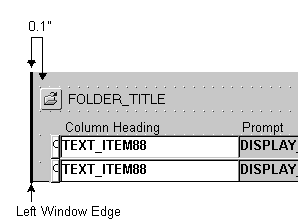
An Open Folder icon and the Folder title are displayed on their own row between the block title (if it exists) and the fields or regions of the Folder block itself. (OMS-73095)
The Open Folder icon is positioned 0.1" from the left edge of the window or Tab canvas. (OMS-73096)
The title is positioned immediately to the right of the Open Folder icon. (OMS-73097)
The Folder title is blank until the user creates a new Folder or opens an existing one. (OMS-73098)
Prompts for a multi-record folder block are drawn with a gray background and a raised bevel.
Prompts for a single row folder block look like typical prompts.
A developer may employ the Folder technology to present different layouts to the user, but not expose the Folder functions. In that case, the Folder menu remains disabled, and no Folder title or Open Folder icon is displayed.
In multi-record folder blocks, the following actions are supported by manipulating the prompt above each column:
A field can be resized by dragging the right-hand edge of the prompt.
Fields can be resequenced by dragging the prompt to a new location.
Clicking with the left mouse button on one of the first 3 columns sorts that column in Ascending then Descending order.
Clicking with the right mouse button opens the Change Prompt dialog.
A Find block is a block where users can only enter an already-existing primary key to view and maintain details (child records) of one specific master record. Find blocks are very similar to Find windows, except that the search criteria is limited and appears in the same window as the results, and the search is for details of a particular master record. For the situations that Find blocks address, a separate Find window is not appropriate.
Note: The term "Find block" in the Standards refers to the case discussed in this section and should not be confused with the block underlying a Find window.
The following standards apply to the appearance of a Find block:
It is displayed in the same window and above the detail records. (OMS-73099)
It contains one or more fields to specify an already-existing primary key or multi-part primary key. (OMS-73100)
It has a single button labeled "Find" located on the right side of the block. (OMS-73101)
It is separated from its detail records by a zero-height frame. (OMS-73102)
When the entity being found is not clear (for example, when one must enter a multi-part primary key in the Find block), the Find block should have a frame above it with a title like "Find Object" where the object being found is identified in singular. (OMS-73103)
When the user chooses the Find button or navigates to the next block after specifying the primary key information in the Find block, the detail records are immediately displayed in the Detail block. (OMS-73550)
When the user leaves the Find block and enters the Detail block without explicitly choosing Find or navigating to the next block, the information in the Find block should be checked and the details should be re-queried if the Find information has changed. This must be done because in a Find block, the Find information also serves as the only context for the details that are queried. (OMS-73551)
Note: This situation is different than the behavior of a separate find window.
Find blocks, like Find windows, allow multiple records, so that a user can easily make slight modifications to a prior search and run it again. The user can choose from previously entered Find criteria by navigating between records in the Find block. (OMS-73552)
Invoking the "Previous Block" command from within a Find block causes the message "At first block" to be displayed. (OMS-73553)
Normally it is desirable to show all blocks for an entity in a single window, if possible. When all the blocks cannot be shown at once, then "alternative blocks" can be employed.
Use the Tab control to show multiple blocks within the same window when they all cannot be rendered simultaneously. (OMS-73203)
Master-Detail relations describe how detail records behave as a result of changes to Master records. For more information on Master-Detail Characteristics, see the Oracle Applications Developer's Guide.
To indicate master-detail relations, and for general clarity, try to repeat the master block name in the Detail block title. For instance, use "Order Lines" rather than just "Lines." (OMS-73559)
Coordination between master and Detail blocks should follow these standards:
When a Detail block is in a different window than its master, and each window is non-modal, then the Detail block must provide a mechanism for the user to toggle between immediate and deferred coordination. This allows a user to keep a block visible, but control the performance cost of coordinating detail records when the master record is changed. (OMS-73104)
A coordination check box is drawn with no label or prompt, and is positioned as follows (OMS-73105):
In a tab region, the check box is drawn in the top row of the tab region and in the right corner of the region.
If coordination applies to the whole window, the check box is placed on the top line of the window, in the upper right corner, in the rightmost three character cells.
If coordination applies to all regions of a tab control, the check box is placed above the tabs of the tab control, aligned with the right edge of the tab.
If there is a frame separating the Detail block, and the coordination check box applies only to that block, then the coordination check box should be placed on the frame.
If there is a Folder title, and no frame, it is positioned on the Folder title line in the rightmost three character cells.
The coordination check box controls the coordination behavior as follows (OMS-73106):
When the check box is checked, coordination is immediate (that is, when the master record is changed, detail records are immediately queried).
When it is not checked, coordination is deferred (that is detail records are only queried upon entering the Detail block).
When the button that leads to the Detail block is pressed, query the child records regardless of whether the coordination check box is checked or not (if they have not been queried already).
Whenever the window containing the Detail block is opened, the relation coordination is set to the current value of the coordination check box.
Whenever the window containing the Detail block is closed, the relation coordination is always set to deferred, but the coordination check box value is left unchanged.
Checking the check box automatically queries the detail records. Unchecking the coordination check box, however, should not automatically clear the detail records.
Clear Form resets all coordination back to the initial value.
When the coordination check box is changed by the user, a message describing the new coordination status is shown on the message line.
When a Detail block is in a different window than its master, but the detail window is modal, the Detail block should only query upon navigation to the block. (OMS-73107)
When a Detail block is in the same window as its master, and both blocks are visible simultaneously, they should usually be immediately coordinated. (OMS-73108)
In the case where such a query can be very costly, allow such a query to be deferred until the cursor enters the block, or allow the user to set the block coordination (as described above). Violating this rule should be done with care - perhaps the two blocks really do not belong in the same window, or do not need to be visible at the same time.
When a Detail block is in the same window as its master, but both blocks are not visible simultaneously (as in alternative blocks), the Detail block should only query upon navigation to it. (OMS-73109)
A user cannot enter or query detail records until in the context of a master record. (OMS-73110)
The following are other things to keep in mind when implementing Master and Detail blocks in your forms:
The "topmost" master block of a form does not autoquery unless (OMS-73650):
only a very small number of records will be returned.
the query will be fast.
the user will most likely operate on one or more of the queried records.
it is a Folder block. Folder blocks may autoquery, but this is determined by each user as part of the Folder definition.
Do not code anything specific to windows being iconified, although iconifying a window that contains a master block may make it difficult to operate with a Detail block. (OMS-73651)
