The Test Builder enables you to create and manage tests either as topics within a course, or as courses in their own right. A test is a means of measuring a learner's performance, knowledge, and skills. Tests can be scored or not scored. For example, tests are scored and evaluations are not scored. When a test is scored, and a mastery score is specified, a learner passes or fails a test based on the results. Tests that are not scored can provide survey functionality.
Note: The Test Builder is an integral part of the application, and is available to all administrative users, assuming the Online Learning option is enabled for the application. No licence or separate software is required.
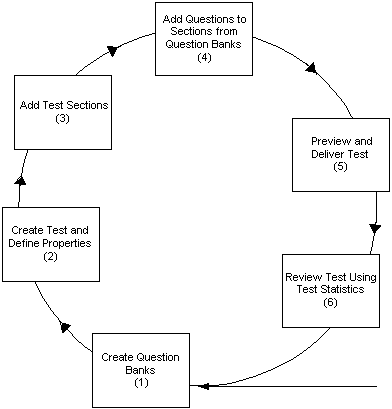
The test building process follows a cycle of tasks as illustrated below:
The Test Building Process
To use the Test Builder effectively, you must understand the following key concepts:
Before attempting to create and offer a test, first understand the tasks involved.
A question bank is a repository of questions and responses. Question banks help you to manage and reuse questions in multiple tests. At least one question bank must exist before you create a test.
After you have a created question bank and added the required questions, you can create a test and define the test properties.
Tests comprise test sections, that contain questions drawn from one or more question banks. You create test sections to organize the questions drawn from a question bank. A test must contain at least one test section and at least one question.
You can preview questions at different stages of test assembly. Delivering the test is the final step in the test building process. You can deliver a test either as a topic within a course or as a separate course.
Reviewing Test and Question Statistics
The Test Builder provides a number of statistical screens for you to analyze learners' performance and test results, either for the test or for individual questions.
Viewing Free Text Responses
If a test for a class includes free text questions, then you can view the responses using the Free Text Responses link on the Content tab for a test. You can search for a class and then view learners' response to the free text questions.
When you search for a class, OLM displays:
Classes to which an evaluation is added at the class level.
Classes to which a test or survey is attached at the offering level.
On the search results table, you can view information such as the learner name, class name, question text, and date and time of the response. You can click the View Response icon to view the question and response details.
Note: The Learner column displays the learner's name if the free text response is a part of test or survey. OLM does not display the learner's name if the free text response is part of an evaluation. To hide the learner's identity, by default OLM displays the asterisk instead of the learner's name. If required, the system administrator in your enterprise can display the names using the Personalization function.