You can link windows used to complete tasks in a task flow. Then, you can choose a button to bring up each window in turn without returning to the menu.
The first window in the task flow defines the context of the subsequent windows. For example, if the task flow begins with the People window, all subsequent information is entered for the person you enter or query in the People window.
You can include configured windows in task flows. For example, you might create a version of the People window that handles applicants only. You could then use this window in a recruitment task flow. Or you might configure a People Management template and add task flow buttons to provide access to other windows.
There are two methods you can use to create and maintain your task flows:
You can model your task flows using Oracle Workflow (version 2.0.3.8.1 or higher) then generate a task flow. This method of creating task flows has the advantage of using a diagrammer to help you design the sequence of windows.
Caution: Do not use apostrophes or "%" symbols in task flow names or task flow node names.
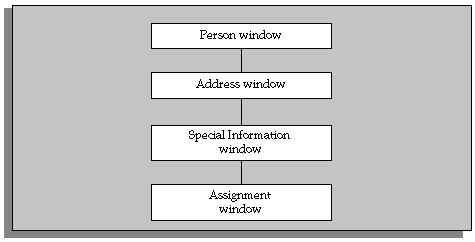
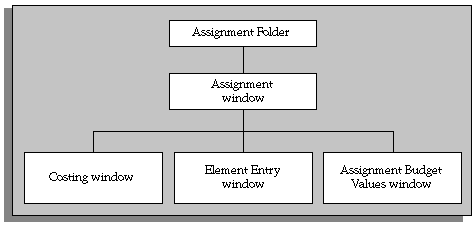
Task flows can follow a sequential or a branched structure, as shown in the following two figures. You can choose how many navigation options users have from each window in the task flow. You can also choose the labels that appear on the navigation buttons, and you can define access keys.
Sequential Task Flow
Branched Task Flow
Oracle HRMS supplies several predefined task flows that include all the windows that you can use in task flows. They are designed as a simple structure to use during implementation, not as a recommended structure for users.
Predefined task flows are translated into your base language when you install Oracle HRMS. However, if you install an additional language, you need to create new versions of your task flows in that language. You can then link these to the correct menu for the language.
When you install a new version of Oracle HRMS, any changes you have made to the standard task flows supplied by Oracle are removed.
Attention: If you have made any changes to standard task flows, you will need to recreate them in each new version of the software. It is therefore recommended that if you wish to make changes to task flows, you do so by copying a standard task flow and making changes to the copy.
You can transfer a task flow you have created using Forms or Workflow from one database to another; for example, to add new task flows you have created in a test database into your production database. You do this by saving the task flow from the first database to a file, then importing the file to the second database. See Transferring Task Flows.
When installing Oracle HRMS, you can install only global task flows and task flows specific to the legislation you have installed.
Note: This does not include US- and UK-specific task flows, which are installed with all legislations.
When defining a new task flow, you must specify that the task flow is global or that it is specific to a legislation you have installed.
Note: Task flows created by converting from Oracle Workflow are always global.
When downloading task flows, you can download only global task flows and task flows specific to the legislation(s) you have installed.