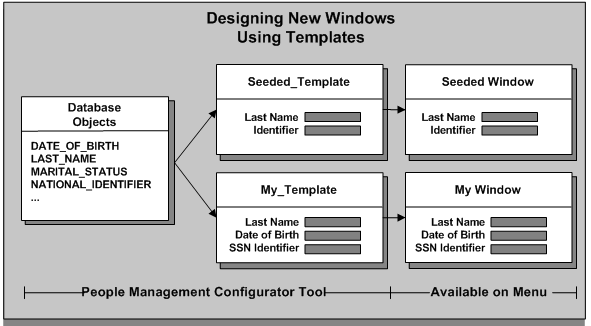
The predefined People Management templates have been designed to help you create windows that match your business processes. These templates were created from the People Management window using the People Management Configurator. The predefined template windows are available on the Navigator; you can use these without making changes. Alternatively, you can make copies of the predefined templates and modify them to create your own windows, or you can create entirely new templates.
For details of the predefined templates, see Predefined People Management Templates
The predefined templates have been designed for generic business processes, such as hiring a person or creating a new applicant. For example, when you go through the hiring process, you typically have to open lots of windows to complete the task. With a template window, all the data can be put together and grouped into logical sections using the tabbed regions.
When an applicant is hired, assignment information from the application is automatically entered on the employee assignment.
The People Management window contains all the personal and assignment information, such as LAST_NAME and VACANCY. You use the templates to control what the user can see by only including what you need.
See Fields on the People Management Window for a complete list of all the fields available for you to use when creating People Management templates.
A template can consist of a Find window, Summary window, and Maintenance window. You can modify each of these windows to suit your requirements. You can design as many templates as you require, targeted at different tasks or user groups. For example, for users who only need to review information, you design a template that provides a Summary window. For users who need to update information, you can provide a Maintenance window too.
When you have created a new template, you add it to the Navigator so that your users can access the new windows. For each template, you can set up which window is displayed first. For example, you can specify that choosing People Maintenance from the Navigator displays the Find window first to enable users to find a person. Then they can navigate to the Maintenance window by choosing the Show Details button.
The Find window can contain up to six tabs. One tab has been defined as the Advanced tab but you can use this for another purpose if you want.
The Summary window can contain up to ten tabs. One tab has been defined as the Checklist tab but you can use this for another purpose if you want.
The Maintenance window can contain up to ten tabs, including the Extra Information Types, and Special Information Types tabs. One tab has been defined as the Checklist tab but you can use this for another purpose if you want.
Using Templates to Design Process Based Windows
Some restrictions are made using the People Management Configurator tool, and others using CustomForm. For example, you use the People Management Configurator to determine the fields, buttons, tabs, and windows available. You can also restrict a template to the Employee, Applicant or Contingent Worker system person types using the People Management Configurator.
You can use CustomForm to:
Specify the user person types, special information types, and extra information types that users can view or enter
Specify the actions that users can perform, and the notifications they can send
Remove fields from the list available for searching on the Advanced Find tab
Restrict the types of person record users can create using the template: new applicants, employees, contingent workers, applications, employee assignments, or contingent worker assignments.
Attention: You must be careful to create consistent restrictions. For example, it would not be consistent to restrict a template to Applicants Only using the People Management Configurator, then add a CustomForm restriction that only allows users to enter new employees or employee assignments.
Templates provide the following advantages for your users:
They can find information using the basic and advanced queries on the configurable Find window. You specify which fields appear in this window and in what order.
They can save result sets to folders for repeated use in future work sessions.
They can work more quickly if you use the templates to:
Hide information they do not need
Provide defaults where possible
Position fields in logical groups and on tabbed regions
They can use the checklists to track the status of actions that you have defined as relevant to the template.
Using templates is only one part of making Oracle HRMS specific to your enterprise. You can also sequence windows together in task flows. You can define a Maintenance window to be the top window and provide buttons for navigating directly to other windows while the Maintenance window remains in the background.
The Summary window of the people management templates includes the Data Organizer, which helps you find and organize information about people and assignments.
The Data Organizer can display people organized alphabetically by name, organization, or job. When you expand a person's node in the Data Organizer, you see a list of their employee, applicant, and contingent worker assignments. Assignments do not have names, so you can choose what information appears in this list to help users identify the assignment they want to work with.
By default, assignments are identified as <job>.<organization>, such as Senior Manager.Engineering. However, you can choose any other database items to display in the Data Organizer. The same information appears in the Assignment field that you can display on the Maintenance window.
If you want to override the default, write a formula to return the text to be displayed. See: Writing Formulas for Templates
The templates enable you to default values in as many fields as you want. You can make data entry easier for users by defaulting items that frequently take the same value. Where the value is constant, you might set a default and then hide the field from users.
When an applicant is hired, assignment information from the application is automatically entered on the employee assignment.
When you set up information for your implementation in Oracle HRMS windows, you can specify that values in some fields are automatically defaulted by the system when the user selects a value in another field. For example, you can set up default information for business groups in the Organization window, so that selecting a business group populates the fields for Location, Working Hours, Frequency, Start Time, and End Time. You can also specify default information in many fields for a position or vacancy in the Positions window and the Requisition and Vacancy window.
If you set defaults for these fields using People Management Configurator, they will be overridden by the automatic defaults set up in these windows.
Some fields are dependent on other fields, so that when the user enters a value in the main field, they must always enter a value in the dependent field. For example, if the user enters a value for Notice Period, they must enter or select a value for Notice Period Units.
You cannot set default values in the dependent fields.
Information on the fields that are dependent on other fields is included in the list of Fields on the People Management Window