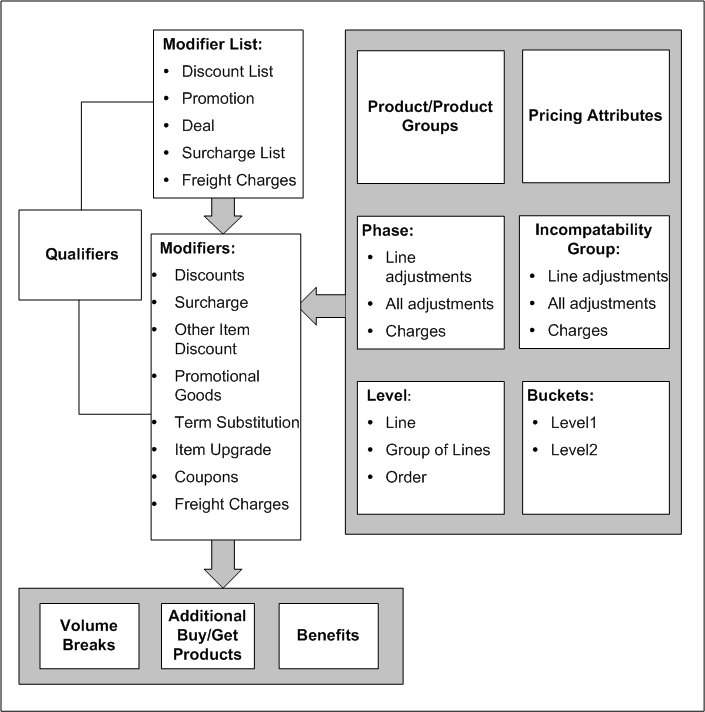
Using modifiers, you can set up price adjustments, benefits, freight and special charges, and promotional limits to control spending or usage. You can define simple discounts and surcharges as well as more advanced deals and promotions. The following list describes the main modifier concepts and related entities:
Modifier lists contain one or more modifiers. Modifiers have list level and line level components. Each list level must have one or more lines associated with it.
By defining qualifiers at the list and line levels, you define a customer's eligibility for the modifier.
Control features that influence modifiers are products and product groups, pricing attributes, phases, incompatibility groups, levels, and buckets.
The use of modifiers can result in volume breaks, additional buy/get products, and benefits.
The following diagram provides an overview of modifiers and related concepts, such as modifiers, modifier lists, and qualifiers:
Modifier Overview
Using modifier lists, you can create groupings of price adjustments, benefits, and freight and special charges that you offer and report together to meet various business needs. At the header level of the modifier list, you define criteria that is common to the modifier lines.
Create modifier lines for a modifier list to define the type of price adjustments, benefits, or freight and special charges that the pricing engine applies to pricing requests.
The adjustment method (also known as the application method in the forms-based UI) determines how the modifier applies the price adjustment. You can select from the following adjustment methods:
Percent: Creates a percentage price adjustment on each unit based on the percentage entered in the Value field. For example, to apply a 10 percent discount, select percent as the adjustment method.
Amount: Creates a fixed price adjustment on each unit using the amount entered in the Value field.
Lumpsum: Creates a price adjustment for this lump sum amount on the entire line.
New price: Overrides the selling price of this item and makes the new price (defined in the Value field) the new selling price. Creates a price adjustment for the difference between the list price and the new price.
The following table shows examples of how the pricing engine uses the adjustment method to calculate the extended selling price of an order line:
| List Price | Item | Quantity Ordered | Adjustment Method | Value | Price Adjustment | Extended Selling Price |
|---|---|---|---|---|---|---|
| 10 | Item A | 200 | Amount | 5 | 5 per unit | 1,000 |
| 10 | Item A | 200 | Percent | 5 | 5% per unit | 1,900 |
| 10 | Item A | 200 | New Price | 5 | 5 | 1,000 |
| 10 | Item A | 200 | Lumpsum | 5 | 5 off for the entire line | 1,995 |
The adjustment method for a modifier line depends on the level selected for that modifier line: Order, Line, or Group of Lines. The following tables show the adjustment methods available for each level: Order Level, Line Level, or Group of Lines. The Formula column shows if you can use a formula for the value of the modifier:
| Level | Modifier Type | Adjustment Method Available | Use with Formula? |
|---|---|---|---|
| Order Level | Discount | Percent | Yes |
| Order Level | Surcharge | Percent | Yes |
| Order Level | Freight/Special Charges | Lumpsum | Yes |
| Line Level | Discount | Percent, Amount, New Price, or Lumpsum | Yes |
| Line Level | Surcharge | Percent, Amount, New Price, or Lumpsum | Yes |
| Line Level | Freight/Special Charges | Percent, Amount, Lumpsum | Yes |
| Line Level | Other Item Discount (Get) | Percent, Amount, New Price, or Lumpsum | No |
| Line Level | Price Break | Percent, Amount, New Price, or Lumpsum | Yes |
| Line Level | Promotional Good (Get) | Percent, Amount, New Price, or Lumpsum | No |
| Group of Lines Level | Discount | Percent, Amount, New Price, or Lumpsum | Yes |
| Group of Lines Level | Surcharge | Percent, Amount, New Price, or Lumpsum | Yes |
| Group of Lines Level | Other Item Discount (Get) | Percent, Amount, New Price, or Lumpsum | No |
| Group of Lines Level | Price Break | Percent, Amount, New Price, or Lumpsum | Yes |
| Group of Lines Level | Promotional Good (Get) | Percent, Amount, New Price, or Lumpsum | No |
When Lumpsum is selected as the adjustment method for a modifier line, the pricing engine creates a price adjustment for the defined lumpsum amount. The lumpsum can be based on group quantity (sum of item quantities) or an item amount (a monetary amount).
Two examples are provided to compare how the lumpsum amount is calculated if either 1) Group Quantity or 2) Item Amount is selected.
The following Discount list modifier is used in each example.
| Level | Modifier Type (line level) | Product Attribute | Product Attribute Value | Value | Adjustment Method |
|---|---|---|---|---|---|
| Group of Lines | Discount | All Items | All | 1000 | Lumpsum |
The following example demonstrates how the adjustment amount is calculated when the Lumpsum modifier is applied against the group quantity of an order:
| Line | Item | Quantity | Price | Adjustment Amount Calculated when Lumpsum Modifier Applied |
|---|---|---|---|---|
| 1 | AS54888 | 10 | $80 | $20 * 10 qty |
| 2 | AS54999 | 40 | $20 | $20 * 40 qty |
The pricing engine calculates the adjustment amount as follows:
The pricing engine calculates the Group Quantity value, which is the sum of all item quantity lines. Therefore, the Group value is 50 (10 + 40).
Group value for Line 1: 50
Group value for Line 2: 50
To obtain the adjusted amount, the value (from the Value field of the modifier - in this case, 1,000) is divided by the group value (50):
Line 1: 1,000/50 = 20
Line 2: 1,000/50 = 20
The adjustment amount per quantity is $20. The total adjusted amount for the entire order is $1,000: Line 1 is $200, and Line 2 is $800.
The following example demonstrates how an adjustment for lumpsum modifier is calculated based on the item amount (the monetary amount for each item). Suppose the Lumpsum modifier is applied against the following items on a sample sales order:
| Line | Item | Quantity | Price | Adjustment Amount |
|---|---|---|---|---|
| 1 | AS54888 | 10 | $80 | 50 |
| 2 | AS54999 | 40 | $20 | 12.5 |
The engine calculates the lumpsum based on item amount as follows: value divided (/) by group value:
Group value is calculated as follows:
Group value = Sum of all lines' unit price * quantity/unit price per line:
Total group value= $80*10 + $20*40 = 1600
Group value for Line 1 = 1600/80 = 20
Group value for Line 2 = 1600/20 = 80
To obtain the adjusted amount per unit, the value (from the Value field of the modifier, in this case, 1,000) is divided by the group value for each line:
Line 1: 1,000/20 = 50
Line 2: 1,000/80 = 12.5
Therefore, the adjustment amount for the first line is 50 and for the second line 80.
A Discount or Surcharge modifier can be used to adjust the final unit selling price, regardless of whether the item list price is a positive or negative value.
Example 1: Positive priced itemIf a product is $100 and the customer gets a 40 percent discount, then the customer gets a $40 discount, which means the price would be $60.
The following calculations are used to get this result:
List price * modifier percent = line discount amount
List price - line discount amount = line price
Example 2: Negative priced itemIf a product is <-$100> and the customer gets a 40 percent discount, then the customer gets a <-$40> discount, which results in a price of <-$60>.
Note: The brackets (<>) indicate a negative price.
The following calculations are used to get this result:
<list price> * modifier percent = <line discount amount>
<list price> - <line discount amount> = <list price> + line discount amount = <line price>
Example 3: Surcharge with negative-priced itemsThe following example shows the results when a Surcharge modifier is applied to a price list line with a negative price:
Create a simple modifier (ABC-MN) with type = Surcharge of 10 percent.
Create a price list line (ABC-N) with a value of <-$100>.
Enter a sales order with price list ABC-N and the item of the price list ABC-N.
Save the order.
The surcharge is applied, and the unit selling price is <$-110.00>.
When a customer is eligible for more than one modifier, you can use incompatibility processing to determine which of the modifiers the pricing engine should select and apply to an order or order line. For more information, see Changing Modifier Incompatibility.
When setting up a modifier, you can assign a modifier line to a particular bucket, such as Bucket 1, 2, or 3, to define cascading price adjustments. This setup controls how discounts and other benefits are calculated.
For manual modifiers, the modifier adjustment is not applied automatically. Rather, you must manually select the adjustment to be applied to an order line. The following modifier types can be manual:
Discounts
Freight and special charges
Price breaks
Surcharges
Manual modifiers can also be used with price break lines. You can set manual modifiers at the order, line, and group of lines levels, and can override them.
Pricing Buckets with Manual ModifiersPricing buckets can be used with manual modifiers at the line or group of line level for the discounts, surcharges, freight and special charges, and price break modifiers. You can use this feature if the profile option QP: Allow Buckets for Manual Modifiers is set to Yes.
Once created, the manual modifier can be selected from the View Adjustments window in Order Management or the Price Adjustments window in Oracle Quoting. If a manual modifier is applied in an earlier bucket, then all subsequent adjustments will be recalculated. Alternately, when you overtype the selling price on the order line in Order Management, you can only apply manual adjustments in the null bucket. See the Oracle Order Management User's Guide, Pricing chapter and the Oracle Quoting User's Guide for more information on using manual modifiers.
Events are points in the process flow when the calling application sends a pricing request to the pricing engine (similar to a workflow event). The information that the pricing engine returns, for example, base prices, price adjustments, promotions, or freight charges, depends on the pricing phases of the event.
For example, if you need to price sales orders at shipment, use the Reprice Line event and insert the Reprice Line workflow activity into the order process workflow to invoke the repricing. The pricing engine uses the price list and modifiers that are in effect at order entry to meet booking requirements such as credit check.
You can create monetary and non-monetary accruals. For example, a customer accrues 10 airline frequent flyer credits for each item they purchase. The pricing engine uses the accruals in price calculations and passes them to the calling application.
Accruals:
Do not affect the selling price of an order line.
Do not appear as chargeable items on invoices.
Create an adjustment record in the database.
You can:
Assign expiration dates to accruals.
Mark accruals as redeemed.
Assign monetary accruals to buckets. Since accruals do not affect the selling price of an order line, the pricing engine does not include them in bucket calculations. However, it uses bucket numbers to determine the price from which to calculate the accrual value.
The following table shows how accruals are calculated using buckets. In this table:
The Price Adjustment column shows the value of each modifier.
The Bucket Subtotal column shows the total value of all modifiers for the bucket.
The Selling Price column shows the price at the beginning of the calculation and after the application of each bucket subtotal.
The value Null in a cell means that the cell has no value; the value Null Bucket means that the modifier is grouped in the null bucket:
| Bucket | Modifier | Price Adjustment | Bucket Subtotal | Selling Price |
|---|---|---|---|---|
| Null | Null | Null | Null | 100.00 |
| Null | Null | Null | Null | Null |
| 1 | Null | Null | (7.00) | 93.00 |
| 2 | Null | Null | (5.00) | 88.00 |
| 3 | Null | Null | (6.80) | 81.20 |
| Null Bucket | Null | Null | (15.00) | 66.20 |
| Null | Null | Null | Null | Null |
| 1 | 10% accrual | (10.00) | Null | Null |
| 1 | 5% accrual | (5.00) | Null | Null |
| 2 | 10% accrual | (9.30) | Null | Null |
The following is an example of a setup for a non-monetary accrual.
If an accrual conversion rate is used, then the value equals the monetary value of the points. The value in the Accrual Value field is calculated using the Benefit Quantity value * the Accrual Conversion Rate value:
5 * 0.5 = 2.5
| Field | Value |
|---|---|
| Volume Type | Item Quantity |
| Break Type | Recurring |
| Operator | Between |
| UOM | EA |
| Value From | 2 |
| Value to | 99999999 |
| Adjustment Method | Lumpsum |
| Accrual Value | 2.5 |
| Benefit Quantity | 5 |
| Benefit UOM | PN (for Points) |
| Accrual Conversion Rate | 0.5 |
When qualifiers are assigned to qualifier groups, all the qualifiers in the qualifier group are attached to the modifier. Before you attach multiple qualifier groups, you must indicate how the process should coordinate the grouping numbers.
You can provide extra benefits to customers after they place a certain amount of business with you. The cross order volume feature allows you to create modifiers that are qualified across an accumulation of orders and applied when a customer meets certain volume levels. It accumulates and sums order amount, item quantity, and item amount across the orders of each customer.
