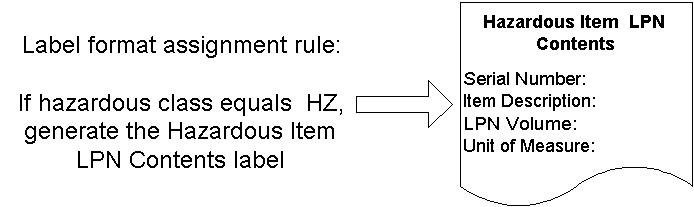
When you define label formats and sets, you are setting up the data fields to include on a particular label. You can use system-seeded fields or create custom fields to include on a label. The following figure provides an example of the data that might appear on a small hazardous items LPN content label. To define this label, you set up the following label fields in the system: serial number, item description, LPN volume, and unit of measure.
When you create a label set, you can associate multiple label formats of the same label type together. When you select the label set for printing, then the system prints all of the formats within the label set. You can create label sets for the following label types: LPN, LPN content, material, and serial.
Before you can specify label generation points and construct label format rules, you must define label formats and sets. You can use label sets to print multiple label formats of the same label type. You define labels in the Define Label Field Variables window.
Navigate to the Define Label Formats and Sets window.
In the Label Type field, use the list of values to select the label type for which you want to define label formats.
Select the entity type. If you select format, you can create a label format. If you select Set, then you can create a label set.
In the Label Formats region, Name field, enter a name for the label.
This name should be the name that is recognized by the third-party printing software.
Enter an optional description to describe the label format.
In the Disable Date field, enter an optional date on which this label format can no longer be used.
Select the Default Label check box to identify that this label format will be used as the default label type if the system cannot find a rule that determines the label format.
Note: You can specify only one label format as the default label.
Save your work.
Note: You must disable printer assignments for label formats before you can delete individual label formats.
Click Label Fields to open the Define Label Field Variables window, or click Define Sets to define sets to open the Label Sets window.
These instructions assume you defined a label format and that you clicked the Label Fields and Variables button.
Note: You cannot print labels for which you do not define label fields.
In the Label Fields region, Field Name field, use the list of values to select the data element that represents the field on the label.
The label type that you selected in the Define Label Formats window determines the list of values for this field.
Note: Custom label fields that you created also appear in this list. A value of Yes in the Custom SQL column indicates the field is a custom SQL field.
In the Field Variable Name field, enter a unique text string that will be used as a variable to represent the data field on the label format.
Enter an optional description for the field variable name.
If you selected EPC as the field name, select an EPC generation rule from the list of values.
If you entered an EPC generation rule, select the Regenerate EPC checkbox to always generate a new EPC for this label type. The new EPC replaces all cross-reference associations. If you do not select the Regenerate EPC check box, then the system checks for a previously generated EPC. If found, the system uses that EPC. If an EPC does not exist, the system uses the current EPC rule, and generates a new EPC.
Select a filter value for the EPC generation rule.
Repeat steps 1 through 3 to enter additional label fields.
Save your work.
To add label formats to a set you select from previously defined label formats. When you print the label set, the system prints all of the labels assigned to the set. You can add a label format to a set more than once. If you do so, the label prints more than once.
