
The Invoice Approval Workflow routes invoices to designated individuals for approval. This workflow uses the approval rules that you define in Oracle Approvals Management (AME) to determine if an invoice requires approval. If the entire invoice (document) or invoice lines require approval then the workflow routes the invoice according to the ordered list of approvers for approval. For more detailed information on the Invoice Approval Workflow, see: Invoice Approval Workflow Overview.
This document describes the unmodified workflow program.
The workflow begins by finding the first approver on the ordered list of approvers. If the invoice lines or entire invoice require no approvers to approve them, then the invoice's approval status for all levels of the invoice is set to Not Required and the workflow program ends.
If an invoice line has a first approver, then the workflow program sends an invoice approval request to the approver's e-mail or Oracle Workflow Notifications Worklist web page (or both). The workflow process groups invoice lines by approver and sends one notification to each approver requesting approval for a line or set of lines.
If that approver approves the invoice line or lines, the workflow program then looks for the next approver on the ordered list. If there is another approver, the workflow requests approval from that person. The workflow continues processing invoice lines until all persons on the ordered list approve or reject their invoice lines.
Note: During invoice line approval, approvers can initiate a negotiation process for non-PO matched invoices. Once they complete the negotiation process, the approver can approve or reject the invoice line.
If an approver does not respond within the specified time period, the workflow removes the original notification from the approver's Notifications Worklist and sends a reminder notification to the approver. If the approver still does not respond, then the workflow removes the reminder notification from that approver's Notifications Worklist and sends that person's manager an escalation notification.
Lastly, if no response is received for the escalation notice and a time out has occurred, the system applies a new set of rules defined in AME. Those rules can consist of automatic approval or rejection of the line, or approval by a new set of approvers.
Whenever an invoice line is approved or rejected, Payables updates the approval record of the invoice line, which you can review in the Invoice Lines Approval History window or the Invoice Approval History Status Report. See: Invoice Approval History Window Reference, and Invoice Approval Status Report.
Once all invoice lines are approved, the entire invoice (document) is subject to document level approval. The workflow repeats steps 2 through 5 for the entire invoice. One exception is the system updates the Invoice Approval History window once the entire invoice is approved or rejected. See: Invoice Approval History Window Reference.
The system updates the appropriate invoice approval status when the approver approves or rejects the invoice line or entire invoice.
An approver can delegate approval requests, approval reminders, and escalated approval requests. If a notification is delegated to an approver outside the approval chain, the system continues with the original approval chain. For example, the approval chain consists of approvers A > B > C. Approver A delegates to approver X. Once approver X approves the invoice, the system notifies approver B. If the delegated approver does not respond within the time you specify, the system sends a reminder to the delegated approver. If the delegated approver still does not respond, the system rejects the invoice approval and does not escalate it. The Invoice History Approval and Invoice Lines Approval History windows track the approval process, including the delegated approvers' actions.
You can initiate the Invoice Approval Workflow Program in the following ways:
Schedule regular submission of the Invoice Approval Workflow concurrent program
Initiate the Invoice Approval Workflow Program from the Submit Request window
Manually initiate the workflow by selecting one or more invoices in the Invoices window and then from the Invoice Actions window selecting Initiate Approval
Note: Invoice approval workflow is required for non-PO invoices created using the iSupplier Portal or the Payables Request Responsibility. The system initiates the approval process automatically when the invoices are submitted.
Install and set up Oracle Approvals Management (AME).
In AME, you define the rules that the system uses to determine who the appropriate approvers are for an invoice or invoice line.
If you use HR hierarchies to generate your lists of approvers in AME, then you need to provide logic so AME can identify the starting approver. You provide this logic by writing a dynamic usage query for the Transaction Requestor ID attribute owned by AME. Your logic can identify a starting approver by using any system data such as project, descriptive flexfield, or requester on purchase order. For example, if you want your starting approver to be the person who requested a purchase order for an item, then your logic can derive that person's personid from the purchase order to which the distribution is matched. For information on defining rules in AME, see: Oracle Approvals Management User Guide.
Install the Oracle Workflow Builder client component program if you want to modify the Invoice Approval Workflow. For more information on workflow installations, see: Setting Up Oracle Workflow.
Set up approvers to receive notifications. You can set up Oracle Workflow Notification Mailer so the Invoice Approval Workflow Program can use e-mail, and your system administrator can grant approvers access to view invoice approval notifications from the Oracle Workflow Notification Worklist web page. For more information see: Setting Up Oracle Workflow.
Complete additional Oracle Workflow setup steps. Specify the timeout value, the time period in which an approver needs to respond before sending a reminder notification or escalating the request to the approver's manager. For more information, see: Setting Up Oracle Workflow.
(Optional) Modify the Invoice Approval Workflow. For example, you can modify the message text that appears on your notifications. Also, the Exclude PO Matched Invoices rule is disabled by default, and you might want to enable it. See: Setting Up Oracle Workflow.
Consider one of the following modifications to handle cancelled invoices.
In Oracle Workflow, modify the predefined workflow notifications to show the invoice status.
In Oracle Approvals Management, set an AME rule to remove invoices from the approver's list when the status becomes Cancelled.
Set the Use Invoice Approval Workflow, Allow Force Approval, and Approval Processing Sequence Payables options. See: Invoice Payables Options.
Set up a designated person who receives notification of workflow errors through the Oracle Workflow Default Error Process. We recommend that the person who receives AME error notifications should also receive Oracle Workflow process error notifications. See: Setting Up Oracle Workflow.
(Optional) In the Submit Request window, set up Invoice Approval Workflow to run regularly. See: To schedule automatic submission of the Invoice Approval Workflow Program.
Ensure that the seeded agent listener service component named Workflow Deferred Agent Listener, provided by Oracle Workflow, is running for the WF_DEFERRED agent. This agent listener performs deferred processing including launching the Invoice Approval Workflow for all invoices with an approval status of Initiated. Use Oracle Applications Manager to schedule and manage the Workflow Deferred Agent Listener. For more information, please refer to Oracle Applications Manager online help.
(Optional) Set up the Invoice Approval History Status report to run nightly to report on rejected invoices. See: Invoice Approval Status Report.
Other Sources
Oracle Workflow Developer's Guide
This section provides overviews of the workflow approval flow components, including:
Invoice approval main process.
Invoice lines approval process.
Invoice approval process.
The following Invoice Approval Main workflow process diagram lists the display name of each activity or process.
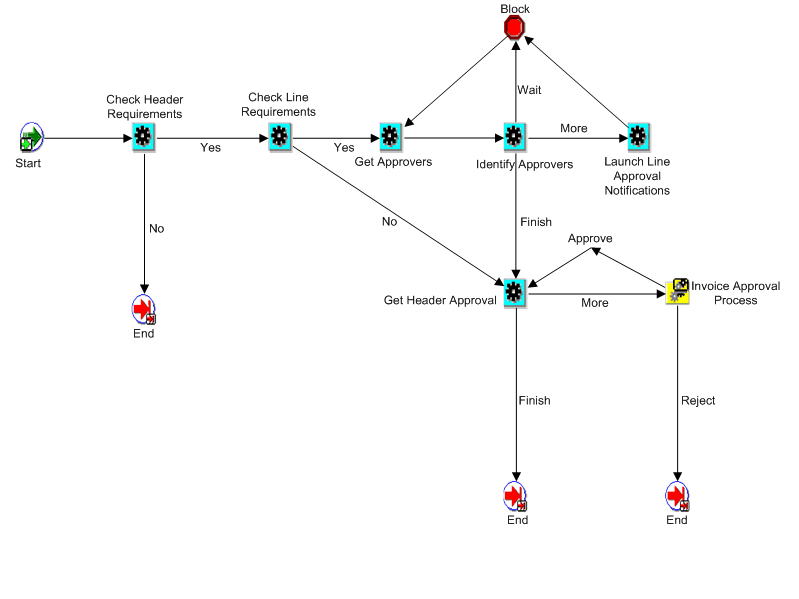
Invoice approval rules are applied at the header level, the line level, or both depending how you set up your approval rules in AME. During the invoice approval main process flow, the system:
Checks header requirements.
AME is queried to determine if there are any header level production rules. The production rules can be either No Approval Required or Invoice Not Ready. In either case, the system records the status in the history table and further processing stops if either case is true.
Checks line requirements.
AME is queried to determine if there are any line level production rules. This is done for all the lines belonging to the invoice. If any or all of the lines do not require approval, the system sets their approval status as Approval Not Required and inserts a record into the history table.
Gets approvers.
AME is queried to determine if there are any approvers for whom notifications have not been sent. If there are, the system inserts details about the approver in the AP_APINV_APPROVERS table. The information is accessed later by the Launch Approval process.
Identifies approvers.
The system identifies approvers and returns a finished status if all approvals are completed, a more status if there are approvals that need to be sent, or a wait status if neither situation exists. The identify approvers procedure contains the logic to track the notifications sent with approval pending and notifications that need to be sent.
Launches line approval notifications.
The system queries AP_APINV_APPROVERS and groups by approvers (so that each approver does not receive duplicate notifications for different lines), and launches the Line Approval process.
Gets header approver.
The system queries the AME for invoice header level approvers. If there are no further approvers, and previously there was at least one approver, the system sets the invoice approval status as Workflow Approved. If there are no approvers, and previously there were no approvers, then the system sets the invoice approval status as Manually Approved. If there are approvers returned by AME, the system sets internal attributes, which the Invoice Approval process uses.
Note: If the invoice is approved, there is logic to convert iSupplier Portal invoice requests into regular invoices.
Proceeds to the Invoice Approval process.
The following Invoice Lines Approval workflow process diagram lists the display name of each activity or process.
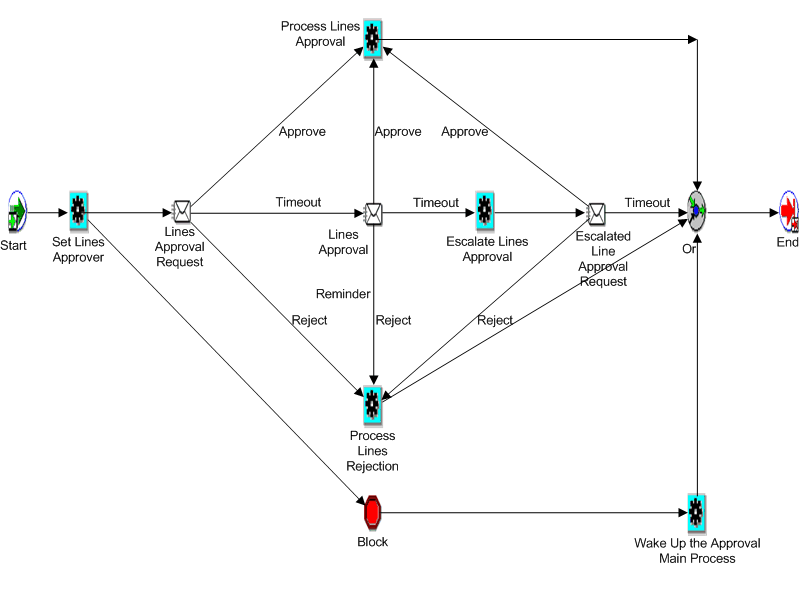
During the Invoice Lines Approval process, main points to consider are:
The approver can either Approve, Reject, or Request Information in the notification.
If the approver fails to respond, the system sends an escalation notification to the approver's supervisor, which is set up in Human Resources.
Whenever the workflow reaches a logical conclusion, such as Process Lines Approval, Process Lines Rejection, or the Block is woken up by a Negotiation subprocess, the system wakes up the Approval Main process and goes to the Get Approvers step.
The following Invoice Approval workflow process diagram lists the display name of each activity or process.
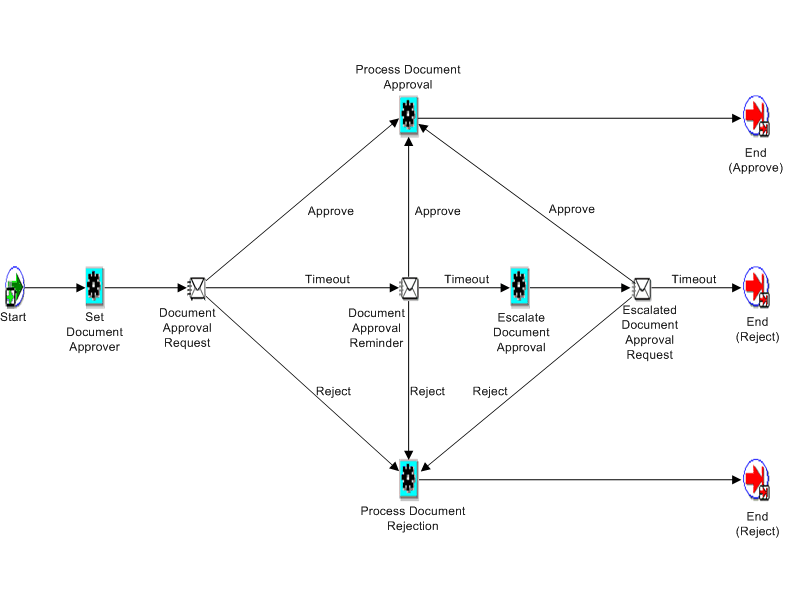
During the Invoice Approval process, main points to consider are:
The approver can either Approve, Reject, or Request Information in the notification.
If the approver fails to respond, the system sends an escalation notification to the approver's supervisor, which is set up in Human Resources.
The Invoice Approval process ends in approval statuses of Approve or Reject.
This status is used in the Approval Main process to either continue or stop the workflow process. For example, the approval process stops at the first rejection.
This section provides an overview of the Negotiation during invoice lines approval workflow components.
The following Negotiation workflow subprocess diagram lists the display name of each activity or process.
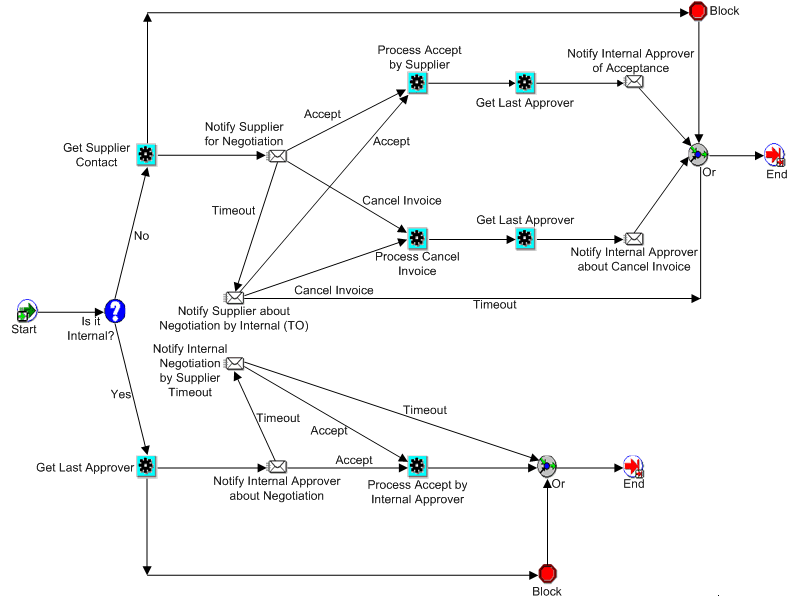
During the Negotiation subprocess, main points to consider are:
Negotiation from lines approval is possible only for non-PO matched invoices.
The system chooses the supplier in the Negotiation page according to the supplier contacts, supplier site, and supplier ID relevant to the invoice.
The Negotiation subprocess is a back and forth process between the internal approver and the supplier until one of them accepts the invoice or the supplier cancels the invoice.
When a new Negotiation subprocess is started, the old subprocess is closed by waking up the blocked branch.
The system enforces functional security when the supplier cancels an invoice.
The user assigned to the supplier must have access to the cancel invoice function.