Define grouping rules that AutoInvoice will use to group revenue and credit transactions into invoices, debit memos, and credit memos. Grouping rules specify attributes that must be identical for lines to appear on the same transaction.
Grouping rules include mandatory attributes which are always included in all grouping rules, and optional attributes which may be included in a grouping rule. Optional attributes may be added to the mandatory attributes to create new grouping rules. To be included in a group a transaction must always match on all of the mandatory attributes as well as on all of the optional attributes included in a grouping rule. For complete lists of the mandatory attributes and the optional attributes see the section titled "Using Grouping Rules to Create Transactions" in the Transactions chapter. All attributes of the Transaction Flexfield are optional within a grouping rule, and you can assign these attributes as optional grouping characteristics in the Grouping Rules window.
Note: The Grouping Rules window only displays the optional attributes included in a grouping rule. This window does not display any mandatory grouping attributes. The mandatory attributes are the same for all grouping rules. Use the Ordering and Grouping Rules Listing report to view all of the mandatory and optional attributes assigned to your grouping rules. See: Ordering and Grouping Rules Listing.
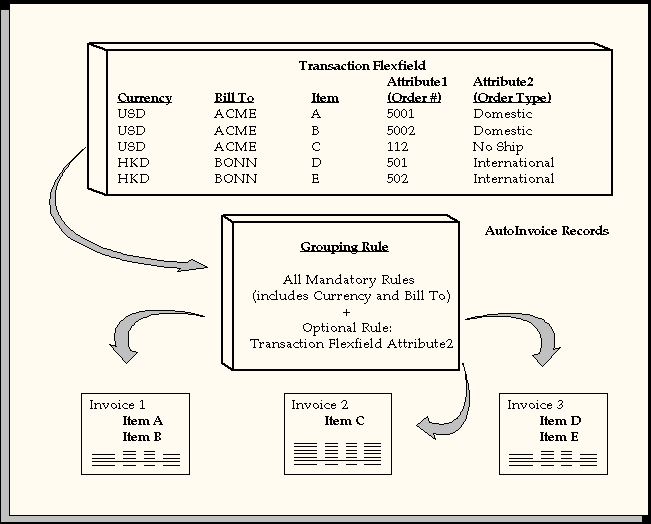
In the diagram below, the grouping rule specifies that to appear on the same invoice items must match on all of the mandatory attributes, for example currency (CURRENCY_CODE) and bill-to address (ORIG_SYSTEM_BILL_ADDRESS_ID) and must also match on the optional attribute of order type (SALES_ORDER_SOURCE). For example, in the diagram, assume that all mandatory attributes match other than currency and bill-to address. Items A and B share the same currency and order type, so they appear on the same invoice (Invoice 1). Item C has the same currency as A and B, but it has a different order type, so it appears on its own invoice (Invoice 2). Items D and E share the same currency and Order Type, so they appear on the same invoice (Invoice 3).
Using Grouping Rules
For a text description of this graphic, see Text Description of the Using Grouping Rules Graphic.
AutoInvoice uses the following hierarchy to determine which grouping rule to use for a transaction line:
1) The grouping rule specified in the Transaction Sources window for the batch source of the transaction line
2) The grouping rule specified in the Customer Profile Classes window for the bill-to site use of the transaction line
3) The grouping rule specified in the Customer Profile Classes window for the bill-to customer of the transaction line
4) If you do not specify a rule in either the Transaction Sources or Customer Profile Classes window, AutoInvoice uses the default grouping rule specified in the System Options window. See: Defining Receivables System Options.
Receivables provides the DEFAULT grouping rule which contains all of the mandatory attributes. If you upgrade from a previous version of Receivables, the DEFAULT grouping rule initially becomes your default grouping rule. If you use the DEFAULT rule to create transactions, Receivables does not require that you define any additional grouping rules. You can add optional attributes to the DEFAULT grouping rule to create new grouping rules. You cannot delete any mandatory attributes from a grouping rule.
Attention: If you are doing a fresh install of Receivables, you must enter a default grouping rule in the System Options window. You can enter the grouping rule that Receivables provides or one that you create.
Receivables lets you assign an invoice line ordering rule to each of your grouping rules. AutoInvoice uses the invoice line ordering rule to order your transaction lines when grouping revenue and credit transactions into invoices, debit memos, and credit memos. See: AutoInvoice Line Ordering Rules.
Note: You cannot view the required grouping on transaction attributes from the Grouping Rules window. Use the Ordering and Grouping Rules Listing report to view all grouping on transaction attributes that are assigned to your grouping rules. See: Ordering and Grouping Rules Listing Report.
Prerequisites
Navigate to the Grouping Rules window.
Enter a Name for this grouping rule.
Enter a Description for this grouping rule (optional).
Enter the invoice line ordering rule for this grouping rule (optional). The invoice line ordering rule tells AutoInvoice how to order transaction lines within this grouping rule.
Enter a range of Effective Dates for this grouping rule. The default Start Date is today's date, but you can change it. If you do not enter an end date, this grouping rule will be active indefinitely.
Enter the Transaction Class to define for this grouping rule. Choose from the following classes: Invoice, Debit Memo, or Credit Memo.
Note: If AutoInvoice uses grouping rules and it is processing a transaction class that is not defined for this grouping rule, AutoInvoice will only use the mandatory grouping transaction attributes.
Enter any Optional Grouping Characteristics you want to use to group your transactions. For example, if you enter the transaction flexfield attribute 'Attribute2' (order type), only transactions with the same order type can appear together on a transaction. Use the list of values to review the description and sources of each attribute.
Receivables ensures that you do not assign duplicate transaction class grouping characteristics to your grouping rule.
