Use Customer Interface to import current or historical customer information from other systems into your database. Once customer information is imported, you can use Customer Interface to import additional data for that customer (such as additional contacts or addresses) and to update existing information. You can also manually update and enter new information using the Customers set of pages.
Attention: You can use Customer Interface to import both party and account information, including accounts that are associated with parties already loaded into your database. However, customer Interface runs independently and does not regard party level information already loaded into your database using Bulk Import. If you plan to use Customer Interface to import accounts that are associated with parties that have already been imported using Bulk Import, you must ensure that the source ID alone is unique across all source systems in the bulk import process. While Bulk Import requires source IDs to be unique only within an identified source system, customer interface does not recognize the source system and therefore requires that the source ID is unique across all sources systems. See:
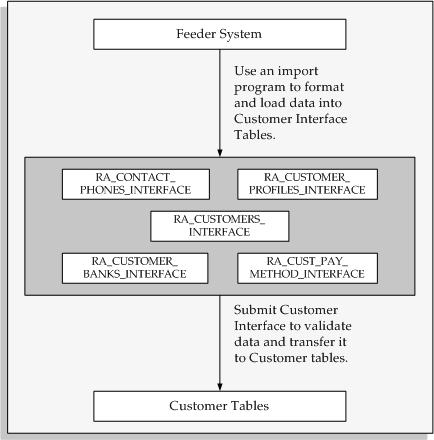
The following diagram shows how customer information is imported into the customer tables.
Customer Interface Process
This illustration demonstrates that an import program is used to format and load data from a feeder system into the Customer Interface tables. The Customer Interface tables are:
RA_CONTACT_PHONES_INTERFACE
RA_CUSTOMER_PROFILES_INTERFACE
RA_CUSTOMER_INTERFACE
RA_CUSTOMER_BANKS_INTERFACE
RA_CUST_PAY_METHOD_INTERFACE
You then run the Customer Interface program to validate your imported data and transfer the data to the Customer tables within your system.
The Customer Interface program validates the data you load in the Customer Interface tables by ensuring that the columns in the interface tables reference the appropriate values and columns in the rest of your system. The interface supports the same data relationship for customer information as the Customers set of pages. See: Customers Overview.
Customer Interface will not create location combinations for foreign locations. The system considers a customer's address to be foreign if the country segment is not the same as the Default Country you defined in the System Options window. See: Defining Receivables System Options.
If you are trying to perform updates, Customer Interface ensures that the record to be updated already exists within your system. If the record does not exist in your system, or it only exists in a Customer Interface table in the Insert mode, the program displays an error.
Additionally, Customer Interface ensures that certain column values are consistent with each other. For example, if a profile class is not assigned to a customer, the interface program ensures that interest charge, collector, discount terms, and other profile class information is defined in the appropriate columns.
Customer Interface also ensures that records marked for insertion are unique.
When a record in the interface table is designated to update an existing record on running the Customer Interface program, any null values in that record will not update the TCA value. The existing value in TCA remains the same after import. You are not required to pass values in all interface table columns when values are optional and not available from a given source system.
If you want to intentionally overwrite a TCA value with NULL, you must pass a specific value, as defined in these profile options:
HZ: Character Value to Indicate NULL During Import
HZ: Date Value to Indicate NULL During Import
HZ: Numeric Value to Indicate NULL During Import
For example, the HZ: Date Value to Indicate NULL During Import profile option is set to 01-01-4000, and a record in the TCA Registry currently has an end date of 02-02-2005.
If you want to update the date with a null value, then you must pass 01-01-4000 for that column. Customer Interface also ensures that records marked for insertion are unique.
An import program is a custom program that you write which converts data from your feeder system into a standard data format that Customer Interface can read. The data can then be transferred into the Customer Interface tables. Once the import data is loaded into the interface tables, you can run Customer Interface to validate the data and convert it into customer information.
The type of feeder program you write depends on the environment from which you are importing data. For example, you can use SQL*Loader, SQL*Report, PL/SQL, or C to write an import program to import data from a non-Oracle system. You can also write a conversion program to import historical data from your original customer database. Regardless of the type of import program you write, the output should be in a standard data format that Customer Interface can use to import the information into the system.
When importing data into the interface tables, the column INSERT_UPDATE_FLAG indicates whether you are inserting new or updating existing information. This column is required in RA_CUSTOMERS_INTERFACE, RA_CONTACT_PHONES_ INTERFACE, and RA_CUSTOMER PROFILES_INTERFACE. Set this flag to I only if you are importing customer information into the interface tables and Customer tables for the first time (for example, when you initially import data from a legacy system). Set this flag to U if the customer already exists in the Customer tables and you want to update specific information.
When updating existing information, the data you import into the interface tables must contain information in each of the required columns, regardless of whether you want to update that information. For example, to modify a customer's name you must specify a value for the CUSTOMER_NAME column and all of the other required columns in RA_CUSTOMERS_INTERFACE, such as CUSTOMER_NUMBER, CUSTOMER_STATUS, and LAST_UPDATED_BY.
When you import a party, the HZ: Generate Party Number and HZ: Generate Party Site Number profile options determine whether you must import corresponding party numbers and party site numbers. If you set the HZ: Generate Party Number and HZ: Generate Party Site Number profile options to No, you must populate the PARTY_NUMBER and PARTY_SITE_NUMBER columns in the interface table. If you set these profile options to Yes, the system automatically generates party and party site numbers, and you cannot populate the interface table with these numbers.
If you do not populate the ORIG_SYSTEM_PARTY_REF column with an original system reference number for a party, the system assigns the imported customer reference number from the ORIG_SYSTEM_CUSTOMER _REF column to the party as well as to the customer account. During the import process, you must provide the existing party's original system reference number when you create a new customer account for an existing party.
If the INSERT_UPDATE_FLAG is not set correctly or a required column is missing a value, Customer Interface rejects the entire customer record, not just the attribute(s) you want to update.
Suggestion: Before you load data into the interface tables, create a copy of your import file. Then, if you want to update customer attributes later, you can set the insert update flag to U in your import file, modify only the values you want to update, and then reimport the data. This eliminates the need to recreate a new import file each time you want to update existing information.
Note: You cannot use Customer Interface to update information in the SITE_USE_ATTRIBUTE1-15 columns. These columns are used for descriptive flexfield information, and Customer Interface performs no validation on them.
Other Sources
Using the Customer Interface Program, Oracle Financials for the Americas User Guide
