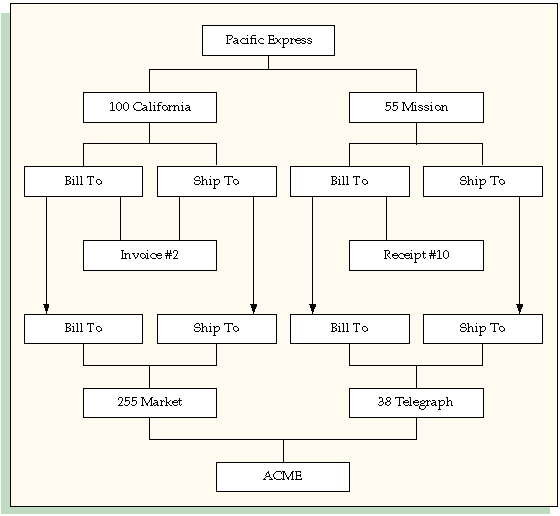
When merging two different customers, you must merge all site uses associated with the customer being merged. For example, ACME purchases Pacific Express and each has one bill-to site and one ship-to site. You can transfer activity from Pacific Express to ACME by merging like site uses assigned to Pacific Express (for example, Bill-to's merged with Bill-to's). The application automatically associates all transaction activity and customer relationships with the new customer.
Customer Merge ensures that you inactivate or delete all site uses for the old customer; you cannot inactivate some site uses and delete others. In addition, you must assign all of the old customer site uses to one or more of the new customer's site uses. For example, you want to merge the following customers that have sites as described in this table:
| Customer ABC | Customer XYZ |
|---|---|
| Address1 (bill-to) | Address1 (bill-to) |
| Address2 (ship-to) | Address1 (ship-to) |
| Address3 (statements) |
You can merge the two addresses having Bill-to site use (Address 1's) and the two addressed having Ship-to site use (Address 2's). However, you cannot merge Address 3 of Customer ABC, which has a Statements site use, to Customer XYZ because Customer XYZ has no address with the same site use. The only way you can merge these two customers is to copy Address 3 and assign its site use to the merge-to customer (Customer XYZ) by selecting the Create Same Site check box.
The diagrams below illustrate what happens when ACME purchases Pacific Express. Customer Merge transfers activity from Pacific Express to ACME by merging like site uses assigned to Pacific Express.
Before the Merge
This illustration shows the sites and activity for Pacific Express and ACME, before you transfer all activity from Pacific Express to ACME.
Before the merge, Pacific Express has two sites: 100 California and 55 Mission. The 100 California address is both a bill-to and ship-to site and has one invoice against both sites. The 55 Mission site is also a bill-to and ship-to site with one receipt against the bill-to site. ACME has two sites: 255 Market and 28 Telegraph. Both of these sites are bill-to and ship-to sites.
The illustration shows how the merge program transfers activity from Pacific Express to ACME by merging like site uses assigned to Pacific Express.
After the Merge
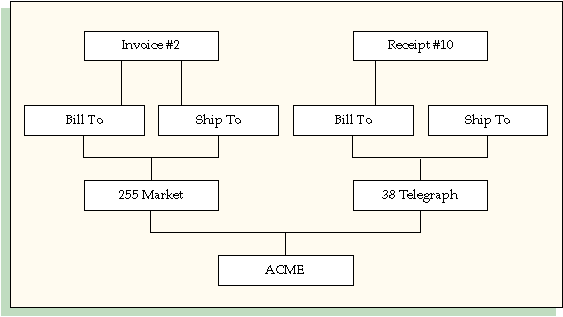
This illustration shows that there is no activity against Pacific Express after the merge. Instead, the Pacific Express invoice against the 100 California bill-to and ship-to sites is now attached to both the bill-to and ship-to sites of ACME's 255 Market address. The Pacific Express receipt against the 55 Mission bill-to site is now attached to ACME's 38 Telegraph bill-to site.
Generate the Duplicate Customers Report to see a list of potential duplicated customers (optional). See: Duplicate Customer Report.
Create a map that shows the site uses for the old customer that you want to merge with the To customer. Check that you are merging like site uses (for example, Bill-to's merged with Bill-to's).
Create new site uses for the To customer (if the old customer has any site uses which does not exist for the To customer).
Determine whether to inactivate or delete the old customer.
Navigate to the Customers Merge window.
In the From region, select the Type of customer you are merging, then select or enter the name or number of the customer to merge.
Note: If merging an individual, you can use the list of values to search for the person's first or last name.
Attention: The customer names and number LOVs include names and numbers of only those customers that have at least one account site in the operating units that are on your access list.
In the From region, select the operating unit in which the customer you want to merge has account sites. In case the customer you want to merge has account sites in more than one operating unit, select All to merge the account sites in all the operating units that are on your access list.
In the Account Site area of the From region, the Operating Unit, Site Number, Addresses, and Usage are auto populated.
Attention: If your responsibility allows access to only one operating unit, then that operating unit and related customer account details, such as Site Number, Addresses, and Usage, are defaulted in the Account Site area.
In the From region, select a Merge Reason: De-duplication or Merger.
In the To region, select the customer Type, then enter the name or number of the customer to merge or select it from the list of values.
For each site in the From region, enter an address in the To region or select it from the list of values.
The Site Number is auto populated in the To region.
Note: Site usage is defaulted in the To region based on the usage in the From region. For example, a bill-to site use is defaulted in the To region for each site with a bill-to site use in the From region.
Attention: You cannot merge sites with different account site usage or across operating units.
To copy an address and site usage from the From region to the merge-to customer, check the Create Same Site box. The merge-from value in the Location field is also transferred to the merge-to customer location.
In any operating unit, the location must be unique for each combination of customer account and site use type, or business purpose. If the location transfer violates this validation for the merge-to customer, you can choose to either transfer the location with "-C" appended or manually enter the merge-to customer location.
Note: You can update the Location field only if the HZ: Location Updatable profile option is set to Yes. If you cannot update the field, a unique, sequential value is automatically assigned as the merge-to customer location.
Choose to delete or inactivate the old customer information.
To keep an audit trail of the old customer information, do not check the Delete After Merge check box. The application assigns a status of 'Inactive' to the old customer after you complete the merge.
To delete the old customer information, check the Delete After Merge check box.
Assign a processing priority, P1-High, P2-Medium, or P3-Low, to the merge process.
Note: Use the processing priority when creating merge batches. For example, you can create a batch for merges having the priority P1 to process all the high priority merges first.
To save your merge details without submitting the merge, save your work. This lets you review your mapping for accuracy before actually merging your customer and site information.
Note: At any time before you choose the Merge button, you can use the Cancel button to cancel the merge
To submit the merge process, choose Merge. Because batch processing is more efficient, you can decide to save the merge for later batch processing or to immediately continue with processing. To immediately process the merge, choose Continue. To save the proposed merge for later batch processing, choose Save. See: Submitting the Merge Process.
Attention: If required, repeat these steps for the other operating units, if any, for the customer account.
If you wish to merge account sites in another operating unit for the same customer account or if you wish to perform an account merge for an entirely different customer account, press the Down Arrow key. This action clears the Customer Merge window and readies it for the next account merge.
