Pages that allow you to search for data display a Search panel that generally includes a search region and a results region. Many search panels contain an Advanced Search button that allows more detailed searches using additional criteria.
When you enter characters in a search field, a wildcard is implicitly added to the end of the string.
Note: Enter exact values for number and date fields.
The results region displays search results in a table. Columns that are sortable have an arrow icon to indicate if the column is unsorted or sorted in ascending or descending order.
Click the column heading of a sortable column to sort by that column. Click it again to toggle between ascending and descending order.
Many pages allow you to save searches and personalize the display tables. See Personalizations.
If exporting is enabled, then you can select the Export Table Data to Excel icon for a table to create the corresponding spreadsheet. See: Creating a Spreadsheet. .
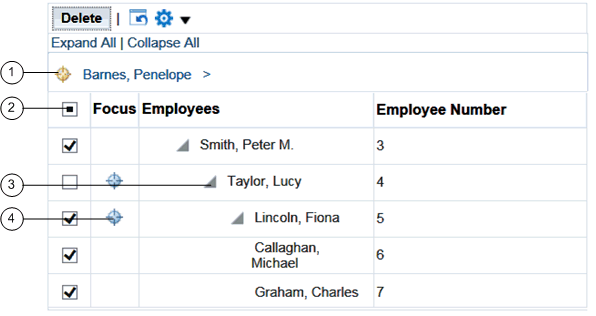
Locator links define the position of the displayed grid in the navigation hierarchy.
Use the tri-state check box to select or deselect all of the rows.
Use the Hide/Show icon to expand and collapse the branches of the tree.
Use the Focus icon to display only a specific branch in the tree.
Rich tables and HGrids enable you to personalize how you interact with a table or HGrid and its data. With a rich table or HGrid, you can:
Resize a column.
Reorder columns.
Scroll horizontally if the contents of a table exceeds the browser width.
Freeze a set of columns to remain in view while horizontally scrolling.
Vertically scroll a table.
Hide/Show a column.
Detach a table from the base page using the Detach Table icon. HGrids do not support table detaching.
Reset a table back to its original definition.
Refresh a table by querying for the latest records in case simultaneous modifications were made elsewhere.
Select or deselect all of the rows using the tri-state check box in a Select column.
The three states are:
Unchecked - when no row in current range is selected.
Checked - when all rows in current range are selected.
Partially checked - when some row(s) in current range are individually selected.
To use these features, you must have the following profile option set:
FND: Enable Rich Table Interactions profile option to "True"
Pop-up windows provide additional information on top of the current page. They appear when you hover over an item or click on it with the left mouse button. Pop-up windows are available on some components of these types:
Text
Image
Link
Button