Register new event subscription
Use the Workflow Administrator Add Event Subscription window to register the new event subscription if you defined a new subscription instead of configuring the seeded subscription.
See Manage Workflow Processes for instructions on how to register new event subscriptions.
Configure Seeded Event Subscription
Use Oracle Workflow Administrator Add Event Subscription window to configure the seeded event subscription to consume the application business event of interest. The subscription will trigger the Oracle E-Business Suite to perform some activity. The actual activities performed by the event subscription will be based on the Workflow process defined for it.
There are three subscription options for the Business-to-Business (B2B) integration scenario described below. The function activities outlined are supported by the XML Gateway Standard Item Type.
Send Document Function Using XML Gateway Rule Function
This option uses the XML Gateway Rule Function which has the Transaction Delivery Required function embedded in it to determine if the Trading Partner is enabled for the transaction before the message is generated.
The "Send Document" function can be configured to generate the message in synchronous or asynchronous mode by setting the Send Mode attribute to "Immediate" or "Deferred" respectively.
The following is an example of a Workflow process launched by the XML Gateway Rule Function. The Receive activity is followed by the Send Document function activity, which proceeds to End. The Transaction Delivery Required Function is not modeled in the Workflow process since it is already included in the rule function.
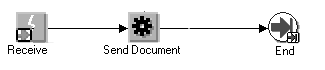
Note: The first Workflow activity may be a Receive or a Start activity. Use Receive to continue an existing Workflow process. Use Start to begin a new Workflow process.
Send Document Function Using Workflow Default Rule Function
This option is used to first determine if the Trading Partner is enabled for the transaction. If the result of the Transaction Delivery Required function activity returns TRUE, the "Send Document" function activity is executed.
The "Send Document" function activity may be configured to send the message in synchronous or asynchronous mode by setting the Send Mode attribute to "Immediate" or "Deferred" respectively.
The following is an example of a Workflow process launched by the Workflow Default Rule Function. The Transaction Delivery Required Function is modeled in the Workflow process since it is not included in the Workflow Default Rule Function.
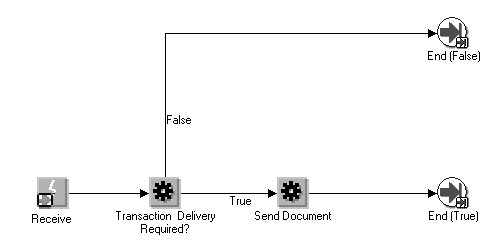
Note: The first Workflow step may be a Receive or a Start activity. Use Receive to continue an existing Workflow process. Use Start to begin a new Workflow process.
Generate Trading Partner XML Document
This option is used to gather and return the message data in the Event Message attribute without delivering it to the Trading Partner. The Event Message is then processed according to the subsequent Workflow instruction.
The following is an example of a Workflow process using the Generate Trading Partner XML Document function. A Receive activity is followed by the Transaction Delivery Required function activity. If it returns False, the process proceeds to End. If True, the Generate Trading Partner XML Document function activity is executed and proceeds to End. In a production Workflow process, the Generate Trading Partner XML Document function activity would be followed by an application-specific activity.
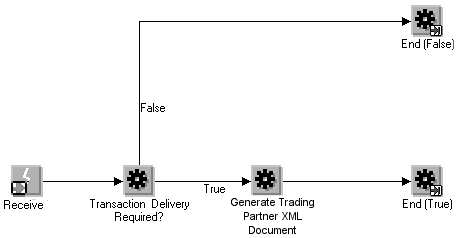
Note: The first Workflow step may be a Receive or a Start activity. Use Receive to continue an existing Workflow process. Use Start to begin a new Workflow process.