The source definition selected or created using the Map Creation Wizard is displayed in the Source Definition tab. You can extend the source definition to perform the following:
Provide default values
Enable code conversion
Create duplicate nodes or elements using the Add Sibling button
Add fields using the Add Child button
Define conditional node mapping rules for duplicate nodes or elements (if the source is a DTD)
Once the source data definition is complete, it can be saved for reuse in other message maps. Use the File > Save (Data Definition) menu option or the Toolbar equivalent. Use the File > Properties menu to change the default directory or data definition property values if necessary.
If you do not wish to save the source data definition as an entity independent of the message map, then continue with the mapping process and save the transaction map at the end of the Element Mapping process.
Refer to How to Map a Pass-Through Message, for guidelines related to developing a pass-through transaction.
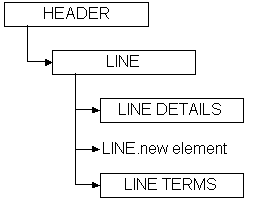
A discontinuous node is a non-level node that follows a level and is a sibling of that level. It can be represented graphically as follows:
In this example, the levels LINE DETAILS and LINE TERMS are children of the level LINE, and are siblings of each other. Inserted between LINE DETAILS and LINE TERMS is a new element of the LINE node. The new element is a continuation of the LINE node that creates a break between LINE DETAILS and LINE TERMS.
The ideal placement of the new element is as the last element of the LINE node before the LINE DETAILS node. However, some standards bodies do not have the flexibility to restructure an existing DTD, or may not wish to for backwards compatibility reasons. Regardless of the reason, the condition exists, and XML Gateway supports it.
For data definitions based on the Oracle data model, use the Add Child or Add Sibling button in the Message Designer, Transaction Map window to define a discontinuous node. Any new node introduced on the source and distributed across multiple target levels (expanded) or consolidated into a single target level (collapsed) will be grouped with the parent node and mapped according to the target definition. The rules against level cross-over still apply.
For data definitions based on a DTD, use the Transaction Map window, Item Type column to explicitly identify the data levels. This exercise may create a discontinuous node, which is not a problem unless you define the invalid scenario described below. The only user extensions supported for OAG DTDs are in the USERAREA. If you modify the DTD (using the Add Child or Add Sibling buttons) outside of the USERAREA, a parsing error will be triggered.
Message Designer will allow you to define a discontinuous node anywhere in the source or target definition. You will not know until runtime if the definition is valid or not. Therefore you should avoid introducing a discontinuous node for a node which also contains a child node.
The following graphic illustrates an invalid definition:
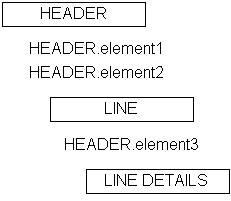
In the example above, HEADER.element3 is a continuation of the HEADER node. HEADER.element3 is also defined as a child of the LINE node. HEADER.element3 has a child node called LINE DETAILS. This is an invalid definition.
Refer to How to Implement the OAG Confirmation Business Object Document, for details on how to implement the optional confirmation message.
Refer to How to Implement Attachments in XML Messages for details on how to include attachments with your XML documents.
Field identifies the name of the element, document, or root. The names are based on the database column names or DTD element names.
The field name may be changed if necessary, however, consider what this change implies. Because the field is based on the database column name or a DTD element name, corresponding changes may be necessary in the Oracle E-Business Suite or the DTD. The only changes allowed to a DTD are to the USERAREA. Refer to How to Extend DTDs for details.
The first row is reserved for the Data Definition name (if the source is based on database views or tables) or root element name (if the source is a DTD).
Additional field names are displayed when sibling or child elements are added using the Add Sibling or Add Child buttons.
Item type identifies the field as either a Level or an Element. Level represents the parent in a parent-child relationship. Element represents the child in a parent-child relationship.
The Item Type of the first row is defaulted to "Level". You cannot change this value.
If the source is based on database views or tables, the Item Type for the database view or table is defaulted to "Level". The Item Type for each database view or table column is defaulted to "Element".
If the source is based on a DTD or a production XML message, the default Item Type is "Element". DTDs do not support levels, therefore any levels must be explicitly defined by setting the Item Type to "Level".
Any node that represents a collection of data that repeats (for example, Purchase Order lines or shipment lines) represents a level. The Item Type for the node must be set to Level.
For the OAG standard, change the Item Type of the following to Level to support Level Mapping:
Root
CNTROLAREA
DATAAREA
Make the same change for all other DTD data types identified as data levels during the map analysis process.
The Item Type for a new sibling or child element is defaulted to "Element". Change the Item Type setting when appropriate.
Enter a default value for the field as appropriate. This value is used in the outbound message or an inbound message if the incoming value is null.
If the default value is based on a condition, set the default using the Assign Variable Value action. See Assignments: Assign Variable Value .
If Item Type is "Level", this column is disabled.
Enable the field for code conversion by entering a valid code category. Validation of code category is performed at runtime because the database used to define the map may not be the database where the transaction is executed. Refer to Seeded Code Categories for a list of seeded code categories.
Universal or standards-specific code conversion values are defined using the Define Code Conversion Values form. Trading Partner-specific code conversion values are defined using the Trading Partner Code Conversion form.
The execution engine will search for code conversion values in the following sequence:
Trading Partner
Standard-specific
Universal list
Use the Get Predefined Variable Value action to determine the status of the code conversion process for the source column enabled for code conversion.
See Get Predefined Variable Value for details regarding the code conversion return status and possible actions to take if the code conversion cross-reference value is not found.
Code conversion is applied before any Actions are applied. Consider the code conversion return status when you define Actions for the source column enabled for code conversion. Actions are applied to the code-converted value only when the code conversion process is successful.
If Item Type is Level, this column is disabled.
Each field is defined with a data type. The data types supported by the XML Gateway Execution Engine are VARCHAR2, DATE, NUMBER, CHAR, and CLOB.
The CLOB data type is used to support large objects up to 4 GB in size. The CLOB is displayed between CDATA tags to escape parsing.
If the source is based on database views or tables, the data types are defaulted to the data types defined for the view or table columns.
If the source is based on a DTD or a production XML message, the data type is defaulted to VARCHAR2.
Attention: It is not necessary to change the DTD element's data type until XML schemas are supported by the XML standards bodies which will make data types more meaningful.
The Data Type for a new sibling or child element is defaulted to VARCHAR2. Change the data type if necessary.
If the Item Type is Level, the Data Type column is disabled.
The DB Column is available only when the source is based on database views or tables.
A check mark indicates the column is defined in the Oracle E-Business Suite data model. This setting informs the XML Gateway Execution Engine whether to validate the element against the Oracle E-Business Suite data model or not.
If Item Type is Level, the DB Column is disabled.
Node Type is available only when the source is a DTD. The default is the DTD setting.
The valid values are Element or Attribute. Elements contain the business data. Attributes contain qualifiers for the business data to indicate its intended meaning.
The Node Type for a new sibling or child element is defaulted to Element. Change the Node Type setting where appropriate.
If Item Type is Level, this column is disabled.
The Add Sibling button allows you to add new fields required to complete the map. This feature is also used to create duplicate DTD nodes such as PARTNER.
When the source is based on a DTD or production XML message, and you are adding a sibling between two attributes, set the Node Type for the new field to "Attribute". The default Node Type of "Element" will cause a parser violation.
Attention: You cannot add a sibling to the root node.
Refer to How to Extend DTDs for details on how to extend a DTD. Included are the naming conventions that must be followed for the XML Parser to recognize the DTD extensions.
The Add Child button adds child elements to an existing sibling or child. In addition, Add Child can be used to define an attribute for the root element if the source or target is a DTD.
This function may be used if the source is database views or tables or a DTD.
If Node Type is "Attribute", the Add Child button is disabled. You cannot define an attribute for an attribute.
Note: Refer to How to Extend DTDs for details on how to extend a DTD. Included are the naming conventions that must be followed for the XML Parser to recognize the DTD extensions.
The Delete button allows you to delete any sibling or child element that has not been mapped.
If a sibling or child has child elements associated with it, a warning is displayed before the delete occurs.
Attention: If you are deleting any DTD extensions, be sure to remove the DTD extensions from the corresponding extension file created for the application or user. The extra information will not cause a parser violation, but it is a good practice to ensure the extension files match the message maps. Refer to How to Extend DTDs for the details.
If the source definition is based on a DTD with duplicate nodes or elements of the same name, use Conditional Node Mapping to ensure that the source-to-target mappings are performed correctly. This is required because the sequence of duplicate nodes and elements is not fixed.
Examples of duplicate nodes that occur frequently in a DTD are DATETIME, AMOUNT, OPERAMT, and QUANTITY. Using a purchase order as an example, the first DATETIME occurrence is for the Order Date and the second occurrence is for the Promise Date.
Conditional node mapping allows you to define the relationship of the source node to the target node based on the value of key elements. The key elements are identified by the Tag Name and Node Value combination. For the purchase order example above, the Tag Name is "qualifier" and the Node Value is "PO" for the first DATETIME occurrence representing the order date. The Tag Name for the second DATETIME occurrence is also "qualifier" with a Node Value of "PROMDELV" for promise date.
To define the key values, select the source DTD node and click the right mouse button to invoke the Conditional Node Mapping window. You will be prompted for the following:
| Tag Name | Select Tag Name from the list of values. Using the above example, this is the "qualifier" attribute associated with the DATETIME segment that uniquely identifies the node and its intended meaning. |
| Node Value | Enter the node value. Using the above example, this is either "PO" or "PROMDELV". |
Repeat this process for each of the duplicate nodes and elements. Message Designer supports one condition per node or element.
To delete the Conditional Node Mapping instruction for a node, select the node and click the right mouse button to invoke the Delete Condition function.
Conditional node mapping is applicable to source data definitions that are based on a DTD or a production XML message. It does not apply when the source data definitions are based on database views or tables.