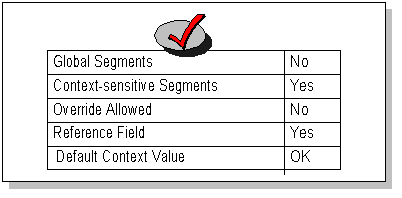
You have many choices for how you want your descriptive flexfield structures to look and behave. The following diagrams show you different arrangements of segments you could define by choosing different descriptive flexfield setup options.
The different descriptive flexfield setup options are:
Global Segments
Context-sensitive segments
Override Allowed
Reference Field
Default Context field
Note that the option "Override Allowed" controls whether your user sees a context field in the flexfield pop-up window. You set "Override Allowed" to Yes if you want a context field to appear in the descriptive flexfield pop-up window. You set "Override Allowed" to No if you do not want users to choose a structure from within the pop-up window.
In earlier versions of Oracle E-Business Suite, you allow users to see and modify the value in the context field by checking the "Override Allowed (Display Context)" check box. This check box is now called "Displayed" though its effect is unchanged.
In these diagrams, "OK" means that whether you specify Yes or No for an option does not matter (another option may have an "overriding" effect). For example, if you have a default context field value (structure choice), but you have a context field as well, your default value will appear in the context field but the user can choose a different value instead.
The simplest way to define a flexfield is to have one structure that contains only global segments. However, this arrangement does not allow much future flexibility, since if you use all your available columns for global segments, you do not have any remaining columns for context-sensitive segments.
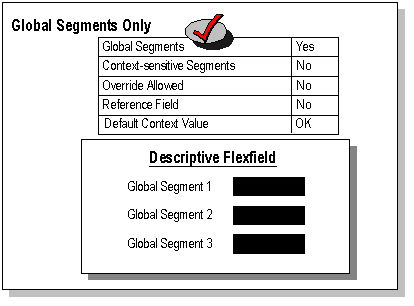
In this example, you have the following settings:
Global Segments - Yes
Context-sensitive segments - No
Override Allowed - No
Reference Field - No
Default Context field - No
This example has three global segments.
Another way to achieve a similar effect is to define a single structure that contains only context-sensitive segments. You also define a default context value, and you do not provide a context field or a reference field. The effect of this setup is that the user always sees the same segment structure, so it behaves as if it were a structure of global segments. However, if later you needed to add more structures of context-sensitive segments, you could do so by enabling the context field or a reference field, disabling the default context field value, and defining your new context-sensitive segment structure. Note that if you had already used all the available segment columns in your first context-sensitive structure, you would not be able to add more segments to that structure; you would only be able to define additional structures. One drawback to using the context-sensitive segments only strategy is that if you have certain segments that should appear for all contexts (all structures), you would have to define those segments separately for each context-sensitive structure.
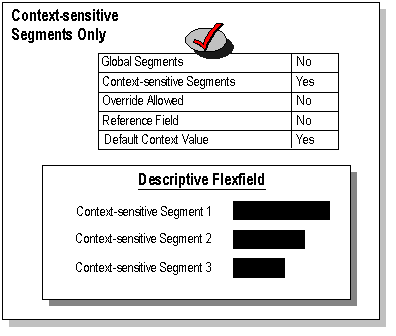
In this example, you have the following settings:
Global Segments - No
Context-sensitive segments - Yes
Override Allowed - No
Reference Field - No
Default Context field - Yes
This example has three context-sensitive segments.
Of course, you could initially define a hybrid structure that contains some global segments and some context-sensitive segments but has only one context-sensitive structure with a default context field value (but no context field or reference field).
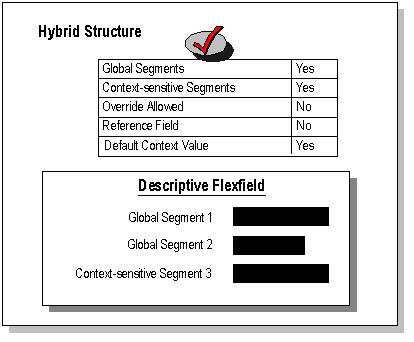
In this example, you have the following settings:
Global Segments - Yes
Context-sensitive segments - Yes
Override Allowed - No
Reference Field - No
Default Context field - Yes
This example has two global segments and one context-sensitive segment.
Once you've established that you need more than one (context-sensitive) structure, you have a number of options for how you want to arrange various combinations of global and/or context-sensitive segments, reference field or no reference field, context field or no context field, and so on. The following diagrams show these various arrangements (for a setup that uses two context-sensitive structures).
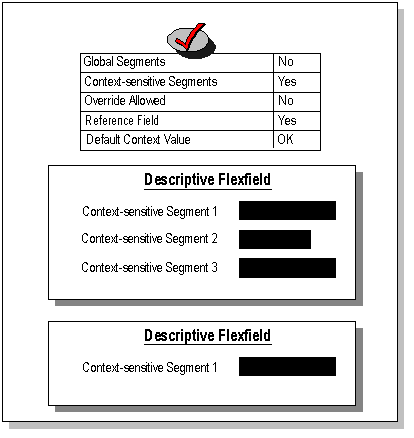
In this example, you have the following settings:
Global Segments - No
Context-sensitive segments - Yes
Override Allowed - No
Reference Field - Yes
Default Context field - OK
This example has two context-sensitive structures, one with three context-sensitive segments and another with one context-sensitive segment.
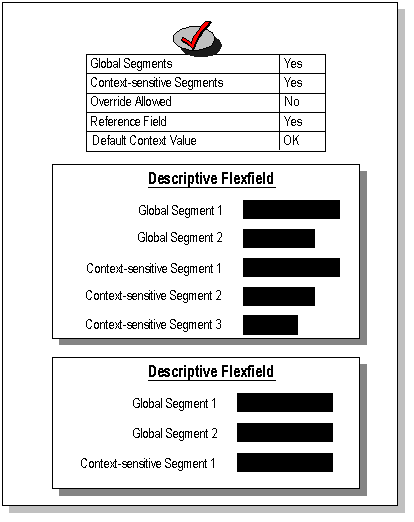
In this example, you have the following settings:
Global Segments - Yes
Context-sensitive segments - Yes
Override Allowed - No
Reference Field - Yes
Default Context field - OK
This example has two context-sensitive structures, both with two global segments. The first structure has three context-sensitive segments and the second has one context-sensitive segment.
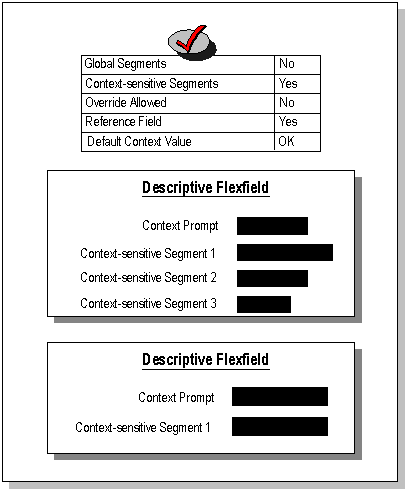
In this example, you have the following settings:
Global Segments - No
Context-sensitive segments - Yes
Override Allowed - No
Reference Field - Yes
Default Context field - OK
This example shows a two structures that share a context prompt. The value of the context prompt determines whether the user sees the first structure with three context-sensitive segments or the second structure with one context-sensitive segment.
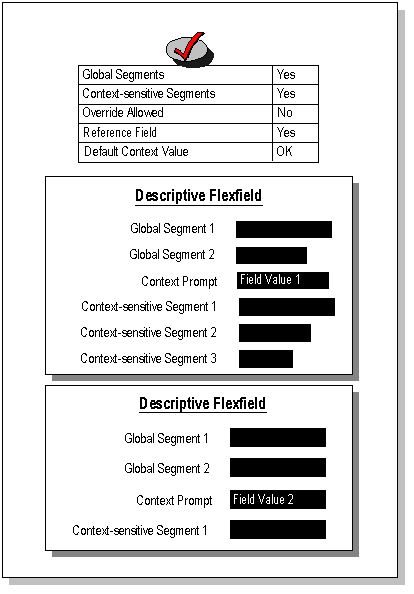
In this example, you have the following settings:
Global Segments - Yes
Context-sensitive segments - Yes
Override Allowed - No
Reference Field - Yes
Default Context field - OK
This example shows a two structures that have two global segments and a context prompt. The value of the context prompt determines whether the user sees the first structure which has three context-sensitive segments or the second structure which has one context-sensitive segment.
