Reports and concurrent programs can be assembled into request sets.
Request sets define run and print options, and possibly, parameter values, for a collection of reports or concurrent program. End users, with the appropriate privileges, and System Administrators can define request sets. A System Administrator has request set privileges beyond those of an end user. Request sets can be run from Forms-based applications and HTML-based applications.
Request sets are a quick and convenient way to run several reports and concurrent programs with predefined print options and parameter values. Request sets group requests into stages that are submitted by the set. The order in which the stages are submitted is determined by the status of previous stages.
Request sets can also be used by a System Administrator to customize access to reports and concurrent programs. Using request sets, a System Administrator can:
grant users of a responsibility the ability to run selected reports and concurrent programs that are outside their request security group.
grant access to requests and other concurrent programs on a user-by-user basis.
guarantee that reports in the set run with print options and parameter values that cannot be edited by end users.
As System Administrator, you have privileges beyond those of your application users, including a privileged version of the Request Set window.
You can run the same set of concurrent requests regularly by defining a request set, and then submitting the request set from the Submit Requests form.
As System Administrator, you can include any Standard Request Submission report or concurrent program in the request sets you define. When end users define a request set, they can only select from reports and programs that belong to their responsibility's request security group.
Use the Request Set form to create and edit request sets.
This section describes how request set stages are defined and organized.
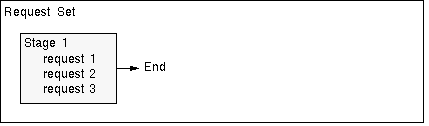
Request sets are divided into one or more "stages" which are linked to determine the sequence in which requests are run. Each stage consists of one or more requests that you want to run in parallel (at the same time in any order). For example, in the simplest request set structure, all requests are assigned to a single stage. This allows all of the requests to run in parallel.
Request Set with a Single Stage
To run requests in sequence, you assign requests to different stages, and then link the stages in the order you want the requests to run.
Request Set with a Sequence of Stages
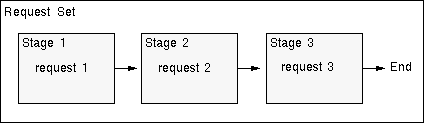
The concurrent manager allows only one stage in a request set to run at a time. When one stage is complete, the following stage is submitted. A stage is not considered to be complete until all of the requests in the stage are complete.
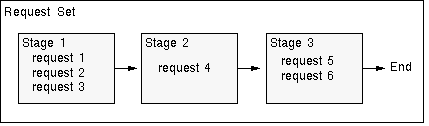
One advantage of using stages is the ability to run several requests in parallel and then move sequentially to the next stage. This allows for a more versatile and efficient request set.
Request Set with Multiple Requests Running in Parallel within a Stage
Like request sets and concurrent requests, stages can complete with different statuses. Each stage can complete with a status of Success, Warning, or Error. You can use these completion statuses to structure your request set, by defining which stage will follow the current stage based on its completion status. For example: a request set always begins with Stage 1. If Stage 1 completes with the status Success, then the Success link is followed, and Stage 2 is submitted. After Stage 2 completes, the set ends. If Stage 1 completes with Warning, then the Warning link is followed, and Stage 3 is submitted. After Stage 3 completes, the set ends. If Stage 1 completes with Error, then the Error link is followed, and Stage 4 is submitted. After Stage 4 completes, the request set ends.
Request Set Using Stage Statuses
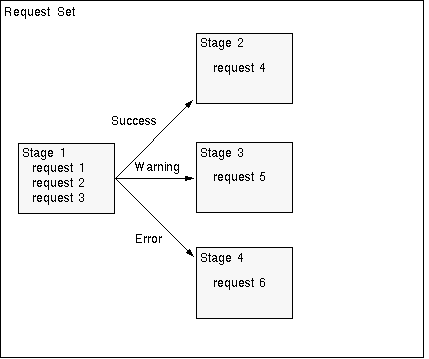
In this example, the stage status is determined using the Standard stage function. The Standard stage function uses the statuses of the requests within the stage to calculate the status for the stage. If all of the requests in a stage complete with a status of Success, then the status for the stage is Success. If one or more requests complete with a status of Error, then the status of the stage is Error. For a stage's status to be Warning, one or more of the requests must have a status of Warning, and no request may have a status of Error.
There are no restrictions on linking stages within a request set. Any stage may be linked to any other stage, including itself. Two or more links can point to the same stage. For example, Stage 1 can link to Stage 2 if the completion status of Stage 1 is Success or Warning, and link to Stage 3 if the status is Error.
Request Set with Multiple Links to Stages
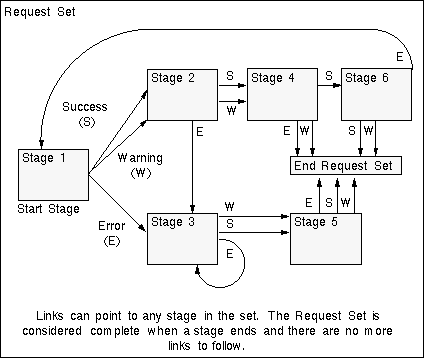
You determine the end of a request set by not specifying a followup stage for each completion status. You can end a request set after any stage in the request set. When any stage completes with a status that does not link to another stage, the request set ends.
You can use the linking of stages to control your request set. In previous releases you had three options: run in parallel, run sequentially, and run sequentially but abort on Error. All of these are easy to recreate using the request set wizard. You can use the Request Set Wizard button in the Request Set window to start the wizard. The wizard takes your input and creates the request set as follows:
| Run in Parallel | Creates one stage containing all of the requests you wish to run in parallel. |
| Run Sequentially | Creates a separate stage containing the request or requests for each step in the sequence and link in the appropriate order. |
| Run Sequentially but abort on Error | Sets up your sequence the same as it did for Run Sequentially, but when it links the stages, it does not enter a follow up stage as a link in the Error completion status field. |
The completion status of a stage is determined by a predefined function. The Oracle E-Business Suite Standard Stage Evaluation function uses the completion status of the requests it contains. Use this function to determine the status of a stage.
When a stage completes with a status for which there is no link defined, the request set ends. The completion status for the request set is determined by one of the following methods:
Using the completion status of the last stage run in the request set. This method is used by default.
The user can override the default behavior by defining a specific stage within the set to be "critical". If the request set has a single critical stage defined, and then runs this critical stage, then the completion status of the set will be the same as the completion status of the critical stage. This can be useful if the final stage of the set is a "clean up" stage and is not considered important to the overall status of the set.
If a request set has more than one critical stages defined, the "worst" completion status of all the critical stages is considered the completion status of the set.
On a report-by-report basis, you can select a different printer for each report in a request set. When you define a request set, print options, such as the printer a report is sent to, are saved so you do not have to specify them again when you run the request set.
Attention: If a printer is defined for a concurrent program using the Concurrent Programs form, then that value cannot be updated, either by a user profile option setting, a request set definition, or when running the program or request set.
Note: Defining a printer for a request set concurrent program (for example, Request Set Payables Aging Reports) in the Concurrent Programs form has no effect; the printer definition is not referred to.
In some circumstances, such as when a request set has a large number of stages and takes a long time to execute, administrators may want to yield a request set to higher priority requests. By utilizing the Hold Request Set feature, users can place a running request set on hold and effectively control the execution of request set stages.
The Hold and Remove Hold buttons are available on the OAM View Running Requests page. To hold a request set, simply select the request set and click the Hold button. Click Remove Hold when you want the request set to continue executing.
When you define a request set or a stage within a request set that allows incompatibilities, a concurrent program is created to run the requests in your request set according to the instructions you enter.
All concurrent programs that run request sets are titled Request Set <name of request set>, and programs that run request set stages are titled Request Set Stage <name of request set stage>. In the Concurrent Programs form, to query request set or request set stage concurrent programs on the basis of a program's name, enter the following in the Name field:
"Request Set" or "Request Set Stage" before the name of the concurrent program
"Request Set %" or "Request Set Stage %" to perform a query on all request set programs
Request set and request set stage concurrent programs create log files documenting the execution of the request set or stage. Each report or concurrent program within a request set or stage also creates its own log file.
When you run a request set that allows incompatibilities, you submit a request to run the concurrent program that defines the request set. The request set concurrent program submits a request set stage concurrent program. The request set stage concurrent program submits the requests for the individual programs and reports within the stage. A request to run the request set concurrent program or the request set stage concurrent program is a Parent request, while the requests to run the programs and reports are Child requests.
You can review the status of a request set and the programs it contains using the Concurrent Requests form. The following table displays information pertaining to request sets in the Running phase.
| Status | Description |
|---|---|
| Paused | Parent request pauses for all its Child requests to complete. For example, a request set stage pauses for all reports in the stage to complete. |
| Resuming | All requests submitted by the same Parent request have completed running. The Parent request resumes running. |
A request set can only be modified by its owner or by a System Administrator. To make modifications, query the request set you want to modify in the Request Set window.
Note: If you wish to retain modifications to request sets provided by your Oracle application during upgrades, you must rename or recreate the request set using a different name before you upgrade. If you modify a predefined request set without changing the name, your modifications are overwritten when you upgrade your Oracle E-Business Suite.
Follow this procedure to create a request set:
Navigate to the Request Set window.
Enter a Name for your request set.
Enter a Set Code for your request set. This name is used internally to reference your request set.
Enter the Application with which you want to associate your request set.
Enter a Description of your request set if you like.
The Owner field defaults to your username and can only be changed by your system administrator.
Enter the Active Dates From and To fields to define an effective period when you and others can run the request set. If the current date is outside the range you define, the request set will not be available in the Submit Requests window.
Check the Print Together check box to send all your requests to the printer together when they complete, or uncheck the check box to send each request one at a time to the printer as it completes.
Check the Allow Incompatibility check box to allow your system administrator to specify programs that this request is incompatible with (may not run with). Leave Allow Incompatibility unchecked to specify that this request set may run with all other concurrent requests or request sets.
Choose Define Stages or Link Stages if you have finished defining your stages.
Follow this procedure to define stages:
The value for the Display Sequence is defaulted in sequence as you enter your stages. You may change the display order of the stages by modifying this field.
Enter a Name for the stage.
Enter a Description of your stage if you like.
Enter a Stage Code for the stage. This code is used internally to reference the stage.
In the Function field of the Function region, use the List of Values to select a function. The default value for this field is the Standard Stage Evaluation function. This function bases its completion status on the normal completion status of the requests it contains. Other functions may be provided by your Oracle product. For a description of these functions, refer to the user's guide for that product.
Use the "The Return Value of this Stage Affects the Set Outcome" check box if you want to ensure that the request set's completion status is equal to the completion status of this stage.
Note: If you choose this check box for more than one stage, the completion status of the request set will equal the completion status of the last of these stages to run within the set.
Use the Allow Incompatibility check box to allow your system administrator to specify programs that this stage is incompatible with (may not run with). Leave Allow Incompatibility unchecked to specify that this stage of the request set may run with all other concurrent requests or request sets.
Choose Requests.
In the Stage Requests window you define which requests you want to include in the stage.
Select the report or program you want to include in your request set. A description of the request you choose and its associated application appears in the Description and Application fields.
The list of requests you can choose includes the requests that your responsibility's request group lets you access from the Submit Requests form.
Use the Allow Stage Function to Use This Program's Results check box to indicate which programs or reports should be included.
The Print Options region reflects the options for the current request. Specify the number of Copies of output to print, the Style to print, the Printer to print to, and whether to save the output to an operating system file.
Standard Request Submission saves these options so you do not have to specify them again when you run the request set. If you do not wish to specify these options for each request when you define the set, Standard Request Submission uses the values of your personal profile options as the default when you submit the request set. See: Concurrent Processing User Profile Settings.
Note: Some requests may have a required Style or Printer that you cannot change.
When you are done with the Print Options, choose Parameters to display the Request Parameters window.
The Request Parameters window lets you customize the parameter values of a specific request in a request set. The fields at the top of the Request Parameters window list general information about the current request set and the request for which you can customize the parameter values. The multi-row portion of the window lists the parameters for that request.
The Sequence field displays the order in which each request parameter appears when you run the request in the Submit Requests window (lower numbers appear before higher numbers). Only your system administrator can change a parameter's order.
The Prompt field is a display-only field that shows the request parameter's prompt.
Check the Display check box to specify that you can see a request parameter at submission time, or uncheck the check box to specify that a parameter should not be displayed at submission time.
Check the Modify check box to specify that you can insert or change the value for a request parameter at submission time, or uncheck the check box to specify that a parameter cannot be changed at submission time.
Use the Shared Parameter field to set a default value for a parameter that occurs in more than one report or program of a request set. Once you enter the same parameter label in the Shared Parameter field for each occurrence of the same parameter, the value that you assign to the first occurrence of the parameter becomes the default value for all subsequent occurrences of the parameter. The shared parameter label simply enables you to set an initial default value for all occurrences of the same parameter so you can avoid typing the same value all over again for every occurrence of the parameter.
For example, suppose you define a request set that includes three reports, and all reports include a parameter called "Set of Books". You want the "Set of Books" parameter to default to the same value in all reports. To accomplish this, enter a label called "Book" in the Shared Parameter field for the first occurrence of this parameter. You can also assign a value in the Default Value field of this parameter now, or wait until you run the request set to assign a default value when the parameter first appears. Enter the label "Book" in the Shared Parameter field of all other occurrences of the "Set of Books" parameter in your request set. When you submit this request set from the Submit Requests window, every parameter that you label "Book" defaults to the value you assign to the first occurrence of the "Set of Books" parameter.
Attention: Note that if you later change the value of a parameter that contains a shared parameter label, you change only the value for that instance of the parameter, and not the value for all other occurrences of that labelled parameter.
We recommend that if you make a parameter with a shared parameter label modifiable, that you also display the parameter so you can always see what the parameter's current value is. This helps reinforce the understanding that a later value change to one labelled parameter cannot propagate a value change to all other similarly labelled parameters.
Optionally enter a Default Type and Value for the parameter.
Save your work.
Go back to the Stage Requests window and repeat Steps 9 through 11 to add more requests to the request set stage.
You can select a request more than once if you want to run the same request with different default parameter values.
To start a new stage, return to the Stage window and choose New Record from the File Menu.
Follow this procedure to link stages:
Enter the Start Stage. The stage you enter here is the first stage submitted for the request set.
Enter the stages you want to run following the first stage in the Success, Warning, and Error columns. To ensure that a particular stage follows the preceding stage regardless of the completion status, enter the desired stage in all three columns. To stop the request set if a stage ends in Error, leave the Error column blank. Any time you do not specifically indicate which stage should follow for a completion status, the request set will exit on that completion status.
In the example shown in the table below, the request set will always exit if any stage returns a completion status of error. In addition, stages C and D will terminate the request set regardless of their completion status. If Stage A returns a status other than Error, Stage B will be submitted. Finally, when Stage B completes with a status of Success, it is followed by Stage C, or if the status is Warning, Stage D will follow.
Choose Done.
The following table shows an example of linking stages as in step 2 above:
| Display Sequence | Name | Success | Warning | Error |
|---|---|---|---|---|
| 1 | Stage-A | Stage-B | Stage-B | |
| 2 | Stage-B | Stage-C | Stage-D | |
| 3 | Stage-C | |||
| 4 | Stage-D |
If a request set completes with a status of Error, the Restart button, on the Oracle Applications Manager - View Completed Requests page is enabled. The system also automatically captures, records, and saves the information of the first stage that fails so that when the user clicks on the Restart button the request set can restart from that point.
Once the stage has been identified, the request set program submits the stage program in resubmit mode. In this mode, the program looks at the same stage from the previous run and determines which programs need to be rerun, (only those that ended in error), and runs those programs. If this stage completes successfully or has a Warning status, the system proceeds to the next stage using the normal mechanism of restarting the request set program.
Note: Users may restart a request set multiple times. The logs for each stage and individual programs are maintained independent of the number of runs as each stage and program submission generates a new request. However, the logs and associated files for a request set are rewritten each time the set is restarted.
