Overview
You can enable workplan baseline versioning to allow changes on a plan (baseline). This latest version of the plan can then be used as the source for calculating earned value measures. This feature helps the project team maintain a forecast in parallel to the baseline plan and to drive the baseline plan in subsequent cycles The earned value metrics for the project will still be computed based on the approved published baseline.
During project execution, there are times when the task manager may need some additional effort to complete a task, but the project managers may not be in a position to change the baseline plan immediately. An interim approved forecast, which includes the requested additional effort will help the task mangers to continue with their work without waiting for approval on a changed baseline. This enables task managers to meet the client commitments by completing their tasks on time.
This workplan functionality will help your project team to maintain a forecast in parallel to the baseline plan, while driving the baseline plan in subsequent cycles. The earned value metrics for the project will still be computed based on the approved published baseline. The change management functionality will facilitate the implementation of change order impacts into the workplan.
When the feature is enabled, you will see a Baseline column on the Maintain Versions page. All workplan baseline versioning enabled projects will show published versions, including forecast and baseline working versions of the forecast. The Maintain Versions page includes draft, published, and deleted versions of the baseline and the forecast. You can view details for published workplan baselines and published forecasts. If a workplan baseline or forecast is not published, you may update, perform change control actions as lock or unlock the version, or view details, depending on your security settings.
Project plans are not intended to be static documents, nor should they be difficult to change. Changes occur frequently in projects and comparing the baseline values to actuals will help you measure the factors that are affecting actuals. When there are required deviations from the baseline, tasks must be replanned. Enabling workplan baseline versioning allows you to monitor, measure, and manage tolerance and changes, because you can better manage the workplan with both the forecast and baseline available. The versionable baseline provides the ability to manage contingency allowances or differences in the planned value in the baseline and the approved EAC in the forecast.
Solution Flow for Workplan Baseline Versioning
Create a project and enable workplan versioning.
Enable workplan baseline versioning.
Create a work breakdown structure and assign the required attributes. This is known as the draft workplan.
Review and publish the draft workplan to create a published forecast, published baseline, and a working forecast version.
This initiates the forecasting cycle when the approved progress is captured against the published forecast. Estimates are derived and task managers can provide input. The proposed values by the task manager are known as the contingency.
Send proposed estimates for approval to the project manager.
The forecasting cycle includes values from the financial forecast where estimates from the workplan are compared with estimates from the financial forecast. This information can be analyzed and updated as needed.
Implement change management in the forecast cycle.
Obtain approval on estimates from the project manager.
Note: The project manager may also choose not to approve, and instead track some estimates and contingencies as known deviations.
Factoring in various estimates received, change the workplan by adding, deleting, indenting or outdenting tasks.
You can also add, update, or delete the resources affected by the task changes.
Review and publish forecast. If the approval flow is implemented, then the application automatically triggers the approval flow before publishing the forecast.
Manually create a working baseline from the latest published forecast.
Review and update the draft workplan baseline for dates and plan values to incorporate changes into the baseline (project manager).
Review and publish the draft workplan baseline.
Note: If approval setups are enabled, then it is approval only.
The new published baseline forms the basis for earned value metrics. A new versionable baseline, which is different from the forecast contingency allowance can either be incorporated or not into the baseline. Implement the approved change orders to the workplan, in the same way that the change orders can be implemented to the financial plans. This helps leverage a single source for both the workplan and the financial plan, creating a more accurate forecast analysis.
Enabling and Disabling Workplan Baseline Versioning
You must enable baseline versioning from the Project Structures Setup page, by selecting the Workplan Baseline Versioning check box. You can also upgrade your project by running a concurrent program UPG: Upgrade projects for enabling baseline versioning feature program:
Note: You can turn off the setup as long as the workplan is not published. However, for an active project that has published workplans the workplans would be upgraded. If the workplan versioning is enabled as the published workplans are upgraded, then you cannot turn off the setup.
Note: If you enable baseline versioning for a template, then all new projects created with the template will also be enabled with baseline versioning.
To enable the project for baseline versioning, the project should:
Be version-enabled.
Not be a closed project.
Be enabled for the workplan.
Not be a program.
Be enabled for workplan versioning on the project.
Not be stuck in the publish process (for the workplan).
Note: After a project is enabled for baseline versioning, there will be the following restrictions on the project, you cannot:
Mark a project as a program.
Disable workplan versioning from the project.
Remove workplan structures from the project.
You can upgrade existing projects to utilize baseline versioning for your workplan and contingency planning (different planned values in the baseline and the approved EAC in forecast). In order to do this, run the UPG: Upgrade projects for enabling baseline versioning feature program.
In order to do an upgrade, run the UPG: Upgrade projects for enabling baseline versioning feature program or enable the project through the structures page of Project setup. UPG: Upgrade projects for enabling baseline versioning feature allows you to:
Upgrade a single project or multiple projects.
View the status of the projects after the upgrade has been performed.
Prior to running the concurrent program, select or specify the required parameters: Mode of Run, Operating Unit, and Project.
If mode is set to Validate, then you will see the following information. After you run the program, you will receive a report that details projects that are eligible for upgrade:
Project Number
Status
Status Description
If mode is set to Upgrade, then you will see the following information. You will receive a report that details success or failure of the upgrade:
Project Name
Upgrade Status
Reason for Failure
Validations and the success or failure will vary by project, and are dependent on various factors.
During the upgrade if a published work plan exists, and if the:
Original baseline and the current baseline are not the same, then both the baselines are versioned and the original baseline version is numbered as one and the current baseline version will be numbered as two and marked as the latest published version.
Latest published workplan is set as the baseline, then a current working baseline is created, copying tasks, resources, planning values, deliverables, dependencies, and mappings from the latest published forecast version. Also, the current working workplan is published as the baseline.
Latest published version is not the baseline version.
If the workplan is not published or the input is a project template, then the project is enabled for workplan baseline versioning and you can publish the draft workplan. After you publish the draft workplan, both the forecast and baseline versions are created and published, and a working version of the workplan forecast is created.
Existing published approval workflow setup will be used for both the forecast and baseline publish with the modification in selecting the approver depending on the version type that is sent for approval.
Approval options for the workplan setup is enabled with the option to enable workflow approval for the baseline. In case the workplan before upgrade is workflow-enabled, then the same setup will be applicable for the baseline.
A draft workplan is the version of the workplan before it is published for the first time. After a draft workplan is created and published, the system generates a published baseline version and a published forecast version. The forecast version forms the basis for the forecast cycle and the future versions of the forecast. A working forecast is available for further edits and the published forecast is available for tracking progress and ETC updates. After the workplan is created, you can publish the draft workplan by selecting either the Review and Publish button, if the approval workflow is not enabled, or the Review and Submit button, if the approval workflow is enabled. This will depend upon, how you set up the workplan approval process.
Note: In order to create the draft workplan, you must have the workplan baseline feature enabled and there must not be a published workplan.
The amount of funds, the budget, and the time needed above the estimate to reduce the risk of overruns of the project objectives is the contingency allowance. This value is based on the ground realities and should be acceptable to the organization and stakeholders
By applying the latest progress to the current working version of the project, you can view the consolidated progress, actuals along with the Estimate at Completion/Estimate to Complete (ETC) against the tasks. Additionally, you can review the non-approved cost-only financial forecast value and perform a what-if analysis to compare the values against the suggested ETC values provided by the task manager.
From the Update Current Working Forecast page, you can use the Actions drop-down to select the Update with Change Orders, Update with Contingency, and Update with Financial Forecast.
For a project that is enabled with the Schedule of Values feature, from the Update Current Working Forecast page, you can only select Update with Contingency and Update with Financial Forecast Only from the Actions drop-down.
Important: The Workplan Baseline Versioning option must be enabled for the project to leverage this functionality.
Note: For SOV feature enabled projects, see Schedule of Values Projects.
Update Workplan Forecast with Contingency
Apply Latest Progress has been renamed to Apply Contingency.
Apply Contingency pushes actuals to the working forecast version along with ETC overrides. The resource planned quantities get recalculated based on the ETC overrides.
After the contingency is applied the newly derived planned values can be compared against the proposed values, which are the ETC overrides. You can plan new EAC for further execution.
You must select the Update with Contingency action to navigate to the Update Workplan Forecast with Contingency. To return to the Update Forecast (Current Working Version), you must select Cancel. You will use the Apply Contingency button to update with contingency, which brings additional estimate to complete contingencies as updated within the progress pages by task managers:
Update Workplan Forecast with Forecast
You can create a financial forecast and simulate optimal executions. The values from the financial forecast can be brought onto the workplan forecast working version, where planned quantities from the workplan can be compared with the forecasted quantities from the financial forecast. You can then uptake the financial forecast values by editing the planned quantity of the workplan forecast. In order to leverage this functionality:
The project must be fully shared.
The project may be a schedule of values (SOV) enabled project
The financial forecast must have been generated from the workplan.
The planning resource list for the financial forecast and workplan must be the same.
The financial forecast must be planned only at the lowest task level.
The financial forecast must be a non-primary cost-only forecast.
You must select the Update with Financial Forecast action to navigate to the Update Workplan Forecast with Financial Forecast. To return to the Update Current Working Forecast page, you must select Cancel.
Update Workplan Forecast with Change Orders
Change orders can be created and after they are approved they can be implemented on a workplan forecast version. A change order implementation can be performed from either the Change Order Impacts page or from the Change Orders feature in the workplan forecast. Approved change orders are visible on the Update with Change Orders page and for non-SOV projects. This functionality is applicable for fully shared version enabled projects.
You must select the Update with Change Orders action to navigate to the Update Workplan Forecast with Change Orders page. To return to the Update Current Working Forecast page, you must select Cancel.
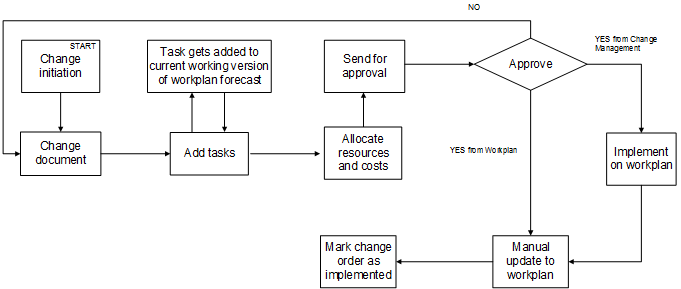
4.5.1 Implementation of Change Management on a Workplan
The following describes the Implementation of Change Management on a Workplan process flow noted in the preceding image:
Create a change order, refer to Change initiation step and then Change document step.
Add the tasks, refer to Add tasks step, and Task gets added to the current working version of the workplan forecast step.
Add the resources, refer to Allocate resources and costs step.
Obtain approval for the change order, refer to Send for approval step and Approve step. If the approval is denied, the process starts again at the Change document step.
Implement onto the workplan, refer to Implement on workplan step or Manual update to workplan step, and Mark change order as implemented step.
After you have made changes, you will publish the forecast. The latest published version will be available for future forecasting cycles and for the baseline cycle, if approval is marked as required, and if, the approver of forecast is included in the Workplan Information setup page. The forecast publication follows the approval process, if the forecast workflow is enabled. Auto-publishing of the workplan forecast version will be done depending on whether the auto-publish option is set.
If the workplan forecast workflow is not enabled you can publish the forecast by selecting Review and Publish. If the workplan workflow is enabled, then you will select Review and Submit.
Create a Draft Workplan Baseline
A working baseline is manually created from the latest published forecast. You can manually create the working version of the baseline by selecting the Revise Workplan Baseline action in the workplan and the Maintain versions page.
The following business rules exist:
The project must be enabled with workplan baseline versioning.
The latest published forecast version must not have any published errors.
No draft workplan baseline should exist.
Planned cost, planned effort, schedule start date, and schedule finish date would be termed as proposed cost, proposed effort, proposed start date, and proposed finish date in the working baseline version.
The working version of the baseline should be generated from the latest published forecast (EAC) and the latest published baseline (baseline cost).
After the working baseline version is created, any modifications on the tasks, resources, and periodic split should be performed manually.
When the workplan is time phase-enabled:
All the tasks, along with dependencies, deliverables, actions, cost code associations, attachments will be copied from latest published forecast version.
All the task attributes except planned cost and planned effort will be copied from latest published forecast version. Planned cost and effort attributes would roll up from its resources
Resources will be created in the working baseline versions following the logic mentioned in the table that follows.
The population of planning elements like start date, end date, planning quantity, UOM, currency and spread curve in working baseline versions are described in the table that follows, except other resource attributes will be copied from latest published forecast version as they currently exist.
| Resource Example | Result |
| Task and resource exists in both the versions and no changes in planning values and spread curve. | Resource copied from baseline version along with periodic split. |
| Task and resource exists in both the versions. Spread curve is modified in published forecast. | Resource copied from published forecast version along with periodic split. |
| Task and resource exists in both the versions. Schedule start or finish date or both are modified in published forecast. | Resource copied from published forecast version along with periodic split. |
| Task and resource exists in both the versions. Only planning quantity is modified in published forecast. | Resource copied from published baseline version along with periodic split. After copying, planning quantity would be updated in working baseline version with the value in published forecast version to retain the existing periodic split spread of baseline. |
| Task and resource exists in both the versions. Only planning currency is modified in published forecast. | Resource copied from published baseline version along with periodic split. After copying, planning currency would be updated in working baseline version with the value in published forecast version to retain the existing periodic split spread of baseline. |
| Task and resource exists in both the versions. Planning currency and quantity is modified in published forecast. | Resource copied from published baseline version along with periodic split. After copying, planning currency and quantity would be updated in working baseline version with the values in published forecast version to retain the existing periodic split spread of baseline. |
| Task exists in published forecast and baseline versions and a new resource added in the published forecast version. | Resource copied from published forecast version along with the periodic split spread. |
| Task exists in published forecast and baseline versions and an existing resource is deleted in the published forecast version. | Resource would not be copied in working baseline version. |
| Task exists in published forecast and baseline versions and an unplanned resource added in published forecast version through progress updates. | Resource would not be copied in working baseline version. |
| A new task added in published forecast version along with resource. | Task along with resources including periodic split spread would be copied to working baseline version. |
| A new task added in published forecast version and an unplanned resource added to a published forecast version through progress updates. | Task would be copied to working baseline version without unplanned resource. |
| A task is deleted in published forecast version but exists in published baseline version. | Task and resource would not be available in working baseline version. |
Progress is never copied to any baseline version. Progress applies to the forecast version only.
Note: If it is an SOV project, then after the draft baseline version is created, the resource quantities will be matched and adjusted in accordance with the ARR definitions.
Modify or Update a Draft Workplan Baseline
A draft workplan baseline can be manually updated for baseline cost/effort, schedule dates, periodic split. No resources can be deleted or added, nor can structural changes be made in the working baseline. All structural changes will flow from the forecast. List and hierarchy pages are available for the draft workplan baseline, except where you can edit the forecast values.
You can update the draft workplan baseline by selecting the Update Draft Workplan Baseline action in the workplan. This opens the Update Resource plan page.
The Update Resource Plan page shows the differences or variances after the new baseline is created and also after the created baseline is updated. Show Resources with Cost Variance and Show Resources with Schedule Variance, brings the resources with differences between baseline and proposed values (in terms of cost and schedule). The following business rules exist:
Updates to baseline cost/effort, schedule dates (start and finish), periodic split at resource level are allowed.
Structural changes are restricted in the baseline cycle. No addition or deletion of resources and tasks is allowed in baseline. Tasks cannot be moved, indented, or outdented.
Dependencies, deliverables, actions, attachments, cost codes will be available in the working baseline version. Additions, deletions, and updates are not allowed on these attributes.
Note: The Project Manager Role menu includes the function Update Resource Plan.
Note: For SOV feature enabled projects, see Schedule of Values Projects.
Publish Draft Workplan Baseline
After you make modifications to the draft workplan baseline, you submit the changes for further approval and publishing of the baseline. You can submit the working baseline version by selecting Review and Submit in the workplan, if the publish approval workflow is enabled. You can also publish the working baseline version by selecting Review and Publish in the workplan, if the publish approval workflow is not enabled. The following business rules exist:
The workplan must have current working baseline version.
The current working version must be in locked status (by the person who is publishing the version).
The working baseline publish will follow hierarchical approval process, if the workplan baseline workflow is enabled. Autopublish of the baseline workplan will occur if the autopublish option is enabled.
Additional Information: The last published baseline version will become the latest published version, and the previous published version is designated as published versions. The first published baseline will be the original baseline. All EVMs are calculated from the latest published baseline.
Financial Plan Pages
The Cost Generation Options page shows three options when the workplan baseline versioning is enabled:
Latest Published Workplan Baseline
Latest Published Workplan Forecast
Current Working Workplan Forecast
You can use the relevant option's data to generate the budget and forecast.
Shortcuts in Projects Home Page
Maintain Versions shows under the Workplan section of the Shortcuts drop-down list when the workplan baseline versioning is enabled. This short cut navigates the user to the Workplan Maintain Versions page. View Workplan Cost, Update Tasks, View Workplan and View Deliverables is not be available for the projects which are baseline feature enabled.
Task Details Page
Current Working Version does not appear in the Actions drop-down of the Task Details page for latest published baseline version, current working forecast version, and the latest published forecast version, when the workplan baseline versioning is enabled.
Actions Page
Maintain Versions shows under the Workplan section of the Shortcuts drop-down list when the workplan baseline versioning is enabled.
You can use this shortcut to navigate to the Workplan Maintain Versions page. This option is available if the project is a workplan versioning-enabled project. View Workplan Cost and Update Tasks, View Workplan and View Deliverables of the work plan section of Shortcuts drop-down, is not available for the projects which are baseline feature enabled.
Schedule of Values Projects
A project enabled for SOV feature, will have both the cycles, forecasting and baselining enabled when the workplan baseline versioning is enabled. The cycles are independent of each other.
For the forecast cycle:
Apply Contingency is enabled for SOV projects.
Creation of unplanned resource in working forecast through Apply Contingency is restricted. Addition and Deletion of resource in working forecast is restricted.
This functionality is available through editing the project specific ARR.
ETC updates to the resources is allowed to facilitate task manager inputs. Apply contingency will consider the proposed ETCs and replan the resource's estimates.
Forecast might consist of the tolerances and additional consumptions.
Collected progress and actuals are shown in working forecast.
Update with Change Orders in the current working workplan forecast is restricted.
For the baseline cycle:
When a draft workplan baseline exists, there are restrictions to structural changes between the draft workplan baseline and the latest published forecast:
Attaching, deleting, or replacing of ARR associations in SOV is restricted.
Publishing of SOV is restricted.
ARRs is source for the baseline. Any changes to the resource planning values should be done only by editing the project specific ARR.
Structural changes which were done in the working forecast must be published before creating the draft workplan baseline.
If the SOV is published, after publishing of the forecast, changes that were done in the SOV should be taken to publish forecast before creating the draft workplan baseline.
For project-specific ARRs:
Quantity and cost edits can be done on ARR anytime, even when a draft workplan baseline exists.
Addition or deletion of resources to an ARR is restricted when a draft workplan baseline exists.
Schedule of Values Projects
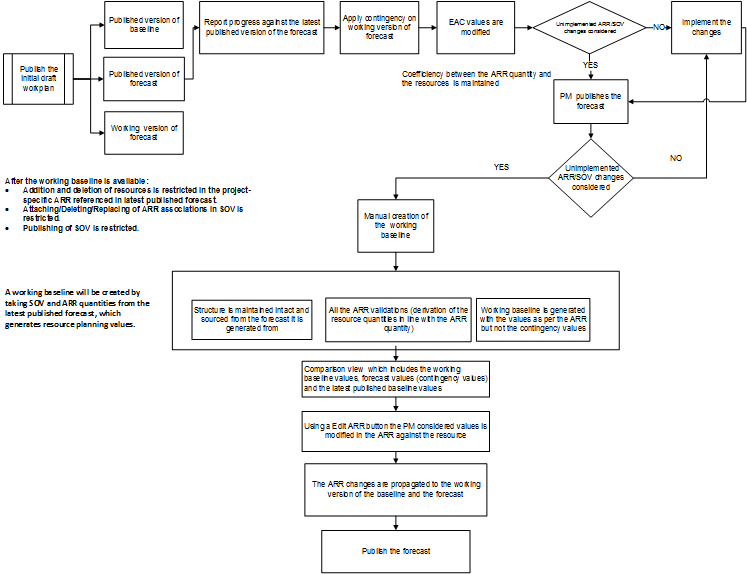
The following describes the Schedule of Values Projects process flow noted in the preceding image:
Publish the initial draft workplan, which generates Steps 2-4.
Published version of baseline.
Working version of forecast.
Published version of forecast.
From Steps 2-4, report progress against the latest published version of the forecast.
Apply contingency on working version of forecast.
EAC values are modified.
If no, implement the changes, before proceeding to Step 9.
If yes, PM publishes the forecast.
Unimplemented ARR/SOV changes considered.
If yes, manual creation of the working baseline. See Steps 13-15.
If no, return to Step 8 and repeat steps to implement changes.
Steps 13-15 are grouped. Structure is maintained intact and sourced from the forecast it is generated from.
Steps 13-15 are grouped. All the ARR validations (derivation of the resource quantities in line with the ARR quantity).
Steps 13-15 are grouped. Working baseline is generated with the values as per the ARR but not the contingency values.
From Steps 13-15, comparison view which includes the working baseline values, forecast values (contingency values) and the latest published baseline values.
Using a Edit ARR button the PM considered values is modified in the ARR against the resource.
The ARR changes are propagated to the working version of the baseline and the forecast.
Publish the forecast.
Additional Information: Coefficiency between the ARR quantity and the resources is maintained.
After the working baseline is available: Addition and deletion of resources is restricted in the project-specific ARR referenced in latest published forecast. Attaching/Deleting/Replacing of ARR associations in SOV is restricted. Publishing of SOV is restricted.
A working baseline will be created by taking SOV and ARR quantities from the latest published forecast, which generates resource planning values.
Task Dependencies
Dependencies may be added, deleted, or updated within the workplan forecast working version. However, edits to dependencies is restricted in the baseline working version.
Task Deliverables
Deliverables may be added, deleted, or updated to the working version of forecast. Deliverables will be sent to and received in MSP. However, edits to deliverables is restricted in the baseline working version.
Microsoft Project (MSP)
MSP integration allows sending and receiving of Oracle Project to and from MSP. Integration will map to working and published versions of the workplan forecast.
The published baseline is only allowed to be received to MSP.
MSP will not be integrated with the working version of baseline. In this context, the workplan baseline current working version will not be available for the users to select from the Menu: Receiving Project Data from Oracle Projects.
Creating more than one working forecast version is restricted for workplan baseline versioning enabled projects.
For baseline versioning enabled projects, approver selection while publishing draft workplans and forecast versions depends on an approver selection matrix for workflow.
Receiving progress information is disabled for the baseline version.
The published baseline is brought to MSP and resources from the published baseline can be imported, however, any changes (add or delete) made to the resources in the published version will not be exported to Oracle Projects.
When the version being imported from Oracle Projects to MSP is a published baseline:
Receiving a list of values from Oracle Projects is restricted.
Receiving actual data from Oracle Projects is restricted.
Sending of data to the Oracle project is restricted. The menu Send to Projects is not available for selection.
Deleting a task in the version imported to MSP will be restricted.
Copy MSP Fields to Oracle Progress Fields and Copy Oracle Progress Fields to MSP Fields is restricted from the tools menu.
Oracle MSP views are modified to cater to the needs of the published baseline. Limited views, which are applicable for the published baseline are as follows:
| Oracle Review Gantt-Baseline | Oracle Financial Gantt-Baseline | Oracle Review Resource Usage - Baseline | Oracle Financial Usage - Baseline |
| ID | ID | Name | Name |
| Indicators | Indicators | Baseline Effort | Baseline Cost |
| Task_Number | Task_Number | Baseline Cost | Baseline Start |
| Priority | Name Priority | Assignment Delay | Baseline Finish |
| Baseline Start | Transaction_Start_Date | Baseline Start | Type |
| Baseline Finish | Transaction_Finish_Date | Baseline Finish | Material Label |
| Duration | Task_Status | Type | Initials |
| Transaction_Start_Date | Mapped_Financial_Task | Material Label | Group Max |
| Transaction_Finish_Date | Baseline_Cost | Initials | Units |
| Overview | Task_Type | Group | Standard Rate |
| Baseline Effort | Task_Type_ID | Max Units | Overtime Rate |
| Baseline cost | Service_Type | Standard Rate | Cost Per Use |
| Mapped_Financial_Task | Service_Type | Overtime Rate | Accrue at |
| Baseline_Cost | Work_Type | Cost Per Use | Base Calender |
| Item | Work_Type_ID | Accrue at | Code |
| UOM | Task_Manager | Base Calender | - |
| Baseline Quantity | Task_Manager_ID | Code | - |
| Task_Type | Chargeable | - | - |
| Task_Type_ID | Billable_Capitalizable | - | - |
| Service_Type | Duration | - | - |
| Work_Type | Predecessors | - | - |
| Work_Type_ID | Resource_Names | - | - |
| Task_Manager | Baseline Start | - | - |
| Task_Manager_ID | Baseline Finish | - | - |
| Chargeable | - | - | - |
| Billable_Capitalizable | - | - | - |
| Predecessors | - | - | - |
| Resource_Names | - | - | - |
Public APIs
Public APIs support forecast and baseline cycles.
Cost-Based Structure (CBS)
You cannot change cost codes of resources in the working version of baseline.
Project Program
Enabling this feature is restricted for program.