A contract project is the primary billing unit at which you specify the following information:
Revenue accrual method
Billing method
Billing cycle
Other billing information
For contract projects, you define additional information for revenue accrual and billing based on requirements of your project, your company, and your customer. For example, you can enter billing terms, bill rates and billing titles, status, and credit receivers for contract projects only.
To enter a contract project and generate revenue and invoices
Enter a contract project and tasks. See: Billing Options for Projects and Tasks. See also: Creating Projects.
Enter an agreement. See: Entering an Agreement.
Fund the contract project. See: Funding a Project.
Enter and create a baseline version of the revenue budget for the contract project. See: Entering a Budget Draft and Creating a Baseline for a Budget Draft.
Caution: When cost breakdown planning is enabled for a project, then you cannot create integrated budgets or budgets with budgetary controls. You must log in to Self Service Web Application (SSWA) to create financial plans.
Optionally, perform adjustments. See: Adjusting Expenditure Items and Types of Invoice Adjustments.
Distribute costs, and generate invoices and revenue. See: Submitting Requests.
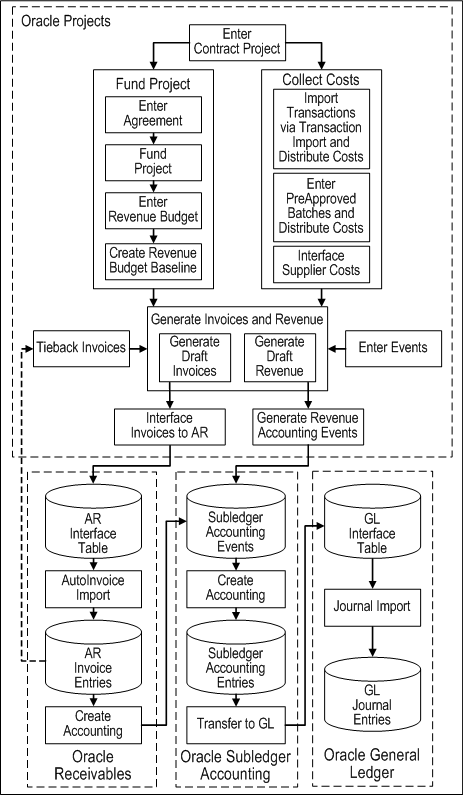
The following figure illustrates the flow for entering a contract project and generating revenue and invoices for the contract project:
Entering a Contract Project and Generating Revenue and Invoices
As illustrated in the figure Entering a Contract Project and Generating Revenue and Invoices, to enter a contract project and generate revenue and invoices, you must perform the following activities:
Enter Contract Project
You can copy a project template or another project to create a contract project. The project or project template that you copy must be associated with a contract class project type. You can then perform activities such as adding or removing tasks, updating billing information, updating billing overrides, and updating customer information.
Fund Project
Before you can generate revenue or invoices for a project, you must fund the project and create a baseline version of the revenue budget. The steps are as follows:
Enter agreement: Set up one or more agreements, with one or more customers, to define the funding source from your project customers.
Fund project: Fund the project by associating funding amounts from one or more customer agreements with the project.
Enter revenue budget: Enter a revenue budget for the project. The amount of the revenue budget must equal the total funding amount for the project.
Create revenue budget baseline: Create a baseline version for the project revenue budget.
Collect Costs
You can use expenditure transaction information to generate revenue. You can capture expenditure transaction data from the following the following sources:
Import transactions via Transaction Import and distribute costs: You can import costed or uncosted expenditures. You must distribute the costs for any uncosted expenditures that you import to generate information for the Generate Draft Revenue process. If you want to generate invoices or revenue based on accrued labor costs, then you must enable your project for billing on labor accruals and process approved or imported time cards using the Generate Labor Accruals process.
Note: To import expense reports costs, the transactions must be Raw Cost GL Accounted. You cannot import uncosted or unaccounted expense report transactions.
Enter preapproved batches and distribute costs: For example, you can enter timecards, usage, and miscellaneous costs. You must run the cost distribution processes to generate information for the Generate Draft Revenue process.
Interface supplier costs from Oracle Purchasing and Oracle Payables to Oracle Projects
Enter Events
Optionally, you can define project events in order to trigger the recognition of revenue, create revenue adjustments, or generate invoices based on event criteria that you specify.
Generate Draft Revenue
The revenue generation process calculates revenue and determines default revenue accounting using AutoAccounting. You can submit either the process PRC: Generate Draft Revenue for a Single Project or the process PRC: Generate Draft Revenue for a Range of Projects. After you generate revenue, you perform the following activities to complete revenue processing:
Generate revenue accounting events: Run the process PRC: Generate Revenue Accounting Events to calculate unearned revenue and unbilled receivables amounts and determine the default accounts using AutoAccounting. This process generates accounting events in Oracle Subledger Accounting.
Create accounting: The process PRC: Create Accounting creates draft or final accounting entries in Oracle Subledger Accounting for the accounting events. When you run the process in final mode, you can optionally choose to have it initiate the following activities:
Transfer to GL: The process can transfer the final accounting entries to the GL interface tables.
Journal Import: If you choose to transfer the final accounting to Oracle General Ledger, the process PRC: Create Accounting also initiates the Journal Import process in Oracle General Ledger. This process brings the revenue journal entries from the interface tables into Oracle General Ledger.
Posting: Optionally, if you choose to transfer the final accounting to Oracle General Ledger, then you can have the process initiate posting in Oracle General Ledger.
Generate Draft Invoices
The process generates customer invoices and determines a default receivables account using AutoAccounting. You can run either the process PRC: Generate Draft Invoices for a Single Project or the process PRC: Generate Draft Invoices for a Range of Projects. After you generate, approve, and release the invoice, you perform the following activities to complete invoice processing:
Interface invoices to AR: Run the process PRC: Interface Invoices to Receivables to calculate the unearned revenue and unbilled receivables amount and determine the default accounts using AutoAccounting. This process interfaces the draft invoices to the Oracle Receivables interface tables.
AutoInvoice Import: Run AutoInvoice Import in Oracle Receivables to import the invoices into Oracle Receivables from the interface tables.
Tieback invoices from receivables: Run the process PRC: Tieback Invoices from Receivables in Oracle Projects to confirm the interfaced amounts.
Create Accounting: Run the process Submit Accounting in Oracle Receivables to create accounting for the invoices in Oracle Subledger Accounting. When you run this process, you can choose to create draft or final accounting entries in Oracle Subledger Accounting. When you choose to create the accounting entries in final mode, you can optionally choose to have the process initiate the following activities:
Transfer to GL: The process can transfer the final accounting entries to the GL interface tables.
Journal Import: If you choose to transfer the final accounting to Oracle General Ledger, the process Submit Accounting also initiates the Journal Import process in Oracle General Ledger. This process brings the invoice journal entries from the interface tables into Oracle General Ledger.
Posting: Optionally, if you choose to transfer the final accounting to Oracle General Ledger, then you can have the process initiate posting in Oracle General Ledger.