To associate an asset with project costs, assign the asset to a grouping level.
Oracle Projects associates with the specified asset all the asset lines created from the capital or retirement cost expenditure items for a grouping level. If you associate multiple assets with the same grouping level, then you must specify an asset allocation method (other than None) for the project to enable Oracle Projects to assign or allocate the asset lines to the various assets. Otherwise, you must perform this task manually.
To assign assets to grouping levels:
Navigate to the Find Projects window, find your capital project, and then choose Open.
The Projects, Templates window opens.
Select a project and choose Open.
The Projects, Templates Summary window opens.
To group by project, select Asset Information (in the Options area), select Asset Assignments, and then choose Detail.
To group by task, choose Tasks (in the Options area). In the Find Tasks window, enter selection criteria. In the Tasks window, select a task and then choose Options. Assign a specific asset for each task that is in a Specific Asset grouping level. In the Task Options window, select Asset Assignment.
Note: You can assign assets only to grouping levels with a type of Specific Assets.
Choose the assets you want to assign to the grouping level.
Save your work.
You set up a construction management or an administrative task to capture project management activities. These costs do not apply to any specific asset. When the project is complete, you use a standard procedure to split the costs over all the assets. You associate these tasks with a grouping level so you can create asset lines from them, but you use a grouping level type of Common Costs.
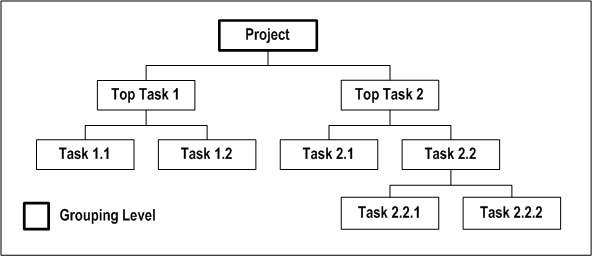
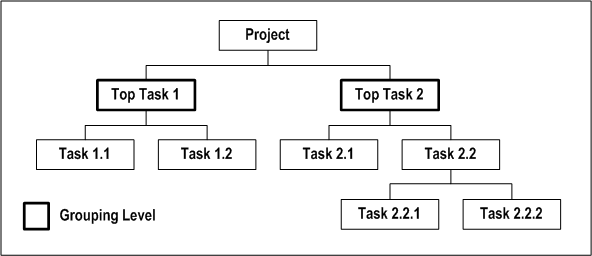
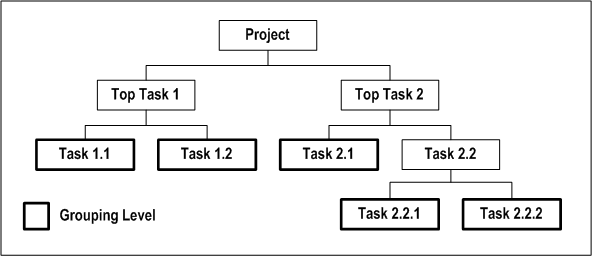
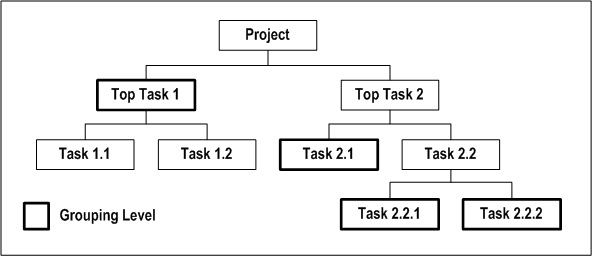
The following four illustrations show four possible variations of asset grouping levels for the same project.
Each illustration shows that the project has two top tasks, Task 1 and Task 2.
Task 1 has two subtasks, 1.1 and 1.2. These are the lowest tasks for Task 1.
Task 2 has two subtasks, 2.1 and 2.2. Task 2.1 is a lowest task, and Task 2.2 has two subtasks, 2.2.1 and 2.2.2.
The following illustration shows grouping at the project level.
The following illustration shows grouping at the top task level (Task 1 and Task 2).
The following illustration shows grouping at the lowest task level (tasks 1.1, 1.2, 2.1, 2.2.1, and 2.2.2).
The following illustration shows grouping at the top task level for the Task 1 branch (at Task 1) and at the lowest task level for the Task 2 branch (at Task 2.1, Task 2.2.1, and Task 2.2.2).
Group at different levels in each WBS
The following illustration shows and example of a capital project.
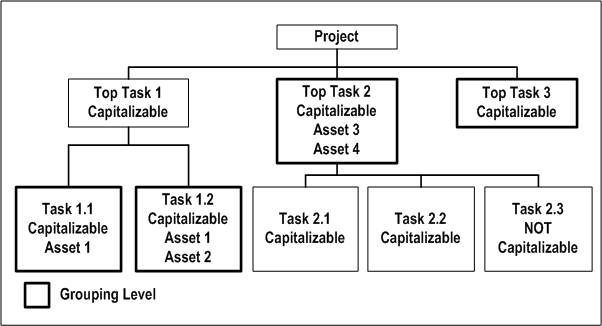
The illustration Example of a Capital Project shows an example of a capital project with the following breakdown structure:
The project has three top tasks, Task 1, Task 2, and Task 3.
Task 1 has two subtasks, 1.1 and 1.2. These are the lowest tasks for Task 1.
Task 2 has three subtasks, Task 2.1, 2.2, and 2.3. These are the lowest tasks for Task 2.
Task 3 has no subtasks.
All transactions on all tasks, except for Task 2.3, are capitalizable. The following grouping and assignment actions are applicable:
Grouping levels:
You create asset lines for Task 1.1, Task 1.2, Top Task 2, and Top Task 3 grouping levels
You charge expenditure items to Tasks 2.1 and 2.2, and they are grouped together into asset lines for Top Task 2
You can charge expensed transactions only to Task 2.3, because Task 2.3 is not capitalizable
Grouping level types:
Task 1.1, Task 1.2, and Top Task 2 grouping levels are assigned the grouping level type Specific Assets
Top Task 3 has a Common Costs grouping level type. The asset allocation method for the project is Current Cost. Asset lines are created and allocated to the project's assets based on the grouped construction-in-process cost of each asset.
Asset assignments:
You associate Asset 1 with Task 1.1 and Task 1.2 (Single Asset associated with multiple grouping levels)
You associate Asset 1 and Asset 2 with Task 1.2, and Asset 3 and Asset 4 to Top Task 2 (Multiple assets associated with a single grouping level)
