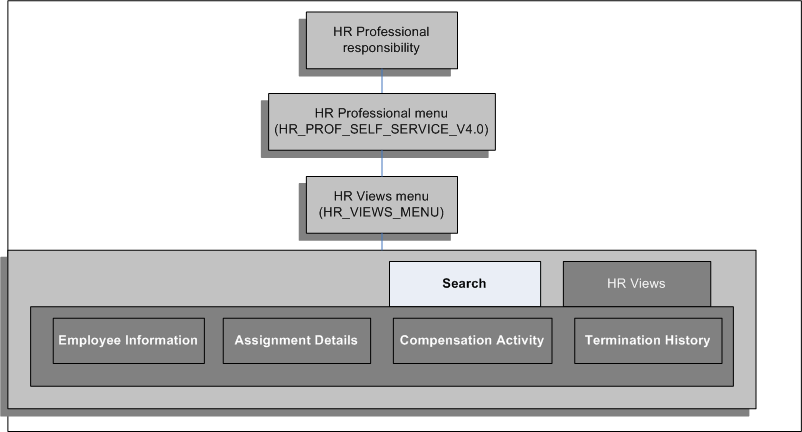
Tabbed regions appear on several SSHR web pages; for example, the Benefits Self Service page includes the Benefits Enrollments and Current Benefits tabs. The self-service Views functions also use tabbed regions and buttons to enable the user to switch between the different views.
The structure of the tabbed regions is defined by a series of menus and submenus. The graphic illustrates a typical example of a tabbed region in SSHR. In this example, the user selects the HR Professional responsibility which calls the HR Professional menu. The HR Professional menu contains the HR Views menu which, in turn, calls the HR Views submenu and the Search function. The Search function and HR Views submenu form the tabs displayed on the self-service page. The functions attached to the HR Views submenu become the buttons displayed under the HR Views tab.
Tabbed Regions in SSHR
The following menus contain tabbed regions:
Menu Structure for Tabbed Regions
| Top Level Menu | Submenu/Function | Function | Function |
|---|---|---|---|
| HR Professional (HR_PROF_SELF_SERVICE_V4.0) | HR Views (HR_VIEWS_MENU) | Search function | |
| HR Views submenu (HR_VIEWS) | View Employee Information Details | ||
| View Employee Compensation Activity | |||
| View Employee Termination History | |||
| View Employee/Personal Information | |||
| Search function | |||
| Benefits Self-Service (BEN_SELF_SERVICE_BENEFITS | Benefit Enrollments function | ||
| Current Benefits function | |||
| My Employee Information Functions Menu (HR_MGR_VIEWS_FUNC_MENU) | Simple Search | ||
| Advanced Search | |||
| My List | |||
| My Employee Information | |||
| Person Details | |||
| My Employee Information Views Sub Tab Menu (HR_MGR_VIEWS_SUB_TABS) | |||
| Employment | |||
| Salary | |||
| Performance | |||
| Training | |||
| Absence | |||
| Job Applications | |||
| Effort Distribution | |||
| Contracts | |||
| My Information Functions Menu (HR_EMP_VIEWS_FUNC_MENU) | |||
| My Information | |||
| My Information Views Sub Tab Menu (HR_EMP_VIEWS_SUB_TABS) | |||
| Employment | |||
| Salary | |||
| Performance | |||
| Training | |||
| Absence | |||
| Job Applications | |||
| Effort Distribution | |||
| Contracts | |||
| Salary Details | |||
| Salary Details |
Menu Structure for US Federal HR Tabbed Regions
| Top Level Menu | Sub menu | Sub Tab | Function |
|---|---|---|---|
| Federal HR Self Service (GHR_HR_MANAGER_ACCESS) | Employee Information (GHR_HR_VIEWS_FUNC_MENU) | Employee Information (GHR_HR_VIEWS_SUB_TABS) | Employment |
| Position | |||
| Personal | |||
| Obligation Dates | |||
| Salary | |||
| Benefits | |||
| Awards and Bonuses | |||
| Performance | |||
| Personnel Action | |||
| Training | |||
| Absence | |||
| Job Application | |||
| Federal Manager Self Service (GHR_LINE_MANAGER_ACCESS) | My Employee Information (GHR_MGR_VIEWS_FUNC_MENU) | My Employee Information (GHR_MGR_VIEWS_SUB_TABS) | Employment |
| Position | |||
| Personal | |||
| Salary | |||
| Awards and Bonuses | |||
| Performance | |||
| Personnel Action | |||
| Training | |||
| Absence | |||
| Job Application | |||
| Federal Employee Self Service (GHR_EMPLOYEE_DIRECT_ACCESS) | My Information (GHR_EMP_VIEWS_FUNC_MENU) | My Information (GHR_EMP_VIEWS_SUB_TABS) | Employment |
| Position | |||
| Personal | |||
| Salary | |||
| Benefits | |||
| Awards and Bonuses | |||
| Performance | |||
| Personnel Action | |||
| Training | |||
| Absence | |||
| Job Application |
See also: Setting Up Self-Service Benefits Web Pages
You can determine which responsibilities can view information by hiding the tabbed region (function exclusion):
At the responsibility level for a specific responsibility
At the menu level for all responsibilities
 To configure tabbed regions:
To exclude a tabbed region for all responsibilities at the menu level:
Set a function exclusion at the menu level:
In the Menus window, query the self-service manager menu, such as HR_VIEWS_SUB_TABS.
Locate the row for the prompt and function associated with the tabbed region, such as Training.
Click the Grant check box to deselect the tabbed region for all responsibilities that use this menu.
Save your work.
To exclude a tabbed region from one responsibility:
Set a function exclusion at the responsibility level:
In the Responsibility window, query the self-service manager responsibility.
In the Menu Exclusions tabbed region, create an exclusion with the type Function.
Select the function you wish to exclude in the Name column. See Menu Structure for Tabbed Regions.
Save your work.
To rename the tabbed regions:
In the Menu window, query either the menu representing the tabbed region or the menu containing the functions that represent the buttons.
Change the name of the tabbed region or button by changing the value in the Prompt field of the Menus window.
Note: If you change the prompt, the change will be visible for all responsibilities or menus calling that menu or submenu. If you want to use different names for the tabbed regions and buttons for different responsibilities, you must create additional versions of the menu or submenu.
See: Defining Menus
Save your work.