You can change the predefined instructions, messages, and tips attached to your web pages to provide relevant information for your users. You can replace delivered texts or create new texts for regions or item delivered without a text attached, using one of three formats:
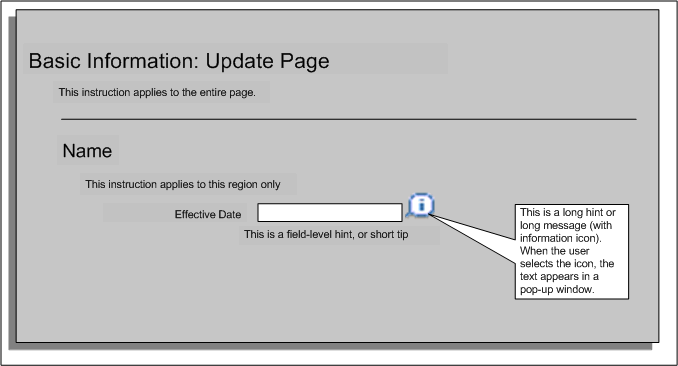
Instructions. These texts appear at the top of a region and generally give advice applicable to the whole region or page.
Long messages. These texts are attached to a field. When the user clicks the Information icon next to a field, the message opens in a separate window.
Short tips. These texts are also attached to a field, however, they are displayed underneath the field in blue.
The graphic below illustrates examples of the different types of text:
Instructions, Messages, and Tips on a Self-Service Page
Recommended Approach
Create text items in the Messages window using the forms interface and add them to your region or item using the Personalization Framework.
 To create a text item in the Messages window:
Log on to the database using an Application Developer responsibility.
Navigate to the Messages window.
Enter the name for your text item.
Select Note as the message type.
Enter the application and the message text. You can enter a long message, short message, or tip text.
Save your work.
To personalize text on a page: Log on to a self-service application using a responsibility that allows configuration.
Note: To enable configuration, the Personalize Self-Service profile option (FND_CUSTOM_OA_DEFINITION) must be set to Yes at an administration level.
Click Personalize Region or Personalize Page.
Navigate to the self-service page or region in which you want to replace the text.
Then select one of the following options:
To replace an existing text item:When the personalization structure is displayed, drill down to the region or page element containing the text.
Locate the text item on the page. The text item will be one of the following items:
Static Styled Text: <name> - for instruction text
Message Text Input - for short tips and long messages
Message Choice - for long messages attached to a list of values
Select the Personalize icon for the item.
Replace the value in the Message Name field with the text item that you created in the Messages window.
Click Apply to save your changes
To add a text item to a new region:If you are adding a text item to a region or page that does not contain a text as standard, you need to carry out the following steps:
Create an item with one of the following styles:
Static Styled Text: <name> - for instruction text
Message Text Input - for short tips and long messsages
Message Choice - for long messages attached to a list of values
See: Create Item Page
Enter the ID for the item following the standard naming conventions.
See: Oracle Applications Framework Personalization Guide
Set the CSS Class to OraInstructionText.
Enter the application short name in the Message Appl Short Name field..
Enter the name of the message in the Message Name field.
In the Tip Type field, select the appropriate format for your text.
Note: If applicable, you can display a date format example next to a date field. In this case, select dateFormat in the Tip Type field. The OA Framework then automatically displays a date example based on the user's date preference.
Click Apply to submit your changes.