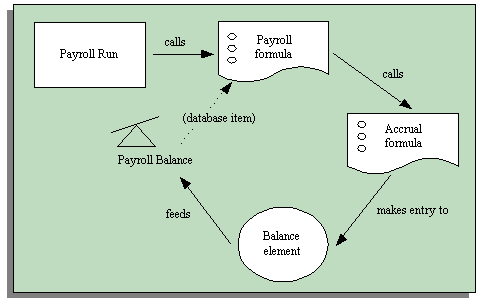
If you use Oracle Payroll, you can choose to use a payroll balance to store gross accruals for an accrual plan. You do this by selecting a balance dimension (such as calendar year to date) when you define the accrual plan. The system then automatically generates the balance and other components you require.
Some batch processes, such as the US Check Writer, call the accrual formula to calculate PTO accruals for each assignment. If you use such processes, you will benefit from faster batch processing if you set up your accrual plan to use a payroll balance. This reduces the number of calculations the formula has to perform.
The payroll balance is maintained by the payroll run. When the payroll run processes an accrual plan element entry, it calls an Oracle Payroll formula associated with the accrual plan element. This formula calls your accrual formula to calculate the gross accrual, passing in the following information:
The name of the database item for the payroll balance, so the accrual formula can retrieve the number of days or hours currently in the payroll balance
Date to begin calculating new accruals, which is the day after either the Date Earned or the Date Paid of the last payroll period in which the assignment was processed
You can choose whether the formula uses Date Paid or Date Earned by selecting the Payroll Balance Type for your business group in the Organization window.
Date Earned is the date the payroll run uses to determine which element entries to process. In North America (and typically elsewhere too) it is the last day of the payroll period being processed. Date Paid is the date that appears on pay advices. The payroll run uses this date to select taxation rules, and store balances. In some legislations, these dates are always the same.
Calculation date, which is either the date earned or the date paid of the payroll run
The accrual formula returns the new gross accrual to an element that feeds the balance.
So normally the formula only has to calculate accruals since the last payroll run, and add this value to the existing payroll balance. However, if the accrual formula finds retrospective absences or other assignment changes that affect entitlement, it recalculates accruals for the whole accrual term. This processing ensures that the employee receives their full accrual entitlement.
Note: You can also force the payroll run to recalculate accruals for the full accrual term by setting the action parameter Reset PTO Accruals to "Y" before running a payroll for a set of assignments. Update the parameter to "N" after processing these assignments to ensure faster processing in your normal run.
Supposing an accrual plan has a ceiling of 10 days, and two days accrual per month. An employee has a net accrual of 10 at the end of May. The June payroll run does not award any new accrual to this employee because the net accrual must not exceed the ceiling. However, in July the employee's manager enters five days vacation in May, retrospectively. The July payroll run recalculates the accrual and updates the gross accrual balance to 14. The net accrual is now nine (14 minus 5).
If you want the payroll run to maintain an accrual balance, you must use a formula that supports balances. This means that the system can pass the latest accrual balance to the formula, along with the date to start calculating new accruals to add to the balance.
You can use or configure one of the following seeded formulas:
PTO_HD_ANNIVERSARY_BALANCE
PTO_PAYROLL_BALANCE_CALCULATION
PTO_SIMPLE_BALANCE_MULTIPLIER
You must also select a balance dimension when you define the accrual plan. The balance dimension controls the period of time over which the balance accumulates before it is reset to zero. Three types of dimension are predefined:
Note: For each type, there are two dimensions. Use the Date Earned dimension (such as _ASG_PTO_DE_YTD) if you selected Date Earned as the PTO Balance Type for your business group. Otherwise use the Date Paid dimension (such as _ASG_PTO_YTD).
_ASG_PTO_YTD and _ASG_PTO_DE_YTD
The balance accumulates over a calendar year, resetting on 01 January. Select one of these dimensions if you are using the PTO_PAYROLL_BALANCE_CALCULATION formula.
_ASG_PTO_SM_YTD and _ASG_PTO_DE_SM_YTD
The balance accumulates over a year, resetting on 01 June, or at the end of the payroll period that contains this date. Select one of these dimensions if you are using the PTO_SIMPLE_BALANCE_MULTIPLIER formula.
_ASG_PTO_HD_YTD and _ASG_PTO_DE_HD_YTD
The balance accumulates over a year, resetting on the anniversary of the employee's hire date, or at the end of the payroll period that contains this date. Select one of these dimensions if you are using the PTO_HD_ANNIVERSARY_BALANCE formula.
For further information on balance dimensions, see the technical essay: Balances in Oracle Payroll.
Notice that the Oracle Payroll formula, payroll balance, element that feeds the balance, element link, and formula processing and result rules are all generated by the system when you save your accrual plan.
If you want Oracle Payroll to recalculate the accrual balance from the beginning of the accrual term when there are retrospective assignment changes that affect entitlement, you must ensure your accrual formula can track these changes. You enable a trigger for assignment updates, define an event group for the assignment changes you want to track, and ensure your PTO accrual formula references this event group. See: Setting Up PTO Accrual Plans.
Note: The predefined PTO_PAYROLL_BALANCE_CALCULATION formula handles retrospective changes to assignment status.