The appraisal template is the design document for an appraisal. Its main function is to configure all sections of the appraisal to suit the appraisal purpose or enterprise requirements: you can use a single appraisal template throughout the enterprise.
To create an appraisal template, you use the Manage Appraisal Templates function. You can access this function from the HR Professional menu, where it appears by default.
You can define as many appraisal templates as you need to meet enterprise requirements. For example, you could define a different template for each Performance Management Plan or different templates for each appraisal purpose (such as annual appraisal, exit appraisal, or benchmarking appraisal). Alternatively, you can use a single appraisal template for all appraisals.
Note: You can continue to use appraisal templates created in the Appraisal Template window of the forms-based interface. However, their scope is local only. To update or delete these templates, use the Manage Appraisal Templates function.
In the Search region of the Manage Appraisal Templates function, you can search for existing templates created using either this function or the Appraisal Template window. When you tab out of a field in the Search region that has an associated Search window, that window does not open automatically. Click the Search icon to display the Search window.
When you create an appraisal template, you can:
Specify validity dates. Outside these dates, the template is not available for use. You can use these dates to associate the template with a performance-management period, for example.
Specify the template scope. Global templates are available in all enterprise business groups. Local templates are available only in the business group in which you create them.
If the appraisal template has global scope, any assessment templates, questionnaires, and rating scales that you include in the template must also have global scope. If the appraisal template has local scope, any assessment templates and questionnaires that you include in the template must be local to the same business group as the appraisal template. Rating scales, however, can be either global or local.
Note: To enable HR Professionals to view and update overall ratings, you must ensure that a performance rating scale is attached to the appraisal template.
Include instructions to appraisal participants. These instructions appear, formatted as you specify, on the Appraisal Overview page.
To assess competencies during an appraisal, you must select or create a competency assessment template in the appraisal template. Otherwise, the Competencies region does not appear in appraisals. The Update Competency Profile option, which determines whether the application updates competency profiles automatically after the appraisal, appears after you identify a competency assessment template.
To assess objectives during an appraisal, you must select or create an objective assessment template in the appraisal template. Otherwise, the Objectives region does not appear in appraisals.
See: Assessment Templates
To allocate a final rating to the appraisee, you select a performance-rating scale. In addition, you can select an Appraisal Total Score Formula to identify the appropriate final rating from the selected performance-rating scale. The formula, which you write, can base any calculations on the worker's total scores for competencies and objectives. The rating identified by the formula appears as the worker's Suggested Overall Rating on the Final Ratings page of the appraisal. HRMS supplies some example formulas for calculating the appraisal total score.
See: Assessing Competencies and Objectives
See: Writing Formulas for Rating Competencies and Objectives
In the Learning Path region of an appraisal, you can identify training courses for the appraisee. You select the Include Learning Path option to include the region in appraisals.
When main appraisers share appraisals with appraisees, they specify which information the appraisee can view and whether the appraisee can update the appraisal. For example, to share competency ratings and comments, the main appraiser selects the Competency Ratings and Comments check box. By default, no sharing option is selected, but you can change this initial setting for appraisals that use this template. The main appraiser can override these initial appraisal-sharing options in appraisals that use the template.
Attention: The Offline Appraisals feature does not support the Questionnaire Administration - New functionality. If you create an offline appraisal template to use the offline appraisal feature, then ensure that you do not select a questionnaire created using the Questionnaire Administration - New functionality.
You can attach appraisee and main appraiser questionnaires to the appraisal template.
The appraisee questionnaire is available to the appraisee, appraisers, and other participants. When you add appraisers and other participants to an appraisal, you can select either Default Questionnaire (which is the appraisee questionnaire) or a different questionnaire.
The main appraiser has no default questionnaire. If you want the main appraiser to complete a questionnaire, you must select it explicitly. You can select the same questionnaire for both the main appraiser and the appraisee.
To create a questionnaire, you use the Questionnaire Administration function.
To include the same questionnaire in all appraisals in enterprises that use multiple business groups, define the questionnaire with global scope. Otherwise, questionnaires are available only in the business group in which you create them.
Any questionnaire that you attach to an appraisal template must have the status Published. You can publish a questionnaire either when you create it or at a later date (after review of the questionnaire, for example).
You can change the status of a questionnaire from Published to Unpublished at any time, even if the questionnaire is currently in use in appraisals or simply attached to an appraisal template. This feature enables you to prevent future use of a questionnaire. For example, if you create a different questionnaire for each year's appraisals, you can prevent next year's appraisals from using this year's questionnaire by setting its status to Unpublished.
Prerequisite: Before you configure the steps on enabling main appraisers to update appraisals of terminated workers, ensure that the pEnableTerms parameter value is set to Y for the following Appraisals functions. By default, the parameter value is set to Y.
Manager: Main Appraiser Page (HR_MGR_MN_APPR_SS)
Manager: Performance Management Page (HR_MGR_TALMGMT_SS)
The application checks for the parameter settings and then applies the configuration options to enable main appraisers to update appraisals of terminated workers.
When creating an appraisal template, you can define whether main appraisers can update appraisals of terminated workers.
When you select the Allow Updates to Appraisals of Terminated Workers check box, the View and Update Appraisals of Terminated Workers region appears. To enable main appraisers to update appraisals of ex-employees or ex-contingent workers, select the relevant check box. You can enter the number of days from when main appraisers can view completed appraisals of terminated workers in the Terminated Workers tab of the Appraisals As Main Appraiser page. The Number of Days field is based on the appraisal period end date. For example, if you enter 365 in the Number of Days field, the application displays all such terminated worker appraisals that have their appraisal period end date within the last 365 days.
The ability to update ongoing appraisals is controlled by the setting of the Display and update appraisals of employees and Display and update appraisals of contingent workers check boxes.
The following section explains the changes if you select the Display and update appraisals of employees and Display and update appraisals of contingent workers check boxes.
A main appraiser can update the appraisals of terminated workers that are at the Ongoing status in the Appraisals as Main Appraiser page regions: Appraisals In Progress and Performance Management Plan Appraisals In Progress. The main appraiser can update and complete all sections of an ex-employee's or ex-contingent worker's appraisal. An icon to indicate terminated workers is available in the Appraisee columns of the tables to identify terminated workers easily. Note that only the HR Professional can view and update appraisals of terminated workers that are at the Pending Approval status.
Select the Allow Updates to Appraisals of Workers Terminated at a Future Date check box to enable workers and main appraisers, to access and update appraisals of workers whose termination date is set to a future date.
If you do not select this check box, then in a supervisor hierarchy, the Mass Appraisal Creation process fails for a manager with future dated termination and the manager's immediate direct reports. However, the process creates appraisals for the manager's indirect reports.
This example explains how the Mass Appraisal Creation process works if the check box is not selected.
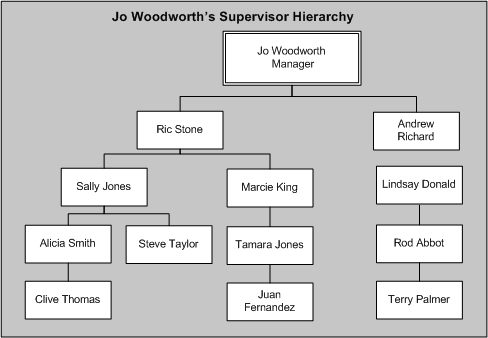
Ric Stone who reports to Jo Woodworth has decided to leave the enterprise and Ric's employee record has a termination date set at a future date. If you do not select the check box, then when the Mass Appraisal Creation process runs, the process:
Does not create appraisals for Ric and his immediate directs: Sally and Marcie.
Creates appraisals for Ric's indirect reports: Alicia, Steve, Clive, Tamara, and Juan.
To enable the appraisal participants to complete the appraisals offline, you must select an offline appraisal template for each appraisal participant type (main appraiser, appraisee, and other participant) in the Offline Appraisal Template Details region.
Note: If your enterprise does not use this feature, then you can hide the Offline Appraisal Template Details region using personalization.