The availability of a person depends on their work schedules, absences, and holidays that affect their time. For an enterprise, availability information is essential in a number of business processes. For example, when you approve an absence, you may need to know the worker's schedule to consider their commitments, the availability of other people in their team, and any holidays, such as a planned company closure that affects their time.
Oracle Applications provide alternative ways to set up and record schedule information in your enterprise. The decision for which method you set up is based on your knowledge of which applications use which information.
Use OTL to set up information such as holiday calendars, shifts, and work plans.
For information on the OTL time management structures, see: Time Management Structures
Use Oracle HRMS to set up basic schedule information in various areas of your work structures, such as default working hours for your business group, that you use for information purposes only.
Use the Oracle HRMS and Common Application Components (CAC) integrated features to set up extensive schedule information, such as, shifts, schedules, and calendar events. The HR application uses this method to determine a worker's availability, if you do not use OTL. This topic focuses on this method of setting up schedule information.
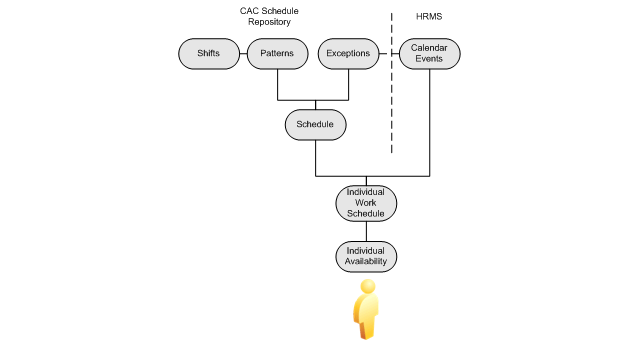
Oracle HRMS and CAC enable you to set up information to determine a worker's availability. Using the CAC schedule repository, you define a worker's schedule and availability and publish it for the eBusiness Suite. Using HRMS calendar events, you define the holidays that affect the availability of your workforce.
The following diagram displays the Oracle HRMS and CAC features you can set up to determine a worker's availability.
HRMS and CAC Integrated Availability Features
Schedules include details of available and unavailable working times for a resource for a specified period of time. You define schedules to suit the different groups of people in your workforce. For example, you can set up a regular schedule of 9-5, for five days a week, starting on Mondays, and assign it to all the workers who work a regular week. You store the schedules in the CAC schedule repository.
See: Overview of the Schedule Repository
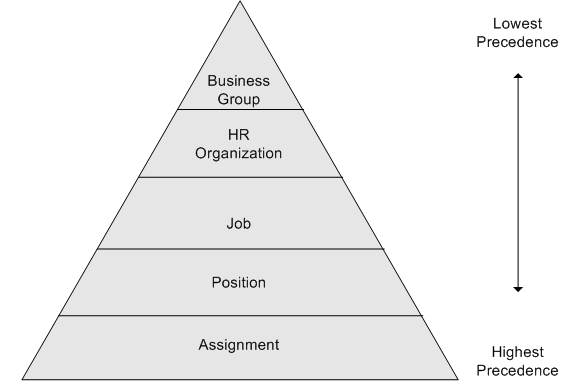
For the HR application to determine a worker's availability effectively, you must have assigned a schedule to them. To ensure that you have assigned a schedule to your workforce, assign a schedule to the business group. This creates a default schedule for your workforce to inherit. You can also assign schedules at the HR organization, job, position, and assignment levels, which enables you to override the default schedule and define schedules for different groups of workers. When determining a worker's availability, the application searches for the worker's schedule starting from the lowest level first. The following diagram displays the different levels at which you can assign a schedule, the order in which the application finds the information, and the order of precedence.
Schedule Precedence
If you directly assign a schedule to a worker's assignment, then you can, optionally, filter the schedules so that only the schedules the worker is eligible for display. For example, you can use schedule eligibility to define an eligibility profile for all the workers in the UK. When you assign a schedule to a UK worker, you can use this eligibility to ensure you only see this type of schedule. A worker becomes eligible for a schedule if you attach an eligibility profile to the schedule and the worker meets the eligibility criteria in the profile. This is an optional tool to help you restrict the number of schedules the HR application retrieves, it does not prevent you from overriding the eligibility.
An exception is an override of an existing schedule pattern. A holiday is an exception that changes a normal work day to an unavailable work day. An exception can also change a normal non-work day, such as Saturday, to an available work day. You can set up company holidays as global exceptions, which you can incorporate into any schedule. You can also create exceptions that apply only to a particular schedule during the schedule creation process.
Calendar events represent all the important dates that can affect the working time of your workforce such as a public holiday. You define the coverage of an event using geographical and organizational hierarchies to identify the group of people to whom the event may apply.
The calendar events that apply to a person depends on which organization and geographical node their primary assignment is associated. For example, if you are a multi-national enterprise and you want to schedule a global event, then you can attach the event to the top-level node of the geographical hierarchy. This enables you to define a calendar event and apply it to all the countries in which you employ people at the same time, rather than defining separate events for different countries or regions.
Using this example, each worker's assignment is included in the event's coverage, however, the worker may not be impacted by the event. A calendar event only impacts a worker's time if they are scheduled to work at the same time as the event and if the event is defined as an exception to the schedule.
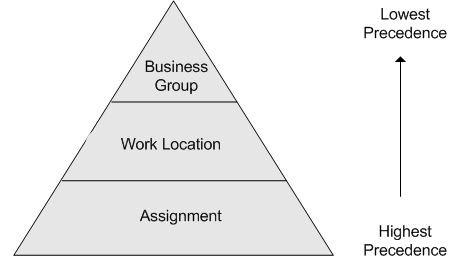
If you use the geographical hierarchy as the type of coverage, then the HR application uses the business group's legislation code to determine the country in which the person works in their primary assignment. If the event includes that country, then the event becomes applicable for the person. You can override this default by using the location and assignment EITs to identify a different geographical node in the hierarchy. To determine if a calendar event is applicable to a worker, the application uses the geographical node at the lowest level. The following diagram displays the levels you can use to identify a geographical node in which a worker belongs. The lowest level is the assignment EIT, which overrides the information defined at the location and business group levels.
An event only impacts a worker's day if they are scheduled to work during that time. For example, you create a public holiday calendar event for Christmas day and attach it to the UK node of the geographical hierarchy. Person A and Person B both work in the UK for the same company. Person A works in the factory and is on a shift- based schedule of four days working and four days not working. Person B works in the administration department and is on a Monday to Friday schedule. Person A is required to work on public holidays, and Person B is not. Christmas day is on a Thursday, so does this event impact their working day?
The HR application determines which events apply to each worker. Person A is required to work public holidays so if Person A is scheduled to work on a Thursday, then no, this calendar event does not impact their working day. Person B is not required to work on public holidays, and as Person B is scheduled to work on a Thursday, the event does impact their working day. Therefore, Person A is available to work on Christmas day, and Person B is unavailable.
Setting up schedules and calendar events for your workforce enables you to view a person's working time, and furthermore, find out when they are available or unavailable to work. You can display a person's availability in the Review Resource Availability based on their assignment and date range. The application searches the person's applicable schedules and calendar events within the dates you specify, and displays the results in a table.