A contingent worker is a worker who does not have a direct employment relationship with your enterprise and is typically a self-employed individual or an agency supplied worker.
A contingent worker may perform a role for your enterprise as part of a commercial agreement that exists between the business and the individual or supplier. Alternatively, a contingent worker may perform a role as an intern or a volunteer for your enterprise and have no relationship with a supplier. Additional criteria may apply to the definition of a contingent worker in your localization.
Contingent workers can perform many of the roles that you usually assign to employees (such as Manager or Supervisor), provided that you set the HR: Expand Role of Contingent Worker profile option to Yes.
You do not pay contingent workers via your payroll. Instead, they submit payment invoices to your accounts payable department. Alternatively, you can manage the procurement of contingent workers using Oracle Services Procurement. In this case, contingent workers or their managers can enter time cards using Oracle Time and Labor (OTL) and generate payment invoices automatically.
Note that contingent workers exist as a separate category of worker from short-term or fixed-term contractors who are hired directly by your enterprise and are paid via your payroll.
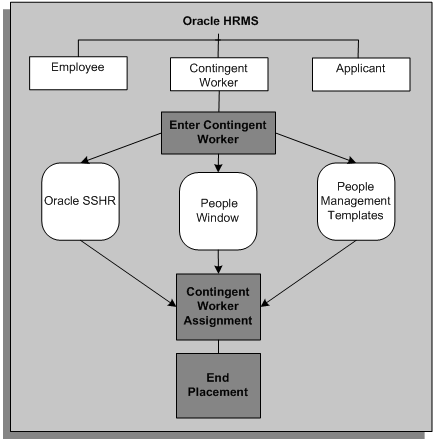
Every enterprise must be able to enter and hold personal information for its workforce. You can enter personal information for contingent workers using the People window or the People Management templates.
You can use the predefined templates without making changes, modify the templates, or create entirely new templates to suit your needs. Oracle HR Foundation also provides contingent worker templates.
Contingent Worker Support in Oracle SSHR
You can manage the entry, assignment, and termination of contingent workers using Oracle Self Service HR (SSHR). SSHR provides two modules that are specific to contingent workers (Assignment Rate and End Placement), in addition to the Place Contingent Worker workflow process. Contingent workers can maintain their own personal and professional details using SSHR.
Contingent Worker
The contingent worker assignment relates contingent workers to their work structures (such as organization and job). Much of the work structures information you enter for a contingent worker is entered against the contingent worker assignment and not the person. For example, you can enter standard conditions or supplier details against the contingent worker assignment.
When you create a new contingent worker, a default contingent worker assignment is created. Oracle HRMS stores personal information for all workers separately from their assignment information.
Period of Placement
A contingent worker period of placement relates to the period of time a contingent worker spends with your enterprise. A contingent worker can have a number of concurrent assignments during a period of placement, but there must be one primary assignment at any time during the period. No assignments can start before the period of placement start date or end after the period of placement end date.
Assignment Rate Types and Assignment Rates
If you install and license Oracle Services Procurement, you can obtain purchase order information, including assignment rates, directly from the purchase order.
Note: Oracle Services Procurement enables you to associate more than one purchase order or purchase order line to a contingent worker. If the task flow to use the PO_CWK_ASSOCIATIONS function is enabled, then you can use the Associate Purchase Order with Contingent Worker page to associate more than one purchase order or purchase order line to a contingent worker. For more information, see: Oracle Procurement - Services Procurement White Paper on My Oracle Support, Note ID 567411.1
If you are not using Oracle Services Procurement, you can record the rates you pay for the services of a contingent worker. You can use this information to reconcile contingent worker invoices from a supplier or self-employed worker. Although you can record this information, you cannot process payments for contingent workers using Oracle Payroll.
The information is held against the contingent worker's assignment and you can record different rates for a single assignment. For example, you could enter a standard overtime rate and a weekend rate for one assignment.
If you install and license Oracle Services Procurement at a later date, any rate information recorded in Oracle HRMS is no longer visible.
When a contingent worker leaves your enterprise you end the placement.
You can also terminate individual contingent worker assignments, provided there remains a primary assignment. You terminate an assignment by selecting the assignment status End in the Assignment window.
If you use Oracle Services Procurement to provide purchase order information for contingent worker assignments, the purchase order line may include the projected end date of the assignment. In this case, the projected assignment end date is copied automatically from the purchase order line to the assignment. Otherwise, you can record a projected assignment end date at any time during an assignment.
Canceling a Placement
You can revert a contingent worker to a previous person type by using the action type Cancel Placement. For example, you enter a person as a contingent worker who has a previous person type of ex-employee. Using the Cancel Placement action type you can revert this person back to being an ex-employee. You cannot use this action type to revert a contingent worker who does not have a previous person type.
Oracle HRMS enables you to keep your contingent worker transactions entirely separate from employee transactions.
Contingent Worker Person Types
So you can identify contingent workers as a separate category of worker from employees, Oracle HRMS provides you with the two system person types Contingent worker and Ex-contingent worker, to which you can add your own user types as required.
Contingent Workers and Oracle HRMS Security
Oracle HRMS enables you to limit access to the records of employees, applicants, and contingent workers when you set up a user's security. Using security profiles you can give users access to contingent worker records only. You can also restrict user access to contingent worker records by giving them access to work structures or other criteria in the application to which contingent workers are attached. For example, you could give users access to the contingent worker records in a single organization.
CustomForm
Many of the windows used in Oracle HRMS are multipurpose windows. For example, the People window can be used to enter and maintain personal details for employees, contingent workers, and applicants. You can create a separate version of some Oracle HRMS windows to cater specifically for contingent workers using CustomForm. For example, you could create your own version of the People window to cater solely for contingent workers.
Task Flow
You can also use task flow to limit the access your users have to individual windows. You can link together the windows you want your users to use for a particular task including versions of windows you have created using CustomForm. For example, you might include your own version of the People window and include this in a task flow for entering personal information for a contingent worker.
Combining Security Profiles, CustomForm, and Task Flow
The following example combines the concepts of security profiles, CustomForm, and task flow to show how you can give users access to contingent workers records only:
Firstly you could establish a security profile stipulating that your users only have access to contingent worker records. You do this by selecting an access level of 'none' for the records of employees or applicants and an access level of 'all' for contingent workers. You then link your new security profile to a new responsibility. You could then create a new version of the People window using CustomForm. Your new People window could restrict the actions the user can perform, for example, creating a placement. When you have created the new version of the window you assign it to a menu. Next you remove the windows that are no longer required from the menu and assign the menu to the same responsibility as your security profile. Finally you could create a new task flow and attach it to the window.