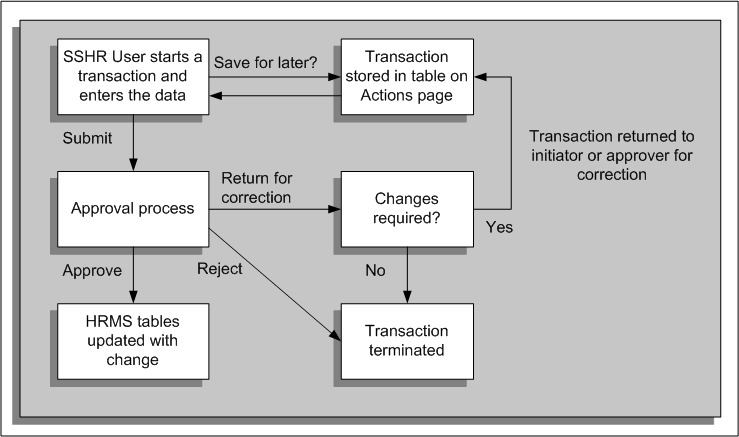
The Save for Later functionality enables a user to interrupt transactions before they are complete. The user can then save them so that they can be completed at a later point. When users save a transaction for later the application sends them a notification.
In addition, approvers can return transactions to the initiator or a previous approver for correction. In this case, the initiator can reopen the transaction, correct the information, and resubmit it for approval. The approvers can include informational notes to clarify the reason for returning the transaction.
Both suspended transactions and returned transactions are displayed in the All Actions Awaiting Your Attention list on the Actions page.
Users can also access their saved functions using the All Actions Awaiting Your Attention menu option on the employee and manager menus.
Save for Later Functionality
The graphic above shows how transactions can be saved for later and returned for correction.
Route 1 (Save for Later): When a user initiates a self-service transaction, or receives a transaction for correction, they can either submit the transaction for approval immediately or save the transaction for subsequent processing. If the user submits the transaction immediately, the transaction is subject to the usual approval processes. If the user chooses to save the transaction for later, it is suspended and the user can restart it or delete it from the All Actions Awaiting Your Attention table in the Actions page.
Route 2 (Return for Correction): When a user has submitted a transaction for approval, the approver can either approve the transaction, reject the transaction, or return it for correction. If the approver returns the transaction for correction, the initiator can subsequently restart or delete it from the All Actions Awaiting Your Attention table in the Actions page of the initiator.
Note: If a transaction is interrupted due to user inactivity, or a system failure, the interrupted transaction is also stored as a suspended transaction and the user will receive a notification.
The application will notify users whenever they have saved a transaction for later.
Note: Users save a transaction for later by clicking the Save for Later button. To disable this button you need to set the profile option HR:Self Service Save for Later to No (the default is Yes). This will hide the Save for Later button on all transaction pages and the Review page.
Oracle SSHR uses the HR Save for Later (hrssfl.wft) workflow item type to route the save for later transactions. The HR Save for Later Notification Process within the workflow controls the for save for later transactions. This process sends FYI notifications when save for later transactions occur and recipients can launch the transactions from notifications later.