Locators identify physical areas within subinventories where you store items, such as rack/bin or aisle/row/bin locations. You set up storage locations, dock doors, staging lanes, consolidation locations, and packing stations as locators. For detailed instructions on how to set up locators, see:Defining Stock Locators .
The same definition of stock locators used in Oracle Inventory is used in Oracle Warehouse Management, but it may not be feasible for Oracle Warehouse Management users to affix multiple location labels to the same physical warehouse shelf. If the material in the location is not labeled with the project and task, the user may inadvertently scan the wrong location label and pick material from an incorrect project. To alleviate this problem, Oracle Warehouse Management has removed the project and task segments from the locator field in all mobile user interfaces. Users will instead see or scan the project and task in separate fields on each page. The system will convert the physical locator scanned to the logical project and task locator behind the scenes. The transaction in Oracle Inventory will be posted with the appropriate project and task locator.
Oracle Warehouse Management differentiates the actual locator in Oracle Inventory from the locator that the user scans by using the term Logical Locator. Logical Locator is used to indicate the stock locator, including project and task. Physical Locator is used to indicate the stock locator without the project and task. One physical locator may have multiple corresponding logical locators if material for more than one project and task combination is stored in that location.
You can define a Physical Stock Locator that you want to receive project material against. When the system performs a receipt for a project into inventory, a corresponding Logical Locator with project and task information will be created. Logical Locators can be viewed in the Stock Locator window.
The example above indicates the following:
The Physical Locator is B1.1.1
The Logical Locator is B1.1.1.lr-042202.2, where lr-042202 is the project number and 2 is the task
An unlimited number of project/task combinations can be associated to a single Physical Locator.
You set up consolidation and packing station locators the same as you do other subinventory locators. However, when you set them up, you specify a consolidation and packing station with locator types of Consolidation and Packing Station, respectively.
You can also enter a sequence number in the Dropping Order field, so the system can determine the locator sequence in which picked material should be dropped for consolidation. When a picked LPN is scanned for a consolidation drop, the consolidation logic determines the drop locator in ascending dropping order. If the dropping order is not set up, the system uses the existing picking order if it is defined. If neither are defined, drop locators are determined in a random fashion.
You set up consolidation locators exclusively for the purpose of consolidation. The consolidation locator provides a distinction between consolidation locators and other locators such as staging and stock. The consolidation locators and staging locators need to belong to the same subinventory.
Create a subinventory.
In the subinventory, create locators with locator type Staging to map to the actual physical staging lanes.
In the same subinventory, create locators with locator type Consolidation to map to the actual number of physical consolidation locators.
If Locator based or Locator and LPN based consolidation is desired, creation of consolidation locators is mandatory. If Locator based or Locator and LPN based consolidation is desired and consolidation locators are not set up, the system will only perform the default LPN based consolidation.
You can optionally set up packing station locators if you want to perform packing after consolidation and prior to staging. The packing station is physically located in the locator. This enables you to get a real time picture of where the material exists at any given instance. If packing needs to be performed, material/LPNs should be moved to the packing stations so the consolidation locators are free for other incoming material.
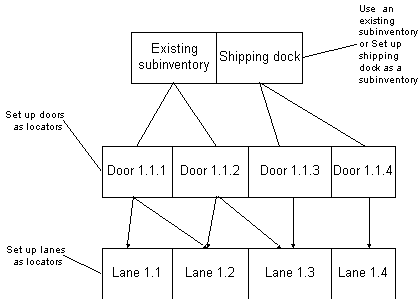
In Oracle Warehouse Management, dock doors and staging lanes are both defined as stock locators.
If you use Oracle Shipping Execution to plan trips for departures from your warehouse or facility, Oracle Warehouse Management enables you to schedule appointments for dock doors from which to load the LPNs for a specific trip.
The system can automatically select staging lanes near the scheduled dock door in which to stage the material prior to shipment. However, for the system to automatically select staging lanes, you must set up dock doors and staging lanes. After you set them up, you must define relationships between the dock doors and the staging lanes that service them.
Note: With Oracle Warehouse Management, whether or not you are using trips and dock door appointments, you must create at least one staging lane.
The following figure provides an example of staging lane, dock door, and shipping dock relationships.
Staging Lane and Dock Door Relationships
Note: You do not need to create a new subinventory just to define dock door and staging lane locators. You can define dock door and staging lane locators as part of another existing storage subinventory. However, defining a separate subinventory excludes the dock door-defined subinventory from cycle counts. This prevents a staged item, in the process of being loaded onto a vehicle, from being included in the cycle count. Also note that staging lanes should be assigned to a subinventory.
You set up staging lanes and dock doors the same as you do other subinventory locators. However, when you set them up, you specify a staging lanes and dock doors with locator types of Staging Lane and Dock Door, respectively.
Note: It is recommended that you do not set capacity constraints for staging lanes and dock doors, because material allocation processes might fail due to limited space in a staging lane.
Integrating Oracle Transportation Management with Oracle Warehouse Management can improve shipment processing and capacity usage by providing more accurate committed dock appointments and load sequencing information. To use the Oracle Transportation Management appointment and load sequencing features in Oracle Warehouse Management, you need to synchronize dock door information and organization location information with Oracle Transportation Management (OTM).
When Oracle Transportation Management is integrated with Oracle Warehouse Management, you can optimize dock door usage, ensure dock doors are synchronized with the transportation plan, and stage material accurately to the correct dock door. You can use Oracle Transportation Management to maintain all dock door appointments and send the trip-related appointments to Oracle Warehouse Management.
For more information, see the Oracle Transportation Management Integrating Oracle Transportation Management with Oracle E-Business Suite guide.
Navigate to the Associate Staging Lanes to Dock Door window.
In the Dock Door field, use the list of values to select the dock door that you want to assign a staging lane.
The system automatically populates the Subinventory and Description fields.
In the Staging Lanes region, Number field, enter a sequence number that represents the proximity of the staging lane to the dock door.
When selecting a staging lane, Oracle Warehouse Management will select an available staging lane in the order of the sequence indicated here.
In the Staging Lanes region, Subinventory field, enter the subinventory and locator of the staging lane that serves the dock door.
Save your work.
