The RTF template supports the XSL 2.0 for-each-group standard that allows you to regroup XML data into hierarchies that are not present in the original data. With this feature, your template does not have to follow the hierarchy of the source XML file. You are therefore no longer limited by the structure of your data source.
To demonstrate the for-each-group standard, the following XML data sample of a CD catalog listing will be regrouped in a template:
<CATALOG>
   <CD>
      <TITLE>Empire Burlesque</TITLE>
      <ARTIST>Bob Dylan</ARTIST>
      <COUNTRY>USA</COUNTRY>
      <COMPANY>Columbia</COMPANY>
      <PRICE>10.90</PRICE>
      <YEAR>1985</YEAR>
   </CD>
   <CD>
      <TITLE>Hide Your Heart</TITLE>
      <ARTIST>Bonnie Tylor</ARTIST>
      <COUNTRY>UK</COUNTRY>
      <COMPANY>CBS Records</COMPANY>
      <PRICE>9.90</PRICE>
      <YEAR>1988</YEAR>
   </CD>
   <CD>
      <TITLE>Still got the blues</TITLE>
      <ARTIST>Gary More</ARTIST>
      <COUNTRY>UK</COUNTRY>
      <COMPANY>Virgin Records</COMPANY>
      <PRICE>10.20</PRICE>
      <YEAR>1990</YEAR>
   </CD>
   <CD>
      <TITLE>This is US</TITLE>
      <ARTIST>Gary Lee</ARTIST>
      <COUNTRY>UK</COUNTRY>
      <COMPANY>Virgin Records</COMPANY>
      <PRICE>12.20</PRICE>
      <YEAR>1990</YEAR>
   </CD>
Using the regrouping syntax, you can create a report of this data that groups the CDs by country and then by year. You are not limited by the data structure presented.
To regroup the data, use the following syntax:
<?for-each-group: BASE-GROUP;GROUPING-ELEMENT?>
For example, to regroup the CD listing by COUNTRY, enter the following in your template:
<?for-each-group:CD;COUNTRY?>
The elements that were at the same hierarchy level as COUNTRY are now children of COUNTRY. You can then refer to the elements of the group to display the values desired.
To establish nested groupings within the already defined group, use the following syntax:
<?for-each:current-group(); GROUPING-ELEMENT?>
For example, after declaring the CD grouping by COUNTRY, you can then further group by YEAR within COUNTRY as follows:
<?for-each:current-group();YEAR?>
At runtime, XML Publisher will loop through the occurrences of the new groupings, displaying the fields that you defined in your template.
Note: This syntax is a simplification of the XSL for-each-group syntax. If you choose not to use the simplified syntax above, you can use the XSL syntax as shown below. The XSL syntax can only be used within a form field of the template.
<xsl:for-each-group
  select=expression
  group-by="string expression"
  group-adjacent="string expression"
  group-starting-with=pattern>
  <!--Content: (xsl:sort*, content-constructor) -->
</xsl:for-each-group>
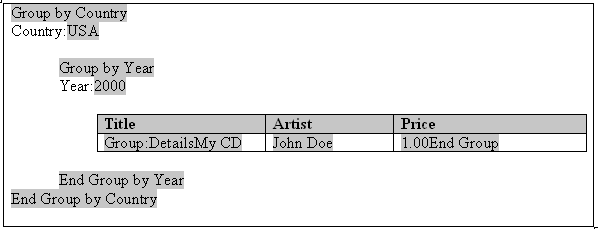
The following figure shows a template that displays the CDs by Country, then Year, and lists the details for each CD:
The following table shows the XML Publisher syntax entries made in the form fields of the preceding template:
| Default Text Entry | Form Field Help Text Entry | Description |
|---|---|---|
| Group by Country | <?for-each-group:CD;COUNTRY?> | The <?for-each-group:CD;COUNTRY?> tag declares the new group. It regroups the existing CD group by the COUNTRY element. |
| USA | <?COUNTRY?> | Placeholder to display the data value of the COUNTRY tag. |
| Group by Year | <?for-each-group:current-group();YEAR?> | The <?for-each-group:current-group();YEAR?> tag regroups the current group (that is, COUNTRY), by the YEAR element. |
| 2000 | <?YEAR?> | Placeholder to display the data value of the YEAR tag. |
| Group: Details | <?for-each:current-group()?> | Once the data is grouped by COUNTRY and then by YEAR, the <?for-each:current-group()?> command is used to loop through the elements of the current group (that is, YEAR) and render the data values (TITLE, ARTIST, and PRICE) in the table. |
| My CD | <?TITLE?> | Placeholder to display the data value of the TITLE tag. |
| John Doe | <?ARTIST?> | Placeholder to display the data value of the ARTIST tag. |
| 1.00 | <?PRICE?> | Placeholder to display the data value of the PRICE tag. |
| End Group | <?end for-each?> | Closes out the <?for-each:current-group()?> tag. |
| End Group by Year | <?end for-each-group?> | Closes out the <?for-each-group:current-group();YEAR?> tag. |
| End Group by Country | <?end for-each-group?> | Closes out the <?for-each-group:CD;COUNTRY?> tag. |
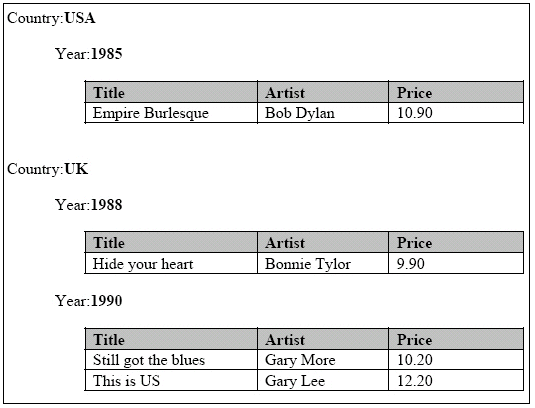
This template produces the following output when merged with the XML file:
Regrouping by an expression allows you to apply a function or command to a data element, and then group the data by the returned result.
To use this feature, state the expression within the regrouping syntax as follows:
<?for-each:BASE-GROUP; GROUPING-EXPRESSION?>
Example
To demonstrate this feature, an XML data sample that simply contains average temperatures per month will be used as input to a template that calculates the number of months having an average temperature within a certain range.
The following XML sample is composed of <temp> groups. Each <temp> group contains a <month> element and a <degree> element, which contains the average temperature for that month:
<temps>
  <temp>
    <month>Jan</month>
    <degree>11</degree>
  </temp>
  <temp>
    <month>Feb</month>
    <degree>14</degree>
  </temp>
  <temp>
    <month>Mar</month>
    <degree>16</degree>
  </temp>
  <temp>
    <month>Apr</month>
    <degree>20</degree>
  </temp>
  <temp>
    <month>May</month>
    <degree>31</degree>
  </temp>
  <temp>
    <month>Jun</month>
    <degree>34</degree>
  </temp>
  <temp>
    <month>Jul</month>
    <degree>39</degree>
  </temp>
  <temp>
    <month>Aug</month>
    <degree>38</degree>
  </temp>
  <temp>
    <month>Sep</month>
    <degree>24</degree>
  </temp>
  <temp>
    <month>Oct</month>
    <degree>28</degree>
  </temp>
  <temp>
    <month>Nov</month>
    <degree>18</degree>
  </temp>
  <temp>
    <month>Dec</month>
    <degree>8</degree>
  </temp>
</temps>
You want to display this data in a format showing temperature ranges and a count of the months that have an average temperature to satisfy those ranges, as follows:
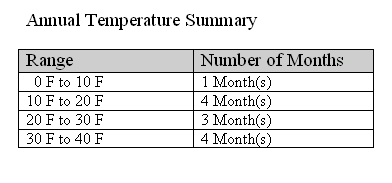
Using the for-each-group command you can apply an expression to the <degree> element that will enable you to group the temperatures by increments of 10 degrees. You can then display a count of the members of each grouping, which will be the number of months having an average temperature that falls within each range.
The template to create the above report is shown in the following figure:
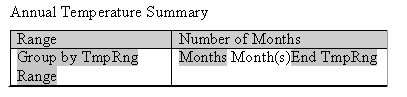
The following table shows the form field entries made in the template:
| Default Text Entry | Form Field Help Text Entry |
|---|---|
| Group by TmpRng | <?for-each-group:temp;floor(degree div 10?> <?sort:floor(degree div 10)?> |
| Range | <?concat(floor(degree div 10)*10,' F to ',floor(degree div 10)*10+10, F')?> |
| Months | <?count(current-group())?> |
| End TmpRng | <?end for-each-group?> |
Note the following about the form field tags:
The <?for-each-group:temp;floor(degree div 10)?> is the regrouping tag. It specifies that for the existing <temp> group, the elements are to be regrouped by the expression, floor(degree div 10). The floor function is an XSL function that returns the highest integer that is not greater than the argument (for example, 1.2 returns 1, 0.8 returns 0).
In this case, it returns the value of the <degree> element, which is then divided by 10. This will generate the following values from the XML data: 1, 1, 1, 2, 3, 3, 3, 3, 2, 2, 1, and 0.
These are sorted, so that when processed, the following four groups will be created: 0, 1, 2, and 3.
The <?concat(floor(degree div 10)*10,'F to ', floor(degree div 10)*10+10,'F'?> displays the temperature ranges in the row header in increments of 10. The expression concatenates the value of the current group times 10 with the value of the current group times 10 plus 10.
Therefore, for the first group, 0, the row heading displays 0 to (0 +10), or "0 F to 10 F".
The <?count(current-group())?> uses the count function to count the members of the current group (the number of temperatures that satisfy the range).
The <?end for-each-group?> tag closes out the grouping.