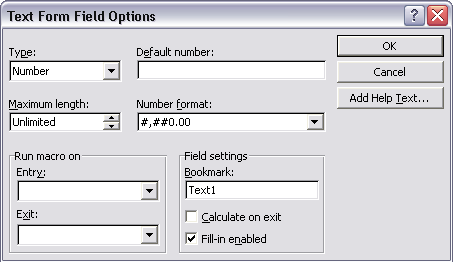
XML Publisher supports two methods for specifying the number format:
Microsoft Word's Native number format mask
Oracle's format-number function
Additional Information: You can also use the native XSL format-number function to format numbers. See: Native XSL Number Formatting.
Use only one of these methods. If the number format mask is specified using both methods, the data will be formatted twice, causing unexpected behavior.
The group separator and the number separator will be set at runtime based on the template locale. This is applicable for both the Oracle format mask and the MS format mask.
To use the Oracle format mask or the Microsoft format mask, the numbers in your data source must be in a raw format, with no formatting applied (for example: 1000.00). If the number has been formatted for European countries (for example: 1.000,00) the format will not work.
Additional Information: The XML Publisher parser requires the Java BigDecimal string representation. This consists of an optional sign ("-") followed by a sequence of zero or more decimal digits (the integer), optionally followed by a fraction, and optionally followed by an exponent. For example: -123456.3455e-3.
If you are designing a template to be translatable, using currency in the Microsoft format mask is not recommended unless you want the data reported in the same currency for all translations. Using the MS format mask sets the currency in the template so that it cannot be updated at runtime.
Instead, use the Oracle format mask. For example, L999G999G999D99, where "L" will be replaced by the currency symbol based on the locale at runtime.
Do not include "%" in the format mask because this will fix the location of the percent sign in the number display, while the desired position could be at the beginning or the end of a number, depending on the locale.
To format numeric values, use Microsoft Word's field formatting features available from the Text Form Field Options dialog box. The following graphic displays an example:
To apply a number format to a form field:
Open the Form Field Options dialog box for the placeholder field.
Set the Type to Number.
Select the appropriate Number format from the list of options.
The following table lists the supported Microsoft format mask definitions:
| Symbol | Location | Meaning |
|---|---|---|
| 0 | Number | Digit. Each explicitly set 0 will appear, if no other number occupies the position. Example: Format mask: 00.0000 Data: 1.234 Display: 01.2340 |
| # | Number | Digit. When set to #, only the incoming data is displayed. Example: Format mask: ##.#### Data: 1.234 Display: 1.234 |
| . | Number | Determines the position of the decimal separator. The decimal separator symbol used will be determined at runtime based on template locale. For example: Format mask: #,##0.00 Data: 1234.56 Display for English locale: 1,234.56 Display for German locale: 1.234,56 |
| - | Number | Determines placement of minus sign for negative numbers. |
| , | Number | Determines the placement of the grouping separator. The grouping separator symbol used will be determined at runtime based on template locale. For example: Format mask: #,##0.00 Data: 1234.56 Display for English locale: 1,234.56 Display for German locale: 1.234,56 |
| E | Number | Separates mantissa and exponent in a scientific notation. Example: 0.###E+0 plus sign always shown for positive numbers 0.###E-0 plus sign not shown for positive numbers |
| ; | Subpattern boundary | Separates positive and negative subpatterns. See Note below. |
| % | Prefix or Suffix | Multiply by 100 and show as percentage |
| ' | Prefix or Suffix | Used to quote special characters in a prefix or suffix. |
Additional Information: Subpattern boundary: A pattern contains a positive and negative subpattern, for example, "#,##0.00;(#,##0.00)". Each subpattern has a prefix, numeric part, and suffix. The negative subpattern is optional. If absent, the positive subpattern prefixed with the localized minus sign ("-" in most locales) is used as the negative subpattern. That is, "0.00" alone is equivalent to "0.00;-0.00". If there is an explicit negative subpattern, it serves only to specify the negative prefix and suffix. The number of digits, minimal digits, and other characteristics are all the same as the positive pattern. That means that "#,##0.0#;(#)" produces precisely the same behavior as "#,##0.0#;(#,##0.0#)".
To apply the Oracle format mask to a form field:
Open the Form Field Options dialog box for the placeholder field.
Set the Type to "Regular text".
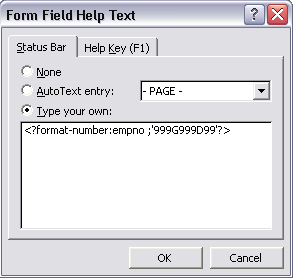
In the Form Field Help Text field, enter the mask definition according to the following example:
<?format-number:fieldname;'999G999D99'?>
where
fieldname is the XML tag name of the data element you are formatting and
999G999D99 is the mask definition.
The following graphic shows an example Form Field Help Text dialog entry for the data element "empno":
The following table lists the supported Oracle number format mask symbols and their definitions:
| Symbol | Meaning |
|---|---|
| 0 | Digit. Each explicitly set 0 will appear, if no other number occupies the position. Example: Format mask: 00.0000 Data: 1.234 Display: 01.2340 |
| 9 | Digit. Returns value with the specified number of digits with a leading space if positive or a leading minus if negative. Leading zeros are blank, except for a zero value, which returns a zero for the integer part of the fixed-point number. Example: Format mask: 99.9999 Data: 1.234 Display: 1.234 |
| C | Returns the ISO currency symbol in the specified position. |
| D | Determines the placement of the decimal separator. The decimal separator symbol used will be determined at runtime based on template locale. For example: Format mask: 9G999D99 Data: 1234.56 Display for English locale: 1,234.56 Display for German locale: 1.234,56 |
| EEEE | Returns a value in scientific notation. |
| G | Determines the placement of the grouping (thousands) separator. The grouping separator symbol used will be determined at runtime based on template locale. For example: Format mask: 9G999D99 Data: 1234.56 Display for English locale: 1,234.56 Display for German locale: 1.234,56 |
| L | Returns the local currency symbol in the specified position. |
| MI | Displays negative value with a trailing "-". |
| PR | Displays negative value enclosed by <> |
| PT | Displays negative value enclosed by () |
| S (before number) | Displays positive value with a leading "+" and negative values with a leading "-" |
| S (after number) | Displays positive value with a trailing "+" and negative value with a trailing "-" |
XML Publisher supports three methods for specifying the date format:
Specify an explicit date format mask using Microsoft Word's native date format mask.
Specify an explicit date format mask using Oracle's format-date function.
Specify an abstract date format mask using Oracle's abstract date format masks. (Recommended for multilingual templates.)
Only one method should be used. If both the Oracle and MS format masks are specified, the data will be formatted twice causing unexpected behavior.
To use the Microsoft format mask or the Oracle format mask, the date from the XML data source must be in canonical format. This format is:
YYYY-MM-DDThh:mm:ss+HH:MM
where
YYYY is the year
MM is the month
DD is the day
T is the separator between the date and time component
hh is the hour in 24-hour format
mm is the minutes
ss is the seconds
+HH:MM is the time zone offset from Universal Time (UTC), or Greenwich Mean Time
An example of this construction is:
2005-01-01T09:30:10-07:00
The data after the "T" is optional, therefore the following date: 2005-01-01 can be formatted using either date formatting option. Note that if you do not include the time zone offset, the time will be formatted to the UTC time.
If you are designing a template to be translatable, explicitly setting a date format mask is not recommended. This is because the date format mask is part of the template, and all published reports based on this template will have the same date format regardless of locale.
For translatable templates, it is recommended that you use the Oracle abstract date format.
If it is necessary to explicitly specify a format mask, the Oracle format mask is recommended over the MS format mask to ensure future compatibility.
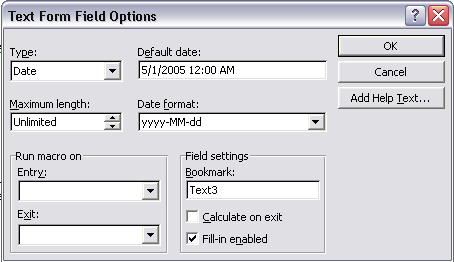
To apply a date format to a form field:
Open the Form Field Options dialog box for the placeholder field.
Set the Type to Date, Current Date, or Current Time.
Select the appropriate Date format from the list of options.
If you do not specify the mask in the Date format field, the abstract format mask "MEDIUM" will be used as default. See Oracle Abstract Format Masks for the description.
The following figure shows the Text Form Field Options dialog box with a date format applied:
The following table lists the supported Microsoft date format mask components:
| Symbol | Meaning |
|---|---|
| d | The day of the month. Single-digit days will not have a leading zero. |
| dd | The day of the month. Single-digit days will have a leading zero. |
| ddd | The abbreviated name of the day of the week, as defined in AbbreviatedDayNames. |
| dddd | The full name of the day of the week, as defined in DayNames. |
| M | The numeric month. Single-digit months will not have a leading zero. |
| MM | The numeric month. Single-digit months will have a leading zero. |
| MMM | The abbreviated name of the month, as defined in AbbreviatedMonthNames. |
| MMMM | The full name of the month, as defined in MonthNames. |
| yy | The year without the century. If the year without the century is less than 10, the year is displayed with a leading zero. |
| yyyy | The year in four digits. |
| gg | The period or era. This pattern is ignored if the date to be formatted does not have an associated period or era string. |
| h | The hour in a 12-hour clock. Single-digit hours will not have a leading zero. |
| hh | The hour in a 12-hour clock. Single-digit hours will have a leading zero. |
| H | The hour in a 24-hour clock. Single-digit hours will not have a leading zero. |
| HH | The hour in a 24-hour clock. Single-digit hours will have a leading zero. |
| m | The minute. Single-digit minutes will not have a leading zero. |
| mm | The minute. Single-digit minutes will have a leading zero. |
| s | The second. Single-digit seconds will not have a leading zero. |
| ss | The second. Single-digit seconds will have a leading zero. |
| f | Displays seconds fractions represented in one digit. |
| ff | Displays seconds fractions represented in two digits. |
| fff | Displays seconds fractions represented in three digits. |
| ffff | Displays seconds fractions represented in four digits. |
| fffff | Displays seconds fractions represented in five digits. |
| ffffff | Displays seconds fractions represented in six digits. |
| fffffff | Displays seconds fractions represented in seven digits. |
| tt | The AM/PM designator defined in AMDesignator or PMDesignator, if any. |
| z | Displays the time zone offset for the system's current time zone in whole hours only. (This element can be used for formatting only) |
| zz | Displays the time zone offset for the system's current time zone in whole hours only. (This element can be used for formatting only) |
| zzz | Displays the time zone offset for the system's current time zone in hours and minutes. |
| : | The default time separator defined in TimeSeparator. |
| / | The default date separator defined in DateSeparator. |
| ' | Quoted string. Displays the literal value of any string between two ' characters. |
| " | Quoted string. Displays the literal value of any string between two " characters. |
To apply the Oracle format mask to a date field:
Open the Form Field Options dialog box for the placeholder field.
Set the Type to Regular Text.
Select the Add Help Text... button to open the Form Field Help Text dialog.
Insert the following syntax to specify the date format mask:
<?format-date:date_string; 'ABSTRACT_FORMAT_MASK';'TIMEZONE'?>
or
<?format-date-and-calendar:date_string; 'ABSTRACT_FORMAT_MASK';'CALENDAR_NAME';'TIMEZONE'?>
where time zone is optional. The detailed usage of format mask, calendar and time zone is described below.
If no format mask is specified, the abstract format mask "MEDIUM" will be used as default.
Example form field help text entry:
<?format-date:hiredate;'YYYY-MM-DD'?>
The following table lists the supported Oracle format mask components:
| Symbol | Meaning |
|---|---|
| - / , . ; : "text" | Punctuation and quoted text are reproduced in the result. |
| AD A.D. | AD indicator with or without periods. |
| AM A.M. | Meridian indicator with or without periods. |
| BC B.C. | BC indicator with or without periods. |
| CC | Century. For example, 2002 returns 21; 2000 returns 20. |
| DAY | Name of day, padded with blanks to length of 9 characters. |
| D | Day of week (1-7). |
| DD | Day of month (1-31). |
| DDD | Day of year (1-366). |
| DL | Returns a value in the long date format. |
| DS | Returns a value in the short date format. |
| DY | Abbreviated name of day. |
| E | Abbreviated era name. |
| EE | Full era name. |
| FF[1..9] | Fractional seconds. Use the numbers 1 to 9 after FF to specify the number of digits in the fractional second portion of the datetime value returned. Example: 'HH:MI:SS.FF3' |
| HH | Hour of day (1-12). |
| HH12 | Hour of day (1-12). |
| HH24 | Hour of day (0-23). |
| MI | Minute (0-59). |
| MM | Month (01-12; JAN = 01). |
| MON | Abbreviated name of month. |
| MONTH | Name of month, padded with blanks to length of 9 characters. |
| PM P.M. | Meridian indicator with or without periods. |
| RR | Lets you store 20th century dates in the 21st century using only two digits. |
| RRRR | Round year. Accepts either 4-digit or 2-digit input. If 2-digit, provides the same return as RR. If you don't want this functionality, then simply enter the 4-digit year. |
| SS | Seconds (0-59). |
| TZD | Daylight savings information. The TZD value is an abbreviated time zone string with daylight savings information. It must correspond to the region specified in TZR. Example: PST (for Pacific Standard Time) PDT (for Pacific Daylight Time) |
| TZH | Time zone hour. (See TZM format element.) |
| TZM | Time zone minute. (See TZH format element.) Example: 'HH:MI:SS.FFTZH:TZM' |
| TZR | Time zone region information. The value must be one of the time zone regions supported in the database. Example: PST (Pacific Standard Time) |
| WW | Week of year (1-53) where week 1 starts on the first day of the year and continues to the seventh day of the year. |
| W | Week of month (1-5) where week 1 starts on the first day of the month and ends on the seventh. |
| X | Local radix character. |
| YYYY | 4-digit year. |
| YY Y | Last 2, or 1 digit(s) of year. |
If you do not want to specify a format mask with either the MS method or the Oracle method, you can omit the mask definition and use the default format mask. The default format mask is the MEDIUM abstract format mask from Oracle. (See Oracle Abstract Format Masks for the definition.)
To use the default option using the Microsoft method, set the Type to Date, but leave the Date format field blank in the Text Form Field Options dialog.
To use the default option using the Oracle method, do not supply a mask definition to the "format-date" function call, for example:
<?format-date:hiredate?>
The abstract date format masks reflect the default implementations of date/time formatting in the I18N library. When you use one of these masks, the output generated will depend on the locale associated with the report.
Specify the abstract mask using the following syntax:
<?format-date:fieldname;'MASK'?>
where fieldname is the XML element tag and
MASK is the Oracle abstract format mask name
For example:
<?format-date:hiredate;'SHORT'?>
<?format-date:hiredate;'LONG_TIME_TZ'?>
The following table lists the abstract format masks and the sample output that would be generated for US locale:
| Mask | Output for US Locale |
|---|---|
| SHORT | 2/31/99 |
| MEDIUM | Dec 31, 1999 |
| LONG | Friday, December 31, 1999 |
| SHORT_TIME | 12/31/99 6:15 PM |
| MEDIUM_TIME | Dec 31, 1999 6:15 PM |
| LONG_TIME | Friday, December 31, 1999 6:15 PM |
| SHORT_TIME_TZ | 12/31/99 6:15 PM GMT |
| MEDIUM_TIME_TZ | Dec 31, 1999 6:15 PM GMT |
| LONG_TIME_TZ | Friday, December 31, 1999 6:15 PM GMT |