As already noted, the placement, spacing, and alignment of fields that you create on the template are independent of the underlying form layout. At runtime, XML Publisher places each repeating row of data according to calculations performed on the placement of the rows of fields that you created, as follows:
First occurrence:
The first row of repeating fields will display exactly where you have placed them on the template.
Second occurrence, single row:
To place the second occurrence of the group, XML Publisher calculates the distance between the BODY_START tag and the first field of the first occurrence. The first field of the second occurrence of the group will be placed this calculated distance below the first occurrence.
Second occurrence, multiple rows:
If the first group contains multiple rows, the second occurrence of the group will be placed the calculated distance below the last row of the first occurrence.
The distance between the rows within the group will be maintained as defined in the first occurrence.
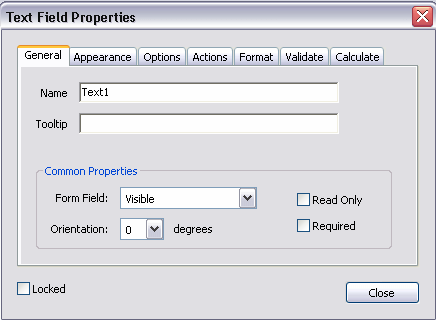
When you define a field in the template you have the option of selecting "Read Only" for the field, as shown in the following sample Text Field Properties dialog:
Regardless of what you choose at design time for the Read Only check box, the default behavior of the PDF processing engine is to set all fields to read-only for the output PDF. You can change this behavior using the following configuration properties in the XML Publisher Configuration File:
all-field-readonly
all-fields-readonly-asis
remove-pdf-fields
Note that in the first two options, you are setting a state for the field in the PDF output. The setting of individual fields can still be changed in the output using Adobe Acrobat Professional. Also note that because the fields are maintained, the data is still separate and can be extracted. In the third option, "remove-pdf-fields" the structure is flattened and no field/data separation is maintained.
To make all fields updateable:
Set the "all-field-readonly" property to "false". This sets the Read Only state to "false" for all fields regardless of the individual field settings at design time.
To make all fields read only:
This is the default behavior. No settings are required.
To maintain the Read Only check box selection for each field:
To maintain the setting of the Read Only check box on a field-by-field basis in the output PDF, set the property "all-fields-readonly-asis" to "true". This property will override the settings of "all-field-readonly".
To remove all fields from the output PDF:
Set the property "remove-pdf-fields" to "true".
When multiple pages are required to accommodate the occurrences of repeating rows of data, each page will display identically except for the defined repeating area, which will display the continuation of the repeating data. For example, if the item rows of the purchase order extend past the area defined on the template, succeeding pages will display all data from the purchase order form with the continuation of the item rows.