When you define a template as translatable, XML Publisher extracts the translatable strings. You can then export the strings into an XLIFF (.xlf) file. This XLIFF file can then be sent to a translation provider, or using a text editor, you can enter the translation for each string.
Additional Information: XLIFF is the XML Localization Interchange File Format. It is the standard format used by localization providers. For more information about the XLIFF specification, see http://www.oasis-open.org/committees/xliff/documents/xliff-specification.htm
When translated, use the Upload Translations button to store the translated file in the Template Manager. The translated file will appear in the Available Translations region for the template.
A "translatable string" is any text in the template that is intended for display in the published report, such as table headers and field labels. Text supplied at runtime from the data is not translatable, nor is any text that you supply in the Microsoft Word form fields.
Note: Use the translatable template option when you do not require additional changes to the layout. If you wish to modify the layout for specific translated versions of your template, upload the modified, translated template as a localized template. See Adding Localized Templates for Additional Languages.
To define a template as translatable:
Select the Translatable check box from the Create Template page.
To update an existing template to be translatable:
Enter a Translatable File on the Update Template Definition page.
The following steps summarize exporting and updating a template for translation. Editing the XLIFF file is described in further detail in the following sections.
Select the Export Translation button.
Save the .xlf file to a local directory. If your company uses a translation provider, send this file to your provider.
To enter your own translation, open the file with a text editor (such as WordPad).
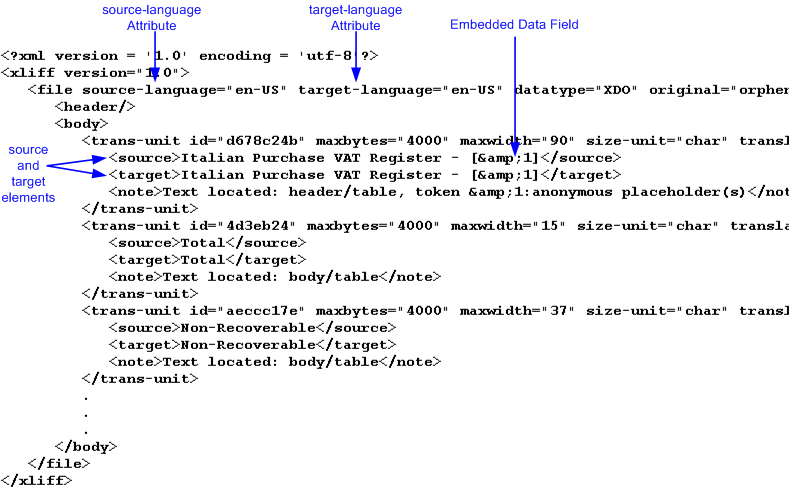
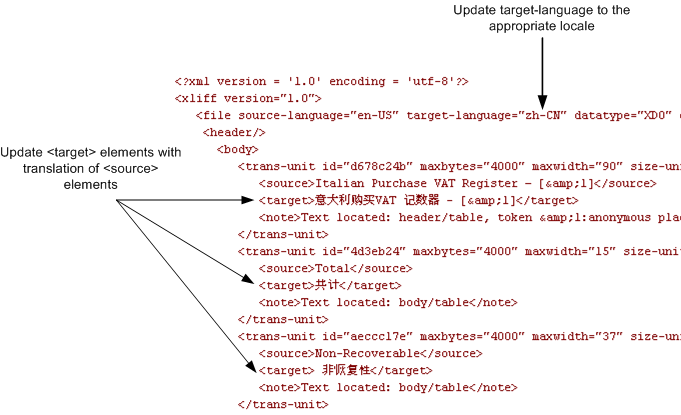
The <file> element contains the attribute target-language. Replace the value of target-language with the value for the desired target language.
Replace the "target" element values with the desired translation for the "source" element values.
Caution: Do not update the embedded data fields.
Upload the edited file to the Template Manager using the Upload Translations button.
Your translated file will now appear under the Available Translations region.
The XLIFF file generated by XML Publisher has the following structure:
<xliff>
  <file>
    <header>
      <body>
        <trans-unit>
          <source>
          <target>
          <note>
The following figure shows an excerpt from an untranslated XLIFF file:
Each <source> element contains a translatable string from the template in the source language of the template. For example,
<source>Total</source>
When you initially export the XLIFF file for translation, the source and target elements are all identical. To create the translation for this template, enter the appropriate translation for each source element string in its corresponding <target> element.
Therefore if you were translating the sample template into German, you would enter the following for the Total string:
<source>Total</source>
<target>Gesamtbetrag</target>
The following figure shows the sample XLIFF file from the previous figure updated with the Chinese translation:
Some templates contain placeholders for data fields embedded in the text display strings of the report. For example, the title of the sample report is
Italian Purchase VAT Register - (year)
where (year) is a placeholder in the RTF template that will be populated at runtime by data from an XML element. These fields are not translatable, because the value comes from the data at runtime.
To identify embedded data fields, the following token is used in the XLIFF file:
[&n]
where n represents the numbered occurrence of a data field in the template.
For example, in the preceding XLIFF sample, the first translatable string is
<source>Italian Purchase VAT Register - [&1]<source>
Warning: Do not edit or delete the embedded data field tokens or you will affect the merging of the XML data with the template.
The <file> element includes the attributes source-language and target-language. The valid value for source-language and target-language is a combination of the language code and country code as follows:
the two-letter ISO 639 language code
the two-letter ISO 3166 country code
Note: For more information on the International Organization for Standardization (ISO) and the code lists, see International Organization for Standardization.
For example, the value for English-United States is "en-US". This combination is also referred to as a locale.
When you edit the exported XLIFF file you must change the target-language attribute to the appropriate locale value of your target language. The following table shows examples of source-language and target-language attribute values appropriate for the given translations:
| Translation (Language/Territory) | source-language value | target-language value |
|---|---|---|
| From English/US To English/Canada | en-US | en-CA |
| From English/US To Chinese/China | en-US | zh-CN |
| From Japanese/Japan To French/France | ja-JP | fr-FR |
To upload a translation:
Select the Upload Translations button.
From the Upload Translations page, click Browse to locate the translated file in your local file system, then click Apply.

When you upload a translation, if all the target elements contain data, the Status will be Enabled and the Progress will be Complete.
If XML Publisher detects that all the target elements are not populated, the Progress indicator displays Incomplete, and the Status defaults to Disabled.
To enable a translation, select it and click the Enable button. Only enabled translations are available to the Concurrent Manager. Both complete and incomplete translations can be enabled.
To update a translation file, select its Export Translation icon to download the XLIFF file for editing.