Market Data Curves
Use the Market Data Curves window to select interest rates and volatilities defined in the Current System Rates to form curves to be used in pricing and revaluation. For example, you can group all of your US dollar interest rates (1-Month, 3-Month, 6-Month, and 12-Month US rates) into a market data curve.
In Treasury, you can define three types of market data curves:
-
Yield curves: A yield curve defines a term structure of interest rates for a single currency.
-
Interest rate volatility curves: An interest rate volatility curve defines a term structure of interest rate volatilities as used in option pricing models.
-
Exchange rate volatility curves: An exchange rate volatility curve defines a term structure of volatility of one currency versus another currency, for example, DEM versus USD.
Attention: Oracle Treasury assumes that market curve forward spot rates entered into the system are zero coupon rates, not par rates.
These curve types can be grouped into market data sets. For more information on Market Data Sets, see: Market Data Sets.
Yield Curves
A yield curve defines a term structure of interest rates for a single currency. Examples of yield curves include LIBOR and US Treasury.
You can create a yield curve by defining the grid points (represented by a rate codes selected from the Current System Rates) in the curve and by specifying an interpolation method.
-
Grid points are the points in time when an interest rate is known (for example, USD 1-Month).
-
An interpolation method is the method by which rates are calculated for unknown dates (for example, cubic spline is an interpolation method).
The grid points and the interpolation method are used to calculate a set of interest rates for the dates when no interest rate is provided. For example, if the yield curve contains a 1-Month and a 3-Month interest rate, Treasury uses an interpolation method to calculate the rates for any date that falls between those two known rates.
Treasury uses yield curves to:
-
Value a future cash flow: If a deal has a future cash flow, Treasury uses discount factor to calculate the present value of the cash flow. Treasury derives the discount factor from the yield curve and then calculates the present value of the cash flow.
For example, if you want to know the present value of a term money deal, you must calculate the present value of all of the future cash flows in the deal by using a discount factor or an interest rate that corresponds to the value date of the cash flow.
The total value of the term money deal is the sum of all of the present values of the future cash flows.
-
Calculate theoretical forward rates for deals with future interest reset: Deals that have future interest reset such as Interest Rate Swap, FRA, or Interest Rate Option deals.
For example, in an Interest Rate Swap deal that swaps a fixed to a floating interest rate, the floating interest rate is tied to an index rate such as the Libor USD 3M rate. To correctly revalue this deal, you must calculate the forward rates for the future coupon dates. You can use the yield curve to derive these forward rates.
-
Calculate the forward exchange rate: The forward exchange rate is the exchange rate between two currencies for a specified future date. The forward exchange rate is calculated using the spot exchange rates and the interest rates for the currencies involved. The interest rates are derived from the yield curve for the currencies.
A yield curve is defined based on a series of rate codes. These rates have a Bid and an Ask value and in general, the yield curve would also have a Bid/Ask structure. When you use the curve, you can use either the Bid or the Ask value depending on what action you are performing. For example, when you value deals using yield curves, you can use the Bid side of the curve for the long position (when you are investing or selling currency), and the Ask side of the curve for the short position (when you are borrowing or buying currency). In some cases, however, you might want to refer to a particular side of the curve. For example, for an Interest Rate Swap deal with floating interest, you may want to value your position based on a Mid rate rather than a Bid/Ask rate. Treasury enables you to set the side that you want to use for the market data curve.
Example - Choosing Data Sides for a Yield Curve
The following table illustrates how choosing the data side can affect a yield curve. This example uses the London Interbank Rate with a Bid rate of 6.47 and an Ask rate of 6.59. Four different yield curves are shown. Note how the rates differ for each curve.
| Market Rate
| London Interbank Rate
| N/A
| 6.47 (LIBID)
| 6.59 (LIBOR)
|
| Yield Curves
| LIB/London Interbank
| Bid/Ask
| 6.47 (LIBID)
| 6.59 (LIBOR)
|
|
| LIBOR/London Interbank Offer Rates
| Ask
| 6.59 (LIBOR)
| 6.59 (LIBOR)
|
|
| LIBID/London Interbank Bid Rates
| Bid
| 6.47 (LIBID)
| 6.47 (LIBID)
|
|
| LIMEAN/London Interbank Mean Rates
| Mid
| 6.53 (LIBOR + LIBID)/2
| 6.53 (LIBOR + LIBID)/2
|
You may want to use different curves to revalue your deals. For example, if you are valuing your portfolio for risk management purposes, you might use a LIBOR yield curve. If you are valuing your portfolio for accounting purposes, you might use a US Treasury curve.
To create a yield curve in Treasury, define the following:
-
Curve code: The code used to identify the curve. For example, LIBOR-USD or US Treasury.
-
Curve type: The type of curve. For example, Yield, Exchange Rate Volatility, or Interest Rate Volatility.
-
Currency: The currency of the curve. For example USD or GBP.
-
Market data side: The type of rates used in the curve. For example, BID/ASK, BID, or ASK.
-
Interpolation method: The method used to calculate unknown rate points. The various interpolation methods are:
-
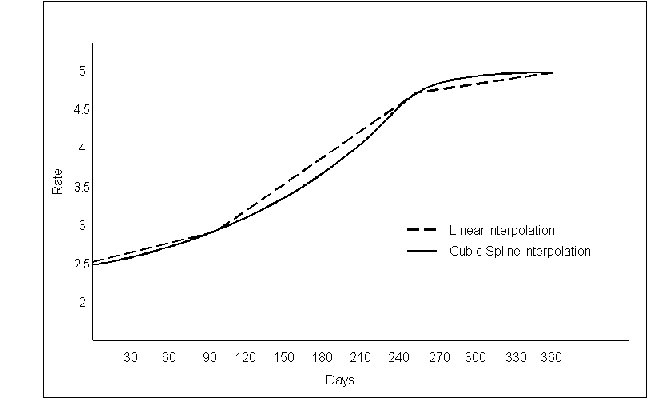
Cubic Spline: uses polynomial functions to model a yield curve. This is the default interpolation method for yield curves.
-
Exponential: uses two known points on a yield curve, which are then converted to points on a discount factor curve. The discount factor is used for exponential interpolation.
-
Linear: uses a straight line between two points of a yield curve to estimate a rate between those points. This is the default interpolation method for volatility curves.
The following image shows the difference in curves between linear and cubic spline interpolation methods:
-
Grid points (Rate Codes): The known rates that you want to use for the curve. For example, if you are defining a USD curve, you may want to use the USD 1M, 3M, and 6M interest rates as grid points.
Once you define the curve, you can value or revalue your deals. The Bid rate is used for long positions. The Ask rate is used for short positions. If you want to use a Mid rate you must define a Mid curve.
If you are valuing a deal for a historical date, then you must work with rates that were valid for that date. In this case, a historical yield curve is calculated using the latest rate for the date you are valuing the deal. For example, if no rate exists for the date, then Treasury uses the most recent rate prior to that date. For example, if you are revaluing a deal for a historical date of January 15 and you archived 5 USD interest rates on that date, the first rate at 9 AM and the fifth rate at 5 PM, then Treasury would use the USD interest rate that was archived at 5 PM to perform revaluations. Alternately if you did not archive a rate on January 15, Treasury would use the last rate archived before that date (for example, a rate that was archived on January 14).
Note: The frequency with which rates are archived depends on the archive parameters you set up for your current system rates. For more information, see: Current System Rates.
Interest Rate and Exchange Rate Volatility Curves
In Treasury, you can define two different types of volatility curves: an interest rate volatility curve or an exchange rate volatility curve.
An interest rate volatility curve defines a term structure of interest rate volatilities for option pricing models. The interest rate volatilities in the curve consist of volatilities belonging to a single currency. Volatilities can be for different periods and term lengths.
An exchange rate volatility curve defines a term structure of exchange rate volatilities for foreign exchange options. The exchange rate volatilities in the curve must all be for the same currency combinations and can be entered for different periods.
Volatility curves are created using the same method used to create yield curves.
When you value a deal using volatility curves, you can use either volatilities by maturity or flat volatilities. When you value a deal using volatilities by maturity, you define a curve that has many grid points. Treasury chooses a volatility from the curve and calculates the rate for the unknown date from the chosen curve. When you value a deal using flat volatilities and define a curve with only one grid point, the extrapolation generates the same flat volatility for any point in time.
Bid volatility rates are used for option sell deals and Ask volatility rates are used for option buy deals.
Defining Market Data Curves
Use the Market Data Curves window to define the market data curves that you want to use to value your deals. You can use this window to define yield curves, interest rate volatility curves, and exchange rate volatility curves.
Prerequisite
To define a market data curve, do the following
-
Navigate to Market Data Curves. The Market Data Curves window appears.
-
In the Curve Code field, enter a unique curve code for the curve you want to define.
-
In the Description field, enter a description of the curve you want to define.
-
In the Type field, select the curve type you want to define. You can choose Yield, Interest Rate Volatility, or Exchange Rate Volatility. If you choose Exchange Rate Volatility, the Contra Currency field will appear.
-
In the Market Data Side field, choose the side that you want to use to calculate the curve rates. You can choose Bid/Ask, Mid, Bid, or Ask.
-
In the Default Interpolation field, choose the default interpolation method that you want to use to calculate any missing rates.
If you are defining a yield curve, you can choose Linear, Exponential, or Cubic Spline.
If you are defining a volatility curve, you can choose Linear or Cubic Spline.
-
In the Currency field, choose the currency for the curve.
-
If you are defining an Exchange Rate Volatility curve, in the Contra field choose the contra currency for the curve.
-
Enable the Authorized check box if you want the curve to be available for use.
-
If you want to define each rate in the curve separately, in the Rate Code field, choose a rate code. The Rate Description, Period, and Term Type fields are automatically populated based on the rate code. The rate codes are defined in the Current System Rates window and filtered based on the currency selected in the Currency field.
-
If you want to automatically populate the Market Data Curve window with all of the rates for the chosen currency and rate type, choose the Auto Populate button. All of the valid rate codes for the curve will appear. Remove or delete any records for the rate codes that you do not want to use in the curve.
If you are defining a yield curve, only rates with the term of Days, Months, or Years will be populated. If you are defining a volatility curve, only rates with the term of Opt Vol (Days), or Opt Vol (Months) will be populated.
-
Save your work.
Assigning Curves to Market Data Sets
Once you define a curve and a market data set, you can assign a curve to a market data set from the Market Data Curve window. For information on defining market data sets, see: Market Data Set.
Prerequisites
To assign market data curves to market data sets, do the following
-
Navigate to Market Data Curves. The Market Data Curves window appears.
-
Query the market data curve that you want to assign to a market data set.
-
Choose the curve, then choose the Assign button. The Assign Curve to Market Data Set window appears. The Curve field is automatically populated.
-
In the Market Data Set field, choose the market data set you want to assign the curve to and choose either the Assign button or the Assign and Open button. If you choose the Assign and Open button, the Market Data Set window appears and you can view the details of the market data set that you are assigning the curve to.
-
Save your work.
Copying Curves
Once you define a curve for one currency, you can copy the structure of that curve to create other curves. Copying curves is particularly useful if you want to set up the same type of curve for several different currencies. Treasury will automatically try to populate the curve with the same grid points as the original curve. When you copy curves you must create a new curve with the copy, you cannot copy a curve to modify an existing curve.
For example, if have a USD yield curve that contains the USD 1M, 3M, and 6M interest rates as its grid points, you can copy that curve and change the currency to GBP. Treasury will automatically try to populate the curve with the GBP 1M, 3M, and 6M interest rates.
Prerequisite
To copy market data curves, do the following
-
Navigate to Market Data Curves. The Market Data Curves window appears.
-
Query the market data curve that you want to copy.
-
Choose the Copy button. The Copy Curve window appears, with the chosen curve in the From Curve field.
-
In the To Curve field, enter a curve code for the new curve that you want to create with the copy.
-
In the Currency field, choose the currency for the new curve.
-
Choose the Copy button to copy the curve and save your work.