With General Ledger you can record pre-expenditures commonly known as encumbrances. The primary purpose of tracking encumbrances is to avoid overspending a budget. Encumbrances can also be used to predict cash outflow and as a general planning tool.
To use the full capabilities of encumbrance accounting, you must enable the budgetary control flag for a ledger. When you enable the budgetary control flag, the system automatically creates encumbrances from requisitions, purchase orders and other transactions originating in feeder systems such as Purchasing and Payables.
When you do not enable the budgetary control flag, you can still enter manual encumbrances via journal entry, but you cannot generate encumbrances from requisitions and purchase orders.
You have two options for using encumbrance data to monitor over-expenditure of a budget: After actuals and encumbrances have been posted, you can generate reports to show over-expenditures. You can also can use funds checking to prevent over-expenditures before they occur. See: Using Budgetary Control and Online Funds Checking
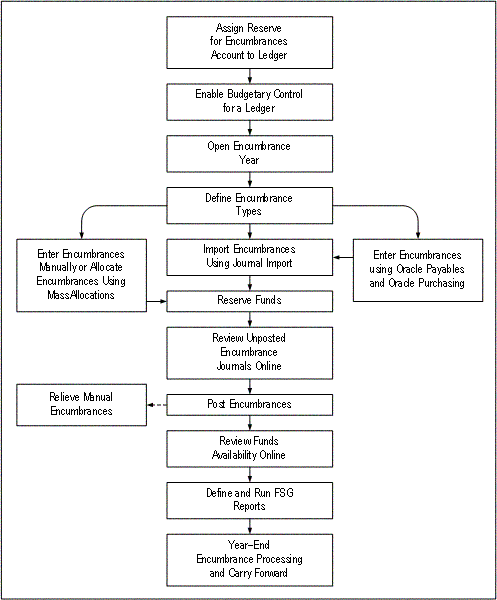
The following figure shows the encumbrance accounting process with the budgetary control flag enabled.
Define Reserve for Encumbrance account for each ledger. See: Ledger Options.
When you post encumbrance transactions, General Ledger automatically posts offset amounts to this account.
Enable Budgetary Control for your ledger to automatically create encumbrance entries from Oracle Purchasing and Oracle Payables. See: Defining Ledgers.
However, you need not define budgetary control options for your detail or summary accounts nor must you define budgetary control groups.
Open encumbrance years to enter and post encumbrance entries to future periods. Your initial encumbrance year is opened automatically when you open the first period for your ledger. See: Opening an Encumbrance Year
General Ledger uses the last period of your latest open encumbrance year to determine how far to calculate your project-to-date encumbrance balances.
Your data access set must provide full read and write access to your ledger, or read and write access to all balancing segment values or management segment values to open the encumbrance year for the ledger.
Import encumbrances using Journal Import. See: Importing Journals.
Enter encumbrances via Purchasing and Payables.
Purchasing automatically creates unposted encumbrance entries for General Ledger when you approve a requisition or purchase order.
Payables automatically creates unposted encumbrance entries for General Ledger to encumber funds for purchase order variances and unmatched invoices.
See: Encumbrance Entries in Payables
General Ledger immediately updates your funds available when you reserve funds for your transactions in Purchasing and Payables. However, you must post your encumbrance entries to review funds available in Financial Statement Generator reports.
Reserve funds for encumbrance entries to allow posting of encumbrances. To do so, do one of the following:
Reserve funds online in the Enter Encumbrances window. See: Entering Encumbrances.
Reserve funds in batch mode by running the Mass Funds Check/Reservation program. See: Running the Mass Funds Check/Reservation Program.
Have the Posting program automatically reserve funds when you post your encumbrance batch. See: Posting Journals.
Note: We recommend that you let the Posting program automatically reserve funds. Since reserving funds for encumbrance entries independent of budgetary control is always successful, this method requires no user intervention.
Review unposted encumbrance journal entries online. See: Reviewing Encumbrances.
Define and submit encumbrance reports using the Financial Statement Generator. For example, you might define a Funds Available report to measure budgets against expenditures and encumbrances. See: Overview of the Financial Statement Generator.
You can also use standard reports to review your encumbrance balances and activity. Standard reports include the following:
