 To display the process in Oracle Workflow Builder:
The WIP Exception Notification Workflow is used to notify appropriate people of production exceptions on the shop floor. Exceptions are conditions and problems preventing work on job operations. These conditions are reported while performing work, and the workflow is activated at this time. This reporting mechanism enables the exception to be tracked, monitored, and resolved. See: Reporting Exceptions and
Oracle Workflow Builder is used to customize workflows.
To display the process in Oracle Workflow Builder:Navigate to Oracle Workflow Builder at your site
Select database or file to connect to the source containing the item type associated to your process definition:
The display name of the workflow is WIP Exception Notification Workflow
The name of its workflow definition file is wipexpwk.wft
Expand the WIP Exception Notification branch within the data source.
Expand the Processes branch, then choose the WIP Exception Notification branch activity to display the diagram.
See: Opening and Saving Item Types
The process begins at Node 1 where values are initialized. At Node 2 the process checks exception types and then sends the notification for the applicable exception type to the assigned recipient. The recipient has several available actions. If the message is acknowledged, the process is complete at Node 3.
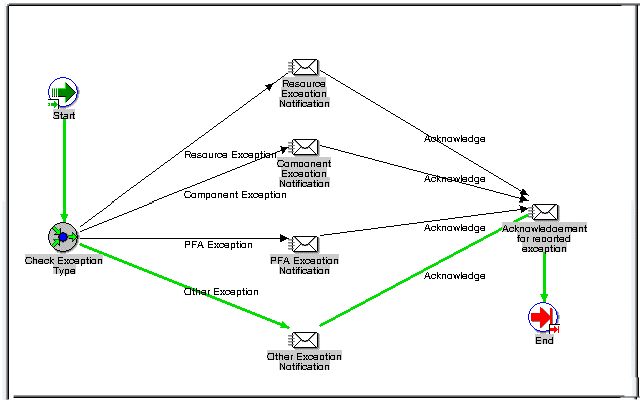
The following is a description of each activity in the WIP Exception Notification workflow.
Node 1
Standard function activity marking the start of the process.
Node 2
The process checks exception types. Various types of exceptions are defined, and you can also define custom exception types. Types include:
Component - indicates missing or damaged components
In-Process Assembly - indicates damaged assembly
Quality - indicates quality or nonconformance problems
Resource - indicates resource unavailability
Other - indicates any miscellaneous category
The notification is then sent to the assigned recipient for the specific exception type.
The recipient has several actions available including:
Acknowledgement: Confirmation of receipt of the message and the notification process is complete.
Reassign
Notification is forwarded to another user. See: To Reassign a Notification to Another User
Request Information
Information is solicited about the notification from another user before responding to the notification. The Request Information page enables you to create a plain text email reply. See: To Request More Information From Another User
Node 3
If the message is acknowledged, the process is complete at Node 3. You can view the workflow record for your particular exception on the View Process Hierarchy page. See: Viewing Workflow Details