If you have installed and use Oracle Workflow, you can generate workflow notifications to designated users whenever a limit is exceeded. You can design event assignments to generate notifications for specific limits violations. This can include, for example, combinations of specific deal types, companies, counterparties, and limit amounts.
To set up for limits workflow notification, you must:
Update Workflow user notification preferences. Treasury uses the preferences settings to properly format and route notifications.
Set up limits notifications. You define rules that specify when users are notified about limit violations.
Whenever a deal is recorded that violates one of the rules that you defined, Treasury generates an event limit notification. Because Workflow sends notifications to designated roles, all users assigned to the Limits Notification role receive these notifications.
See also:
Use the General Preferences window to modify user notification preferences. For the purposes of limits workflow notifications, you must update the method to use to receive e-mail notifications.
Each user who is eligible to receive limits workflow notifications should define or update Workflow preferences.
Install and set up the Oracle Workflow Background Engine. See the Oracle Workflow User Guide or online help.
To receive an e-mail notification, you must also install and set up the Oracle Workflow Notification Mailer. See the Oracle Workflow User Guide or online help.
Navigate to the Workflow General Preferences page.
In the Send Me Electronic Mail Notifications field, select a notification preference:
HTML mail
Plain text mail with HTML attachments
Plain text mail
Plain text summary mail
Do not send me mail
Complete the other fields in the Workflow General Preferences page as necessary, then click the Apply button.
Use the Event Assignment window to assign users to the Limits Notification role and define the criteria for sending limits workflow notifications.
You define criteria by creating one or more notification filters. A notification filter is a combination of values that, when exceeded, triggers a limits workflow notification. Treasury compares the notification filters that you enter with actual event values. You can define multiple notification filters for a single user, and use priority values to order the importance of each event comparison. In general, you should assign more restrictive filters a higher priority than more general filters.
The table below provides an example of event assignments. In this example, the highest priority (10) filter triggers a limits notification when a short term money funding deal between Vision Corporation and Bank Inc. exceeds a limit by $100,000.00. The lower priority (20), filter triggers a limits notification when a short term money investment deal between Vision Corporation and Bank Inc. exceeds a limit by $50,000.00.
| Priority | Deal Type | Deal Subtype | Company | Counterparty | Limit Amount |
|---|---|---|---|---|---|
| 10 | Short term money | FUND | Vision Corp. | Bank Inc. | $100,000.00 |
| 20 | Short term money | INVEST | Vision Corp. | Bank Inc. | $50,000.00 |
Set up limits. See: Limits.
Set up workflow preferences. See: Defining Workflow Preferences.
Navigate to the Event Assignment window.
Query or enter the application user Name that you want to receive notifications.
Enter a unique Priority for this filter. Treasury uses the priority value when there are multiple notification filter rows.
Note: Assign the most specific filters a higher priority, since these notification events generally contain line item information that require more immediate action.
In the Role Name field, enter Limits Notification.
Enter or select a value for each unique condition that you want to define for this notification filter:
Company
Portfolio
Deal Type
Deal Subtype
Product Type
Counterparty
Dealer
Limit Check Type
If you enter a Limit Amount, the value you enter is the minimum amount that must be exceeded before Treasury triggers a notification for this event filter.
Save your work.
This section provides a description of each activity in the Limits Workflow Notification process, listed by the activity's display name.
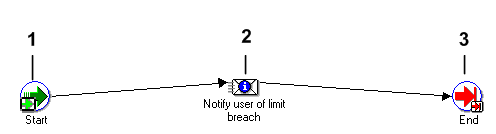
This workflow process diagram lists the display name of each activity or process.
This is a Standard function activity that marks the start of the process.
| Function | WF_STANDARD.NOOP |
|---|---|
| Result Type | None |
| Required | Yes |
| Prerequisite Activities | None |
| Item Attributes Set by Function | None |
| Item Attributes Retrieved by Function | None |
This process sends the designated user a Workflow notification or sends an e-mail notification indicating a limit breach.
| Function | WF_STANDARD.NOOP |
|---|---|
| Message | Limit breach message. This message warns the user that an XTR limit has been breached. |
| Result Type | None |
| Required | Yes |
| Prerequisite Activities | None |
| Expand Roles | No |
| Notification Function | PL/SQL |
This activity marks the end of the process after a limits notification is generated.
| Function | WF_STANDARD.NOOP |
|---|---|
| Result Type | None |