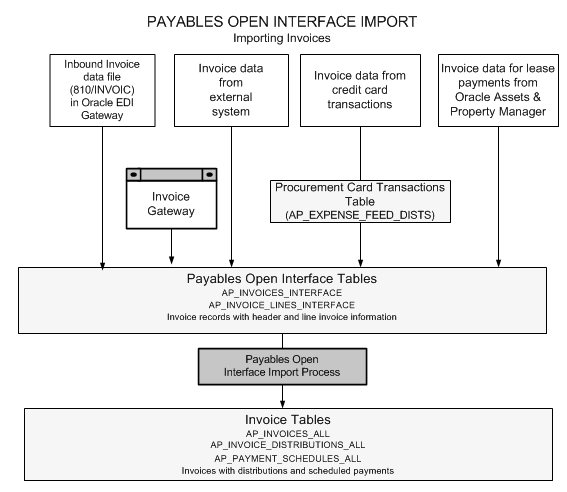
Use Payables Open Interface Import to create invoices from invoice records in the Payables Open Interface tables. During the import, the program checks the supplier site to determine which invoice tolerance template to use when checking invoices with a source of Oracle e-Commerce Gateway. If no value for the Invoice Tolerances field is found at the site level then tolerance checking is not performed. Otherwise, the tolerances defined at the site level at import time will be used. The import program checks the specific invoice tolerance template stored in the Invoice Tolerances window to determine if the invoice falls within the defined tolerances. Payables validates invoice records and rejects invoice records that have insufficient or invalid data. Successfully imported invoices have distributions and scheduled payments, and can be queried, modified and validated in the Invoice Workbench.
Suggestion: Set up your system to submit Payables Open Interface Import after each business day so you don't use system resources while users are online.
For a text description of the previous graphic, see: Payables Open Interface Import Graphic.
If you are importing invoices through the Oracle e-Commerce Gateway, you can submit the e-Commerce Invoice Inbound set. This program set submits both the e-Commerce Gateway Program, which populates the Payables Open Interface Tables with the electronic invoice records your supplier provides, and the Payables Open Interface Import Program, which transfers the invoice data from the interface tables into the invoice tables in Payables. To submit the e-Commerce Invoice Inbound transaction, see: Running the e-Commerce Invoice Inbound Program (Oracle e-Commerce Gateway User's Guide). The discussion below describes how you can submit the Payables Open Interface Program separately. You may need to submit Payables Open Interface Import separately if you have had rejections that you have fixed and want to import corrected e-Commerce invoice records.
Payables supports the outbound application advice (824/APERAK) for e-Commerce invoices. When you submit the Payables Open Interface Outbound Advice, Payables creates a notification for invoices that were successfully imported and those that failed import, and you can send this notification to your e-Commerce trading partners via the e-Commerce Gateway.
If your supplier is transmitting invoices through the XML Gateway, you can submit the P2P Inbound Process Request set. This request set populates the Payables Open Interface Tables with electronic invoice records from your supplier. It then submits the Payables Open Interface Import Program that transfers invoice data from the interface tables into the invoice tables in Payables.
Attention: The Payables Open Interface Import Program needs to be run for each operating unit if you have a multi-org implementation.
The request set then submits the Payables Validation and Accounting processes and automatically generates an output file of supplier invoice rejections that is sent to a Confirmation User Email id that is specified in the Define Bank window. This output file includes the number of invoices that had holds applied during Invoice Validation and any invoices that are not included in the accounting process. You need to resolve all issues and then validate any corrected invoices before they can be selected for payment.
Additionally, data problems that your system administrator needs to address will be automatically sent to an AP Administrator Email id that is defined in the Define Bank window.
You may need to submit Payables Open Interface Import separately if you have had rejections that you have fixed and want to import corrected XML Gateway invoice records.
When you enter invoice records in the Quick Invoices window, you can choose the Create Invoices button to submit the Payables Open Interface Import program from the Create Invoices window. Alternatively, you can submit the import program from the Submit Request window, as described below.
Enter suppliers and at least one supplier pay site in the Payables Suppliers window. See: Entering Suppliers.
If you use Payables Open Interface Workflow, Workflow has completed processing records.
Note: If you want Payables to import Quick Invoices invoice records, import will select these records for import even if Payables Open Interface workflow has not yet processed them.
Additional Prerequisites for e-Commerce (810/INVOIC) Invoices
In e-Commerce Gateway, define the trading partner. See:Defining Trading Partner Information (Oracle e-Commerce Gateway User's Guide).
In Oracle e-Commerce Gateway, enable the Inbound Invoice Transaction for each supplier you define as a trading partner. See: Enabling Electronic Transactions (Oracle e-Commerce Gateway User's Guide).
In Oracle e-Commerce Gateway, define any code conversions for the transaction. See : Defining Code Conversion Categories and Assigning Categories, Overview of Code Conversion, Defining Code Conversion Categories, Assigning Code Conversion Cross Reference Categories, and Defining Code Conversion Cross Reference Values (Oracle e-Commerce Gateway User's Guide). .
Use Oracle e-Commerce Gateway to submit the e-Commerce Gateway Invoice Inbound Program from the Run e-Commerce Inbound Datafile Import Process window. See: Running the e-Commerce Invoice Inbound Program (Oracle e-Commerce Gateway User's Guide).
Additional Prerequisites for XML Gateway Invoices
In e-Commerce Gateway, define the trading partner. See: Defining Trading Partner Information (Oracle e-Commerce Gateway User's Guide).
All invoice lines passed by the XML Gateway must be of Item, Freight, or Tax types. For any Tax type lines, the account on the line must be derived from the account set up on the Tax Code. For any Freight type lines, the account on the line must be derived from the freight account set up in Payables Options
The Payables Open Interface Import must be run for each operating unit that receives invoices.
Additional Prerequisites for Invoices You Transfer Using SQL*Loader
Use the Oracle Payables Lookups window to define a Source type lookup. In the Type field of the Oracle Payables Lookups window, select Source. Enter any name in the Name field, except an existing source. See: Lookups.
Transfer invoices into the Payables Open Interface tables. See: Using SQL*Loader to Populate the Payables Open Interface table.
Additional Prerequisites for Invoices You Transfer Using the Create Procurement Card Issuer Invoice
Transfer invoices into the Payables Open Interface tables. See: Create Procurement Card Issuer Invoice.
Additional Prerequisites for Invoices You Transfer from Oracle Property Manager
Transfer lease invoices into the Payables Open Interface tables using the Export Payments to Payables window in Oracle Property Manager.
Additional Prerequisites for Invoices You Transfer from Oracle Assets
Transfer lease payments into the Payables Open Interface tables using the Export Payments to Payables window in Oracle Assets.
In the Submit Request window, choose Request in the Type field. In the Name field, enter Payables Open Interface Import.
Enter the report parameters as appropriate. For more information on report parameters, see Payables Open Interface Import Parameters. In the Source field, select the source name from the list of values.
If your records have a Group and you want to import invoices for a single group, enter the Group. This allows you to import smaller sets of records concurrently for the same source, which improves your performance. If you are importing invoice records that you entered in the Quick Invoices window, enter the Quick Invoices Batch Name as the Group.
To use invoice batch control, enter an Invoice Batch Name.
To apply a hold to each invoice this process creates, enter a Hold Name.
To summarize the Audit section of the Payables Open Interface Import report, select the Summarize Report option. If you do not select this option and you are importing many invoices, this report could be very long.
Choose OK to save the parameters. Choose Submit to submit Payables Open Interface Import.
When the program is complete, you can query the new invoices in the Invoice Workbench. The new invoices are ready for validation.
Payables automatically produces a report so that you can review the invoices Payables Open Interface Import successfully created, and those that could not be imported. See: Payables Open Interface Import Report
Fix problems that are identified in the report, and then resubmit Payables Open Interface Import.
When your Supplier Site Contact open interface import is rejected because of duplicate site codes, then use the vendor-site-id to attach a contact to the supplier site. If you are sure that your supplier-site-code is unique, then you can use the site code.
If you entered invoice records in the Quick Invoices window, update the records in the Quick Invoices window.
To update all other types of invoice records, either use the Open Interface Invoices window to make changes in the Payables Open Interface tables, or purge the rejected records and load a new flat file into the interface table.
