AutoLockbox (or Lockbox) is a service that commercial banks offer corporate customers to enable them to outsource their accounts receivable payment processing. An AutoLockbox operation can process millions of transactions a month.
AutoLockbox eliminates manual data entry by automatically processing receipts that are sent directly to your bank. You specify how you want this information transmitted and Receivables ensures that the data is valid before creating QuickCash receipt batches. You can automatically identify the customer who remitted the receipt and optionally use AutoCash rules to determine how to apply the receipts to your customer's outstanding debit items.
If you are using Oracle Trade Management, then during AutoLockbox and Post QuickCash processing, Receivables can automatically prepare eligible remittance lines for claim creation in Trade Management. See: How AutoLockbox Creates Claims.
You can also use AutoLockbox for historical data conversion. For example, you can use AutoLockbox to transfer receipts from your previous accounting system into Receivables. AutoLockbox ensures that the receipts are accurate and valid before transferring them into Receivables.
AutoLockbox is a three step process:
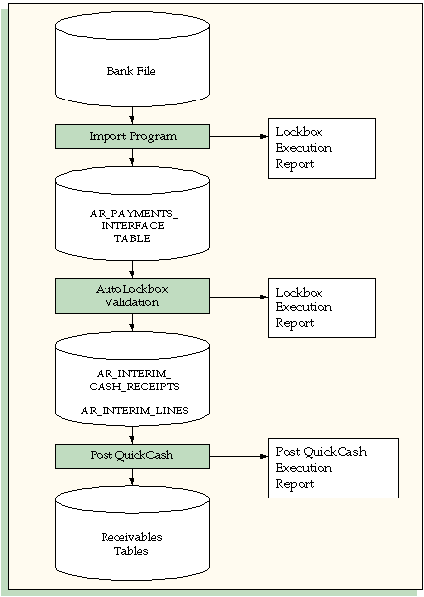
Import: During this step, AutoLockbox reads and formats the data from your bank file into the AutoLockbox table using an SQL *Loader script.
Validation: The validation program checks data in the AutoLockbox tables for compatibility with Receivables. Once validated, the data is transferred into QuickCash tables. At this point, you can optionally query your receipts in the QuickCash window and change how they will be applied before submitting the final step, Post QuickCash.
Post QuickCash: This step applies the receipts and updates your customer's balances. See: Post QuickCash.
These steps can be submitted individually or at the same time from the submit Lockbox Processing window. After you run Post QuickCash, Receivables treats the receipts like any other receipts; you can reverse and reapply them and apply any unapplied, unidentified, or on-account amounts.
Note: AutoLockbox cannot process receipts that are not related to invoices. Process non-invoice related receipts, such as investment income, through the Receipts window using a receipt type of Miscellaneous.
During the import step, Lockbox uses an SQL*Loader control file to import receipt information contained in the bank file into the AR_PAYMENTS_INTERFACE_ALL table. AutoLockbox uses the transmission format you specify in the Submit Lockbox Processing window to ensure that data is correctly transferred from the bank file into the AR_PAYMENTS_INTERFACE_ALL table. Transmission formats contain information such as the customer number, bank account number, the amount of each receipt to apply, and transaction numbers to which to apply each receipt. You can define your own transmission format or use one of two formats that Receivables provides. See: Transmission Formats.
Attention: For SQL*Loader to load your bank file properly, each logical record that your bank sends to you must end with a carriage return; otherwise, SQL*Loader displays an error message when you submit AutoLockbox.
During the validation step, AutoLockbox ensures that no duplicate entries exist, the customer and receipt information is valid, the amount to apply does not exceed the receipt amount, and that columns in the AR_PAYMENTS_INTERFACE_ALL table reference the correct values and columns in Receivables. If the receipt and transaction currencies are different, AutoLockbox also requires specific application information and must be able to determine the exchange rate between the two currencies. See: Using AutoLockbox to Process Cross Currency Receipts.
Lockbox transfers the receipts that pass validation to the AR_INTERIM_CASH_RECEIPTS_ALL and AR_INTERIM_CASH_RCPT_LINES_ALL interim tables in Receivables. Receipts that fail validation remain in the AR_PAYMENTS_INTERFACE table until you manually correct errors using the Maintain Transmission Data window. You can then resubmit just the validation step for these receipts using the Submit Lockbox Processing window. After a receipt is successfully imported into Receivables, you can apply, reverse, remit, or place it on account, just like a manually entered receipt. If you did not run Post QuickCash when you submitted AutoLockbox, you can review each receipt and optionally update their application information in the QuickCash window. See: AutoLockbox Validation.
When you submit Post QuickCash, the program tries to apply each receipt based on the information contained in the AR_INTERIM_CASH_RECEIPTS_ALL and AR_INTERIM_CASH_RCPT_LINES_ALL tables. To be able to apply a receipt to a transaction, Post QuickCash must be able to determine the following:
The customer for whom the open debit item was created - The customer is usually determined by providing either a customer number or a MICR (magnetic ink character recognition) number in the bank file. If the customer and MICR number are not provided, and AutoAssociate is set to Yes for this Lockbox, AutoLockbox will use matching rules to identify the customer. See: AutoAssociate and Matching Rules.
If the customer and MICR number are not provided, AutoAssociate is set to No, and Lockbox is unable to identify the customer using matching rules, Post QuickCash assigns the receipt a status of Unidentified. You need to manually assign each Unidentified receipt to a customer in the QuickCash or Receipts window. You can then apply these receipts manually in the Applications window, or automatically by submitting Post QuickCash.
The transaction numbers to which each receipt should be applied - If Lockbox is able to identify the customer for a receipt and the transaction number is provided within the receipt record, Lockbox uses this information to apply the receipt. If the transaction number is not provided and AutoAssociate is set to No for this Lockbox, Post QuickCash assigns the receipt a status of Unapplied. You need to use the Applications window to manually apply these receipts.
If the transaction number is not provided but AutoAssociate is set to Yes, Post QuickCash uses the matching rules defined for this customer site, customer, or Lockbox to apply the receipt. See: Matching Rules.
If the matching rules fail, then Post QuickCash applies the receipt using the AutoCash rule set defined at the customer site, customer, or system options level, stopping when one is found.
If the AutoCash rules also fail to apply the receipt, Lockbox assigns the receipt a status of Unapplied. You can apply unapplied receipts in either the QuickCash or Applications window.
The following illustration shows how receipt data from your bank file is imported into Receivables tables. The illustration also shows that Receivables generates the Import section when you submit the import step of AutoLockbox, and generates the Validation section when you submit the validation step of AutoLockbox. See Lockbox Execution Report. Receivables automatically generates the Post QuickCash Execution Report each time you submit Post QuickCash or AutoLockbox. See: Post QuickCash Execution Report.
Importing Data from your Bank File
