Use transaction types to define the accounting for the debit memos, credit memos, on-account credits, chargebacks, commitments, invoices, and bills receivable you create in Receivables. Transaction types also determine whether your transaction entries update your customers' balances and whether Receivables posts these transactions to your general ledger.
If AutoAccounting depends on transaction type, Receivables uses the general ledger accounts that you enter here, along with your AutoAccounting rules, to determine the default revenue, receivable, freight, tax, unearned revenue, unbilled receivable, and AutoInvoice clearing accounts for transactions you create using this type. For bills receivable, the accounts that you enter here determine the bills receivable, unpaid bills receivable, remitted bills receivable, and factored bills receivable accounts for a bill receivable.
Note: The default accounting that AutoAccounting creates is considered interim accounting only. Receivables integrates with Oracle Subledger Accounting, the E-Business Suite's centralized accounting engine, which accepts the default accounts that AutoAccounting derives without change. However, you can modify the accounting rules in Subledger Accounting to create accounting that meets your business requirements. See: Accounting in Receivables.
You can associate transaction types with your invoice sources in the Transaction Sources window to speed data entry in the Transactions and Credit Transactions windows. Active transaction types appear as list of values choices in the Transactions, Reverse Receipts, Credit Transactions, and Transaction Sources windows, and for bills receivable in the Bills Receivable and Receipt Classes windows.
You can also define credit memo and invoice transaction types to use with AutoInvoice.
You should define your transaction types in the following order:
credit memo transaction types
invoice, debit memo, and chargeback transaction types
bills receivable transaction types
commitment transaction types
You must define your invoice transaction types before you define your commitment types.
Suggestion: To be able to void a debit memo, credit memo, on-account credit or invoice, define a Void transaction type with 'Open Receivables' and 'Post to GL' set to No. Then, as long as there is no activity against the transaction and it has not been posted to your general ledger, you can make it invalid by simply changing the transaction type to 'Void'.
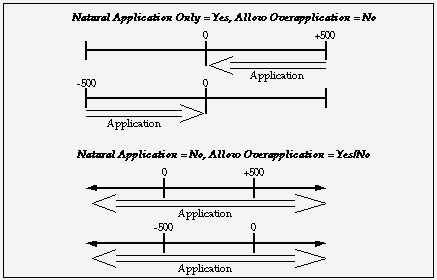
The transaction type that you assign to a transaction indicates the type of application that is permitted for that transaction: natural application only, or overapplication.
The Natural Application Only and Allow Overapplication options determine how applications can affect the balance due for transactions using this type. Natural Application refers to the type of application, either positive or negative, that a transaction requires to become closer to zero. For example, invoices have a positive balance, so to reduce the balance due you need to create a negative application (such as apply a receipt).
Overapplication indicates whether you can overapply transactions using this type. For example, if you apply a $500 receipt to a $400 invoice, you overapply the invoice and reverse its sign (from positive to negative).
The figure below shows how these rules affect your applications.
Natural Application and Overapplication
For a description of this graphic, see: Description of Natural Application and Overapplication.
Whether or not a transaction allows overapplication determines the actions that you can take on that transaction.
For example, a fully paid transaction's transaction type allows natural application only (in other words, prohibits overapplication). To credit that transaction, you must first unapply the transaction from the receipt before you can create the credit. See: Unapplying Cash when Crediting a Transaction.
Moreover, some features in Receivables work only with one option or the other:
For example, to automatically create claims during AutoLockbox and Post QuickCash processing, the transaction type of the debit item to which you are applying the receipt must be set to allow natural application only. See: How AutoLockbox Creates Claims and QuickCash.
To evaluate imported credit memos against paid invoices, and automatically determine how to treat the receipt, the transaction type of the debit item to which you are applying the credit memo must be set to allow natural application only. See: Importing Credit Memos and Automated Receipt Handling for Credits.
Note: When importing credit memos against transactions with this kind of transaction type, refer to Automated Receipt Handling for Credits to learn how to prevent AutoInvoice errors.
Prerequisites
Navigate to the Transaction Types window.
Select an operating unit and legal entity for this transaction type.
Receivables uses the selected legal entity to default for transactions using this transaction type.
For more information about legal entities, see the Oracle Financials Concepts Guide and Oracle Financials Implementation Guide.
Enter a Name and Description for this transaction type.
Note: Select a transaction type name that is different from all the existing receipt method, adjustment, and receivable activity names. Oracle Receivables lets you create a transaction type only if there is no receipt method, adjustment, or receivable activity with the same name.
Enter a Class for this transaction type. Choose from the following classes: Invoice, Chargeback, Credit Memo, Debit Memo, Deposit, or Guarantee.
If you choose Deposit or Guarantee, Receivables sets Open Receivable and Post to GL to Yes, Allow Freight, Default Tax Classification, and Allow Overapplication to No, Creation Sign to 'Positive Sign,' and Natural Application Only to Yes. You cannot change these options. See: Define Your Commitment Transaction Types.
To define a bills receivable transaction type, see: Bills Receivable Transaction Types.
Choose a Creation Sign. The default is Positive Sign for transaction types with a class of either Guarantee or Deposit. You cannot update this field after you enter transactions with this type.
Choose a Transaction Status of Open, Closed, Pending, or Void. Use these statuses to implement your own invoice approval system. Enter 'Void' to void debit memos, on-account credits or invoices to which you assign this transaction type.
Choose a default Printing Option for transactions with this transaction type. Choose Print or Do Not Print. You can override this value when entering transactions.
Note: If you choose Do Not Print, iReceivables does not display the details for transactions with this transaction type.
If this transaction type's class is either Deposit or Guarantee, enter the Invoice Type to use for invoices entered against commitments or deposits with this transaction type. When you enter an invoice against either a deposit or a guarantee with this transaction type, the value you enter here is the default invoice transaction type.
If this transaction type's class is Deposit, Guarantee, Debit Memo, or Invoice, enter the Credit Memo Type to use when crediting items with this transaction type (optional). When you enter a credit memo against an invoice with this transaction type, the value you enter here is the default credit memo transaction type.
Enter an Application Rule Set for this transaction type or select one from the list of values (optional). An Application Rule Set determines the default payment steps when you use the Applications window or AutoLockbox to apply receipts to transactions using this type. If you do not enter a rule set, Receivables uses the rule set in the System Options window as the default. See: Receivables Application Rule Sets.
Enter the payment Terms to use for transactions with this transaction type.
Any payment terms entered at the customer level will override the payment terms that you enter here.
Enter the range of dates that this transaction type will be active. The default Start Date is today's date, but you can change it. If you do not enter an End Date, this transaction type will be active indefinitely.
If this transaction type's class is not Deposit or Guarantee, indicate whether you want transactions with this type to update your customer balances by checking or unchecking the Open Receivable box.
If Open Receivable is set to Yes, Receivables updates your customer balances each time you create a complete debit memo, credit memo, chargeback, or on-account credit with this transaction type. Receivables also includes these transactions in the standard aging and collection processes.
If you are defining a 'void' transaction type, set Open Receivable to No.
Suggestion: You can use the Open Receivable option to implement an approval cycle for any temporary or preliminary debit memos, credit memos, on-account credits, chargebacks, and invoices that you may use in your business. For particularly sensitive debit memos, credit memos, on-account credits, chargebacks, and invoices that you may want to review, you can define a transaction type called Preliminary with Open Receivable set to No. This transaction type does not update your customer balances. When you review and approve the item, you can then change the transaction type to Final (a transaction type that you define with Open Receivable set to Yes) which will update your customer's balances.
To allow freight to be entered for transactions with this transaction type, check the Allow Freight box.
To be able to post transactions with this type to your general ledger, check the Post To GL box. The default is the value you specified for the Open Receivables option. This box must be checked if the class is Deposit or Guarantee. If you leave this box unchecked, then no accounting will be generated for transactions with this type. If you leave this box unchecked, then no accounting will be generated for transactions with this type.
If you are defining a 'void' transaction type, do not check this box.
To automatically assign a default tax classification on transaction lines, select the Default tax classification box.
Note: You use tax classifications only if you upgraded to Release 12 from Release 11i.
If this transaction type's class is not Deposit or Guarantee and you want to restrict the direction in which items with this transaction type can be updated by applications entered against them, check the Natural Application Only box. If you check this box, Receivables sets Allow Overapplication to No.
Note: If the Allow Overapplication box is checked and you then check the Natural Application Only box, Receivables automatically unchecks the Allow Overapplication box. To check the Allow Overapplication box again, you must first manually uncheck the Natural Application Only box. You can update these options.
If you want AutoInvoice to automatically evaluate imported credit memos for receipt handling, then select the Natural Application Only check box. See: Automated Receipt Handling for Credits.
If this transaction type's class is not Deposit or Guarantee, and you did not check the Natural Application Only box, choose whether to Allow Overapplication against items with this transaction type by checking or unchecking this box. You can update these options.
Select the Exclude from Late Charges Calculation box if you do not want to assess late charges on overdue transactions using this transaction type.
See: Calculating Late Charges.
If this transaction type's class is Invoice, Chargeback, Credit Memo, Debit Memo, or Guarantee, then define the accounting for this transaction type in the Accounts tabbed region.
If this transaction type's class is Bills Receivable, then define the accounting for this transaction type in the Bills Receivable tabbed region.
If this transaction type's class is Deposit, then define the accounting for this transaction type in the Deposit tabbed region.
Enter the Receivable Account for transactions with this transaction type. Receivables uses this information, along with your AutoAccounting definition, to determine the receivable accounts for transactions with these types. Receivables creates a receivables transaction record using this account so you can transfer to your general ledger and create a journal entry if Post To GL is Yes for this transaction type.
Suggestion: For Guarantee transaction types, enter the Accounting Flexfield for your Unbilled Receivable account in the Receivable Account field. Receivables only uses the Unbilled Account field to determine the Unbilled Receivable account for invoices with the rule 'Bill in Arrears.'
Suggestion: For Chargeback transaction types, enter the Receivable Chargeback account. The offset to the Receivable account on the original debit transaction will be generated by the chargeback adjustment.
Note: Receivables does not require you to enter a Receivable account for Credit Memo transaction types if the profile option Use Invoice Accounting for Credit Memos is set to Yes; otherwise, you must enter a Receivable Account.
Enter a Freight Account for transactions with this transaction type. Receivables uses this information, along with your AutoAccounting definition, to determine the freight account for transactions with this transaction type. Receivables skips this field if this transaction type's class is Guarantee or if Allow Freight is set to No.
Enter a Revenue Account for transactions with this transaction type. Receivables skips this field if Allow Freight is set to No. Receivables uses this information, along with your AutoAccounting definition, to determine the revenue account for transactions with this transaction type.
Suggestion: For Guarantee transaction types, enter the Accounting Flexfield for your Unearned Revenue account in the Revenue Account field. Receivables only uses the Unearned Account field to determine the Unearned Revenue account for invoices with the rule Bill In Advance.
Note: Receivables does not require you to enter a Revenue Account for Credit Memo transaction types if the profile option Use Invoice Accounting for Credit Memos is set to Yes. Otherwise, you must enter a Revenue Account.
If this transaction type's class is Invoice or Debit Memo, enter a Clearing Account for transactions with this transaction type. Receivables uses this account to hold any difference between the revenue amount specified for the Revenue account and the selling price times the quantity for imported invoice lines. Receivables only uses the clearing account if you have enabled this feature for transaction sources that you use for your imported transactions.
If this transaction type's class is Invoice or Credit Memo, enter an Unbilled Receivable Account. When you use the Bill In Arrears invoicing rule, Receivables uses this information, along with your AutoAccounting definition, to determine the Unbilled Receivable account for transactions with this transaction type.
Suggestion: For transaction types with a class of Guarantee, enter the Accounting Flexfield for your unbilled receivable in the Receivable Account field, as described above.
If this transaction type's class is Invoice or Credit Memo, enter an Unearned Revenue Account. Receivables uses this information, along with your AutoAccounting definition, to determine the unearned revenue account for transactions with this transaction type. Receivables only uses this account when your transaction's invoicing rule is Bill In Advance.
Suggestion: For transaction types with a class of Guarantee, enter the Accounting Flexfield for your Unearned Revenue account in the Revenue Account field, as described above.
If this transaction type's class is Invoice, Credit Memo, or Debit Memo, enter a Tax Account. Receivables uses this information along with your AutoAccounting definition to determine the tax account for transactions with this transaction type.
If this transaction type's class is Deposit, then complete these fields in the Deposit tabbed region:
In the Allocation Basis field, indicate how you want to apply the balance of deposits with this transaction type to transactions.
You can select Lines Only to apply deposits to invoice lines only. Or, you can select Lines, Tax and Freight to include tax and freight amounts on invoices when applying deposits to transactions.
Enter a Receivable Account for deposits with this transaction type.
Enter an Offset Account for deposits with this transaction type.
If you set the AR: Deposit Offset Account Source profile option to Transaction Type, then Receivables uses the Offset Account that you specify here to derive the offset account for deposits. Otherwise, Receivables uses AutoAccounting to derive the deposit's offset account.
For more information, see: Overview of Receivables User Profile Options.
Note: The procedure for updating a transaction type is similar to that for defining a transaction type. Oracle Receivables lets you update the name of a transaction type only if:
The name of the transaction type is used in only one operating unit and not across multiple operating units.
The name of the transaction type is different from all the existing receipt method, adjustment, and receivable activity names. However, there is no restriction on updating other transaction type parameters.
