
Use this window to define valid values for a key or descriptive flexfield segment or report parameter. You must define at least one valid value for each validated segment before you can use a flexfield. These validated segments provide users with a list of predefined valid segment values, and have a validation type of Independent, Dependent, Translatable Independent, Translatable Dependent, or Table.
You should use this window to define values that belong to Independent, Dependent, Translatable Independent, Translatable Dependent, or Table value sets. You can define new segment values, specify value descriptions for your values and to enable or disable existing values as well.
The values you define for a given flexfield segment automatically become valid values for any other flexfield segment that uses the same value set. Many Oracle E-Business Suite reports use predefined value sets that you may also use with your flexfield segments. If your flexfield segment uses a value set associated with a Standard Request Submission report parameter, creating or modifying values also affects that parameter. If you use the same value set for parameter values, the values you define here also become valid values for your report parameter.
You also specify segment value qualifiers, rollup groups, and child value ranges.
You can also view and maintain segment value hierarchies for the Accounting Flexfield or for any custom application flexfields that use the value hierarchies feature.
Attention: Because the Accounting Flexfield is the only Oracle E-Business Suite key flexfield that uses the parent, rollup group, hierarchy level and segment qualifier information, you need only enter this information for values that are associated with your Accounting Flexfield.
For certain types of changes to value hierarchies, a concurrent request is submitted to rebuild the value hierarchies. One request per value set that the change affects (the value set attached to the segment for which you are defining or maintaining values) may be submitted. For example, if you make hierarchy structure changes for five different key flexfield segments, all of which use different value sets, up to five concurrent requests may be submitted.
A concurrent request is submitted for the following changes to value hierarchies:
A new hierarchy range is defined, or an existing hierarchy range is updated or deleted.
A hierarchy range is moved to another value.
The value definition for non-parent values is updated in some way. For example, the description is changed.
Suggestion: For ease of maintenance, you should carefully plan your value hierarchy structures before you define your values, so that your structures follow a logical pattern you can expand later as you need more values.
Attention: You cannot modify values for a value set if that value set is currently being modified by another user, either using the Segment Values Window or the Account Hierarchy Editor with Oracle General Ledger. If you get a message saying that the value set is already being modified, you can try again at a later time.
If your value set is based on a flexfield validation table (validation type Table) and you have defined your value set to allow parent values, then you can use this window to define parent values for the values in your table. This window stores your parent values and rollup groups for you and does not add them to your validation table. You can define child value ranges for the parent values you define, and you can assign your parent values to rollup groups. The values in your validation table can be child values, but they cannot be parent values, and you cannot assign them to rollup groups. You cannot create new values in your validation table using this window.
Ensure the following prerequisites have been completed before entering in your segment values.
Use the Value Set window to define your independent value sets, any dependent value sets that depend on them, and any table-validated value sets your flexfield needs
Use the Key Flexfield Segments window to define your flexfield structure and segments
or
Use the Descriptive Flexfield Segments window to define your flexfield structure and segments
Define your rollup groups, if any. See: Rollup Groups Window.
Suggestion: First use this window to define all of the independent values your application needs, then define your dependent values.
This window does not allow you to choose an independent value that would violate any flexfield security rules that are enabled for your responsibility.
Use this block to define valid values, to specify values for rollup groups and segment qualifiers, if any, and to enable and disable values. If you define a value you use as a default value for your segment or dependent value set, you must not specify a start or end date for that value. Also, you should not define security rules that exclude your default values.
Some key flexfields use segment qualifiers to hold extra information about individual key segment values. For example, the Accounting Flexfield in Oracle E-Business Suite products uses segment qualifiers to determine the account type of an account value or whether detail budgeting and detail posting are allowed for an Accounting Flexfield combination containing a given value.
You cannot define values that would violate any flexfield security rules that are enabled for your responsibility.
For most flexfield segments and report parameters, defining values is very simple if they use independent value sets and their value sets are not used with the Accounting Flexfield.
To define segment values:
Navigate to the Segment Values window.
Query the value set to which your values (will) belong. You can locate values either by their value set or by the flexfield segment or concurrent program parameter that uses their value set for validation.
Enter a segment value that is valid for your application. A valid value can be a word, phrase, abbreviation, or numeric code. Users can enter this value in a flexfield segment or a report parameter that uses this value set. Users also see this value whenever they select a value in a flexfield segment that uses this value set.
Any value you define must conform to the criteria you defined for your value set. For example, if your value set can only accept values one character long with no alphabetic or special characters allowed, you can only enter the values 0 through 9 in this field.
If you enter a value that contains the segment separator character defined for the flexfield that uses this value set, application windows display the character in your value as a ^ (or another non-alphanumeric character, depending on your platform) in your concatenated value fields to differentiate it from the segment separator. This change is for concatenated display purposes only and does not affect your value.
Since individual values can be referenced from many places in your applications, you cannot delete valid values that have already been defined, nor can you change those values. You can, however, change the description of a valid value in the Description field after you query up the value (or the translated value of a Translatable Independent or Translatable Dependent value set).
You cannot define values that would violate any flexfield security rules that are enabled for your responsibility.
If your value set is a Translatable Independent or Translatable Dependent value set, this value is "hidden" from the user in the flexfield windows.
If your value set has the type Translatable Independent or Translatable Dependent, the Translated Value field is enabled. The value from the previous step defaults in. You can update the Translated Value for all installed languages using the Translation icon in the Toolbar.
Validation is done for the translated values as well as the hidden values. For example, if you have defined your value set to have a maximum size of 50 characters, no translated value may be larger than 50 characters.
Enter a description for your value. Users see this description along with your value whenever they select a value in a flexfield segment that uses this value set.
Check the Enabled check box to make your value effective.
If you want to have the value effective for a limited time, you can enter a start date and/or an end date for it. The value is valid for the time including the From and To dates.
You cannot delete values from this window because they are referenced elsewhere in the system, but you can disable them at any time. You should not disable or have effective dates for a segment value that you use as a segment default or a default dependent value.
If you are defining values whose value set will be used with the Accounting Flexfield, define hierarchy and qualifiers information. See: Defining Hierarchy and Qualifiers Information.
Save your changes.
You only need to define hierarchy and qualifiers information if you are defining values whose value set will be used with the Accounting Flexfield.
Define your segment value before entering in hierarchy and qualifiers information. See: Defining Segment Values.
Determine whether this value is a parent value. If so, you can define and move child value ranges for this value, and you can assign this value to a rollup group. If not, you cannot define and move child value ranges for this value, and you cannot assign this value to a rollup group.
Enter the name of a rollup group to which you want to assign this flexfield segment value. You can use a rollup group to identify a group of parents for reporting or other application purposes. You can enter a rollup group name only if this flexfield segment value is a parent value and Freeze Rollup Groups in the Key Segments window is set to No. You can enter a range of child values for this flexfield segment value in the Define Child Ranges zone. You create rollup groups using the Rollup Groups window. See: Rollup Groups Window.
Enter the level for this value. This can be a description of this value's relative level in your hierarchy structure. This level description is for your purposes only.
If you are defining values for a value set used with the Accounting Flexfield, you must define segment qualifier information for each value. See: Qualifiers.
Some key flexfields use segment qualifiers to hold extra information about individual key segment values. For example, the Accounting Flexfield uses segment qualifiers to determine the account type of an account value or whether detail budgeting and detail posting are allowed for an Accounting Flexfield combination containing a given value.
If you are defining values for any value set that is used by a key flexfield that uses segment qualifiers, you see the Segment Qualifiers pop-up window prompting you for this information. If you share this same value set with additional flexfields, such as a descriptive flexfield, you see the Segment Qualifiers pop-up window regardless of how you identified your value set in this window. Segment qualifiers contain information about a value rather than the segment that uses the value.
After you have saved your segment qualifier values, the values for your segment qualifiers appear in the Qualifiers field in the main window. You can click in the Qualifiers field to bring up the Segment Qualifiers window and see the qualifiers.
The Allow Budgeting, Allow Posting, and Account Type fields are segment qualifiers for the Accounting Flexfield.
Note: Oracle General Ledger has an Inherit Segment Value Attributes concurrent program that can automatically update an account combination's detail budgeting allowed, detail posting allowed, global reconciliation flag, enabled flag, start date, and end date attributes whenever these attributes change for a segment value in that account combination.
See the Oracle General Ledger documentation for more information.
Indicate whether to allow detailed budgeting to GL accounts with this segment value. When you accept this value, you can perform detailed budgeting to GL accounts with this segment value. When you enter No, you can neither assign GL accounts with this segment value to budget organizations nor define budget formulas for GL accounts with this segment value.
When you are defining a parent segment value, enter No here, since you cannot budget amounts to a segment value which references other segment values where detail budgeting is already allowed.
When you change this field for a segment value that you have already defined, you should also make a corresponding change to all GL accounts which include that value. Use the GL Account Combinations window to allow or disallow detail budgeting to your flexfield combinations.
Enter Yes or No to indicate whether Oracle E-Business Suite should allow detailed posting to GL accounts with this segment value. The default value for this field is Yes. When you accept this value, you can post directly to GL accounts with this segment value. When you enter No, you can neither use this segment value in GL accounts on the Enter Journals window, nor define formula journal entries that affect GL accounts with this segment value.
When you are defining a parent segment value, enter No here.
When you change this field for a segment value that you have already defined, you should also make a corresponding change to all GL accounts which include that value. Use the GL Account Combinations window to allow or disallow detail posting to your flexfield combinations.
You see this qualifier, which requires a value, for the natural account segment only. Enter the type of your proprietary account (Asset, Liability, Owners' Equity, Revenue or Expense) or the type of your budgetary account (Budgetary Dr or Budgetary Cr) your segment value represents. Choose any proprietary balance sheet account type if you are defining a statistical account segment value. If you choose a proprietary income statement account type for a statistical account segment value, your statistical balance will zero-out at the end of the fiscal year.
Your GL account combinations have the same account type as the account segment which they include. Changing the account type only affects new GL accounts created with the reclassified account segment. Changing the account type does not change the account type of existing GL accounts.
For more information on setting up the Accounting Flexfield, refer to the Oracle General Ledger Implementation Guide.
The Hierarchy Details buttons open the windows you use to define and maintain detailed information about your value hierarchies.
You use the Hierarchy Details zone and the following zones primarily for values you use in segments of the Accounting Flexfield.
| Define Child Ranges | Choose this button to define child ranges for your parent value. The button is disabled unless your value is already a parent value. |
| Move Child Ranges | Choose this button to move child ranges from one parent value to another parent value. The button is disabled unless your value is already a parent value. |
| View Hierarchies | Choose this button to view the hierarchy structure to which your selected value belongs. You cannot make changes in this window. The button is disabled unless your value belongs to a hierarchy structure (it is either a parent value or a child value of another parent value). |
Use this window to define child values for the value you defined in the Segment Values zone. Oracle E-Business Suite use child values to sum families of data or report on groups of data. You specify child values by entering a set of ranges. If you want to specify a single child value, set the low and high ends of the range equal to that value.
You cannot open this window if the value belongs to a rollup group and rollup groups are frozen. You freeze rollup groups using the Key Flexfield Segments window.
You can create networked hierarchies; that is, you can create hierarchy structures where a particular value may be a child that belongs to more than one parent. You should plan your value hierarchy structures carefully to avoid unwanted duplication of information caused by reporting or counting the same value more than once.
For example, suppose you want to define a hierarchy structure as shown in the following diagram.
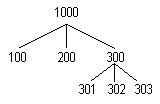
In this structure the parent value 1000 has child values of 100, 200, and 300; and the value 300 is a parent to child values 301, 302, and 303. For the parent value 300, you could specify the child value range 301 (Low) to 303 (High). Since all three values 301, 302 and 303 are not parent values, you give this range a range type of Child.
For the parent value 1000, you need to specify two ranges so that you include both non-parent values (100 and 200) and parent values (300). First, you specify the child value range 100 (Low) to 200 (High) and give this range a range type of Child to include the values 100 and 200 as well as all the values between them (alternatively, you could specify these two values individually by specifying the same value for both Low and High). Then, to include the parent value 300, you specify the child value range 300 (Low) to 300 (High) and give this range a range type of Parent.
Enter the low and high ends of your child value range. You can enter any value that meets the validation criteria you define for this value set using the Define Value Set window. The high end of your child value range must be greater than or equal to the low end. Your ranges behave differently depending on your value set format type. For example, in a value set with a Character format type, 100 is less than 99 (even though they appear to be numbers). Similarly, a range that includes values from 100 to 200 would also include the value 1000.
Attention: The Accounting Flexfield uses value sets that have a format type of Character, so you should specify your child ranges carefully for those value sets. For example, 100 is less than 99 (even though they appear to be numbers).
To specify a range that contains only a single value, enter the same value for both Low and High.
If you select Child, any child values that fall in your specified range are considered to be children of your parent value. If you select Parent, any parent values that fall in your specified range are considered to be children of your parent value. Specifying Parent lets you create tree-structured hierarchies.
If you have existing child ranges from a previous version of Oracle E-Business Suite, those ranges automatically receive a range type of Child and they behave exactly as they did with your previous version.
Use this window only for values you use in segments of the Accounting Flexfield in Oracle General Ledger.
You cannot make changes to your hierarchy structures in this zone.
The Value field displays the value that is a child of the parent value displayed in the Parent Value field.
The Parent field displays whether the child value is itself a parent value. If so, you can choose the Down button in the Navigate to view any values that are children of this value.
Choose Up to view the values at the level just above your current value. If this value is a parent value, you can choose Down to view the child values that belong to the current value. If this value has more than one parent, you see a list of the parent values to which you can navigate. If you choose Up after navigating down a networked hierarchy, you move up to the parent you navigated down from most recently.
If you move up or down in the hierarchy structure, this window automatically changes the parent value displayed in the Parent Value field to show you the parent value in the level immediately above the level of the values you are viewing.
For example, suppose you have a hierarchy structure (in this case a networked structure) as shown in the following diagram:
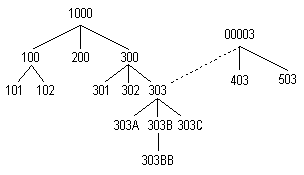
In this structure, the parent value 1000 has the child values 100, 200, and 300; the value 300 is in turn a parent to the values 301, 302 and 303. The value 303 has child values of 303A, 303B (which is a parent to the value 303BB), and 303C. The value 00003 is a parent value of 303 as well, and also has the child values of 403 and 503. Suppose you want to look at the structure starting with the value 1000 in the Segment Values zone. When you open the View Hierarchies window, you see the parent value 1000 with the values 100, 200, and 300 below it, as shown in the following diagram:
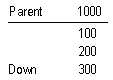
You choose Down with your cursor on 300, as shown above (Down is your only choice for this value). Once you choose Down, you then see (immediately):
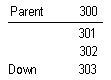
You choose Down with your cursor on 303, as shown above (you can choose from Up or Down for this value). Once you choose Down, you then see its child values 303A, 303B, and 303C, as shown in the following diagram:
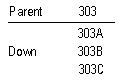
You choose Down with your cursor on 303B, as shown above (you can choose from Up, Down, or Network for this value). Once you choose Down, you then see the value of 303B listed with its child value of 303BB, as shown in the following diagram:
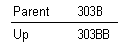
You choose Up, as shown above (you can only choose Up for this value). Once you choose Up, you then see the value 303 listed as a parent value with its children values of 303A, 303B and 303C as shown in the following diagram:
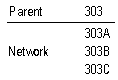
At this point, your cursor is next to the value 303B and the parent displayed in the Parent Value zone is 303. When you choose up, you can either go back up to your original parent value (303, which has the parent value 300), or you can go over to the other hierarchy path that leads to the parent value 00003. Once you choose 303B, you see a window offering you the two choices 300 and 00003 (these choices indicate the values that would appear in the Parent Value field. You will see 303 in the Children block if you make either choice), and 300 is highlighted. You choose 00003 this time, and then you see the parent value 00003 with the child values 303, 403, and 503, as shown in the following diagram:
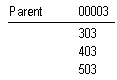
At this point you cannot go up any further in the hierarchy structure.
Use this window to move a range of child values from one parent value (the source value) to another parent value (the destination value). When you move a range of child values from one parent value to another, you also move any child values that belong to the child values in the range you move. In other words, when you move a child to a different parent, you also move any "grandchild" values with it.
Use this window only for values you use in segments of the Accounting Flexfield.
For example, suppose you have defined hierarchy structures as shown in the following diagram:
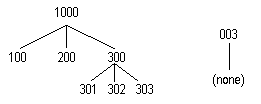
The value 1000 is a parent of the child values 100, 200 and 300; the value 300 is in turn a parent of the child values 301, 302, and 303. A separate structure consists of the parent value 003 with no child values. If you move the parent value 300 from the parent value 1000 to the parent value 003, you also move the child value range 301 (Low) to 303 (High). All three values 301, 302 and 303 are now grandchild values of 003 instead of 1000.
Enter the value from which you want to move a child range.
This field defaults to display the selected parent value from the Segment Values window.
Choose which child ranges you want to move to the destination value's child ranges.
The Type field displays the type of values this child range includes. If the field contains Child, any child values that fall in the specified range are considered to be children of your parent value. If the field contains Parent, any parent values that fall in the specified range are considered to be children of your parent value.
The Destination block displays the child value ranges that currently belong to the destination parent value.
Enter the parent value to which you want to move child value ranges. You can only choose a value that is already a parent value.
The Type field displays the type of values this child range includes. If the field contains Child, any child values that fall in the specified range are considered to be children of your parent value. If the field contains Parent, any parent values that fall in the specified range are considered to be children of your parent value.
Choose the Move button to move the child ranges you selected in the Source block to the destination parent value you specified in the Destination block.