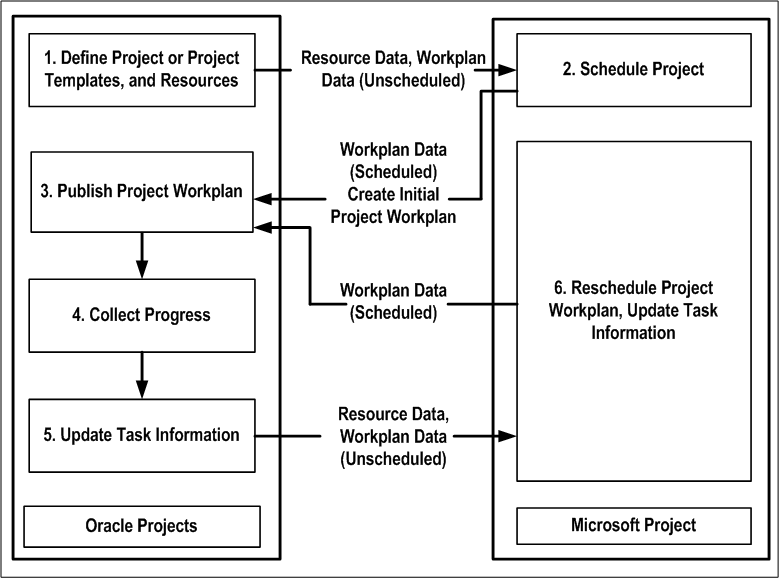
Microsoft Project Integration links Microsoft Project and Oracle Projects, so that you can work with a project in both Oracle Projects and Microsoft Project.
Additional Information: A project is considered linked when you send project information from Microsoft Project to Oracle Projects. You can also link a project by receiving a project from Oracle Projects and enabling the Retain Link to Oracle Projects option in the Receive Project: Enter Options page. For linked projects, you can transfer information between Microsoft Project and Oracle Projects. If your linked project in Oracle Projects is also a program, you can only receive information in Microsoft Project from Oracle Projects. For more information, see: Receiving Project Information from Oracle Projects.
You can use Oracle Projects for Enterprise Project Management and Microsoft Project for scheduling. The two applications share project information while maintaining the security setup for projects, functions, and roles in Oracle Projects as follows:
Additional Information: Before you can receive and send information between Microsoft Project and Oracle Projects you must be logged in to Oracle Projects.
A project manager creates a project in Oracle Projects from a project template containing information for deliverables, work breakdown structures, and resource assignments.
The unscheduled resource and workplan data is downloaded to Microsoft Project for scheduling.
The project is scheduled in Microsoft Project based on task assignments, task dependencies, task constraints, and other attributes.
The scheduled workplan data is uploaded to Oracle Projects for publishing.
The project workplan is published in Oracle Projects.
After the workplan is published, the project is accessible to all team members working on the project. Team members work on their assignments and report their progress in Oracle Projects.
The team members' progress on the tasks is collected for updating the project plan.
The project plan is updated with the team members' progress.
The project is now unscheduled. The unscheduled project plan is downloaded to Microsoft Project for rescheduling.
The project plan is rescheduled in Microsoft Project and the task information is updated.
The rescheduled workplan is uploaded to Oracle Projects for publication.
The following illustration shows the process flow described above on how the two applications work together:
Information Flow Between Microsoft Project and Oracle Projects
You can send the following information for the shared structure, the workplan structure and the financial structure from Microsoft Project to Oracle Projects. For more information on structures, see: Project Structures.
Shared Structures:
Project Data
Work breakdown structures (WBS) for a project that includes task data, such as task hierarchy, task dates, durations, efforts and constraints.
Certain task attributes such as:
service types
dependency data
assignment data (assignment dates and efforts, for example)
billable and chargeable statuses
Note: To send billable and chargeable statuses to Oracle Projects, you must enter either Yes or No in Microsoft Project for the billable and the chargeable flags. These values are not case sensitive. If you enter only Y or N, then Microsoft Project Integration ignores the values and does not send them to Oracle Projects.
Progress information data at the task and assignment level, including as of date, comments, progress overview, percent complete, estimate to complete efforts, estimated and actual dates.
Additional Information: Actual effort and costs are not sent for shared structure. For version enabled structure, you must have at least one published version to send progress.
Workplan Structures:
Project Data
Work breakdown structures (WBS) for a project that includes task data, such as task hierarchy, task dates, durations, efforts and constraints.
Certain task attributes such as:
service types
dependency data
assignment data (assignment dates and efforts, for example)
Task and assignment level cost, based on the Calculate Cost Using option in the preference settings. See also: Setting Preferences.
Progress information data at the task and assignment level, including as of date, comments, progress overview, actual effort, percent complete, estimate to complete efforts, estimated and actual dates.
Additional Information: For version enabled structure, you must have at least one published version to send progress.
When you receive information from a project that is also a program, you will only receive task level cost, effort, and progress information for tasks having linked projects. You will not receive information rolled up from projects linked to the task.
Financial Structures:
Project Data
Work breakdown structures (WBS) for a project that include task information such as task hierarchy and task dates.
Certain task attributes such as:
billable and chargeable statuses
service types
Percent complete
Budget Data: The cost at the task level, and work (with or without costs) at the resource assignment level. The costs can be sent as raw cost, burdened cost, or revenue.
You can receive into Microsoft Project the following information from a project or template in Oracle Projects:
Shared Structures:
Project Data
Work breakdown structures (WBS) for a project that includes task data, such as task hierarchy, task dates, durations, efforts and constraints.
Certain task attributes such as:
service types
dependency data
assignment data (assignment dates and efforts, for example)
Progress information data at the task and assignment level, including as of date, comments, progress overview, percent complete, actual efforts, estimate to complete efforts, estimated and actual dates.
Resources as part of the project data
Resource list without the project data
List of values
Workplan Structures:
Project Data
Work breakdown structures (WBS) for a project that include task information such as task hierarchy, task dates, durations, efforts and constraints.
Certain task attributes such as:
service types
dependency data
assignment data (assignment dates and efforts, for example)
Progress information data at the task and assignment level, including as of date, comments, progress overview, actual effort, percent complete, estimate to complete efforts, estimated and actual dates.
Resources as part of the project data
Resource list without the project data
List of values
Financial Structures:
Project Data
Work breakdown structures (WBS) for a project that include task information such as task hierarchy and task dates.
Certain task attributes such as:
billable and chargeable statuses
service type
Resources as part of the project data
Resource list without the project data
List of values
Actual Data:
Raw, burdened, and revenue costs at the task level
Raw, burdened, or revenue cost as the actual assignment cost, at the assignment level
Assignment hours as actual assignment work
Additional Information: Actual data can be received only from a linked project
Note: For workplan baseline versioning-enabled projects, see Managing the Workplan Lifecycle Using Baseline Versioning.
Complete the following steps before you use Microsoft Project Integration:
Install Microsoft Project.
Install Microsoft Project Integration.
The Microsoft Project Integration installation creates a new menu, Oracle Projects, which is displayed on the Microsoft Project menu bar. The new menu contains the commands used in this guide.
Note: After Microsoft Project Integration installation, if the Oracle Projects menu is not displayed (in Microsoft Projects 2010, this menu appears under the Add-Ins tab and if the Add-Ins tab is not displayed) then perform the following steps:
Navigate to Microsoft Project and press Alt + F11 keys.
The Microsoft Visual Basic Editor appears.
Choose Options from the Tools menu.
The Options page appears.
In the Editor tab, under Code Settings section, deselect Require Variable Declaration check box if it is selected.
Close the Microsoft Visual Basic Editor and Microsoft Project.
Run the Microsoft Project Integration Installation again.
Set up security for projects, functions, and roles. For more information, see: Protecting Data Integrity
Other Sources
Microsoft Project Integration, Oracle Projects Implementation Guide