When you create a new project or project template, you have to manually enable its financial structure on the Structures page. When you create a project from a project template or an existing project that has a financial structure, Oracle Projects copies that financial structure into the new project. You may want to alter a copied financial structure by creating a new top task to begin a new branch of the financial breakdown structure, or by creating additional subtasks under an existing task. For more information, see Enabling Project Structures.
You use the Financial Structure Information page to define basic financial structure information. You can name the financial structure, define its default display outline level, and determine whether physical % complete progress is rolled up in terms of cost or effort.
For more information about progress collection, see Managing Progress.
Some task attributes are used only for financial structures, or for integrated financial and workplan structures. Examples of these attributes are:
Transaction Start and Finish Dates
Work Type
Service Type
Customer Work Site
ETC Source
Chargable
Recieve Inter-Project Invoices
Billable
You can update financial information including the transaction dates, Service Types, ETC Source, and linked projects for newly created tasks in the current working version of a workplan, which is fully or partially shared. For partially shared structures, only workplan tasks that are set up as financial tasks can be updated in the current working version of the workplan.
The process you follow to create tasks for financial structures and control task outline levels is almost identical to the process you follow to perform these actions for workplan structures. You use the Create Tasks page under the Financial tab. For more information, see Creating Tasks.
Note: When you define your task outline levels, ensure that your task numbering method accurately reflects an organized financial structure. See: Organizing a Project Structure.
You cannot create subtasks for financial tasks that have:
Charged transactions
Transaction controls
Budget amounts (for tasks that are not top tasks)
Burden schedule overrides
Any billing overrides (for contract projects)
Asset assignments (for tasks in capital projects that are not top tasks)
To Change the Parent of a Task:
You can move a task in the structure hierarchy so that it has a different parent, or move a task from a parent task to a subtask and vice versa.
Example
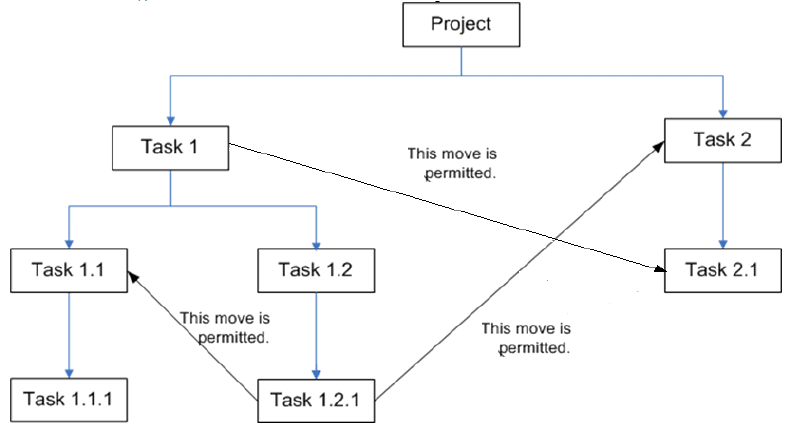
The following diagram shows a task hierarchy with two top tasks:
Top task 1 has two subtasks (tasks 1.1 and 1.2), and top task 2 has one subtask (task 2.1). Task 1.1 has one subtask (task 1.1.1) and task 1.2 has one subtask (task 1.2.1). You can move task 1.2.1 so that its parent is task 1.1.
