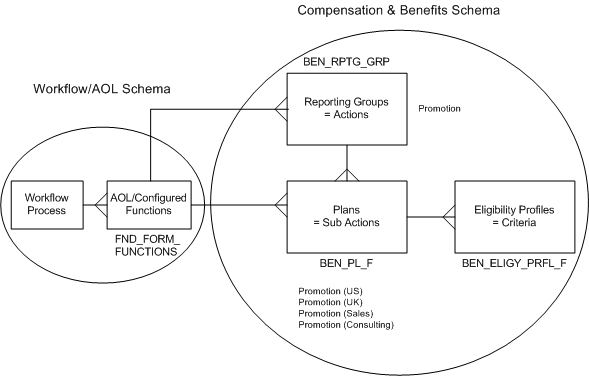
The following is a best practice example of how to set up automatic calculation of a person's eligibility for a self-service action, using features available in HRMS Compensation and Benefits as a processing engine. When a user initiates an action, the application runs the Compensation and Benefits BENMNGLE engine, and displays whether or not the selected person is eligible.
To enable eligibility processing, turn on the system profile HR:Allow Use of Eligibility for Self Service Actions. If you want to allow users to process actions for which a selected person is not eligible, turn on HR:Allow Processing of Ineligible Self Service Actions.
If you are confident that the BENMNGLE engine runs and updates the results tables on a regular basis, you can improve performance by disabling the profile HR:Run BENMNGLE when processing a Self Service action.
The system profiles described above are off by default.
The following figure describes how SSHR has mapped the Workflow and AOL schema onto the Compensation and Benefits schema to provide a generic eligibility processing engine. In a typical implementation, you link your copied and configured form functions to actions, such as Promotion. The actions take on a parent relationship with sub actions such as Promotion (US) or Promotion (Sales), which you define based on the requirements of, say, differing locales or departments.
Mapping the Workflow/AOL Schema to the Compensation and Benefits Schema
For a person to be eligible for a sub action that is legislation-specific, say, Promotion (US), you set up the sub action (plan) in a US business group. You refine the criteria that make a person eligible by defining eligibility profiles and linking them to the sub action. You can link each form function to multiple actions and sub actions, but you can determine eligibility only for sub actions.
Note: The application considers a person who meets all Required profiles and at least one Optional profile eligible. If you link only one profile to a sub action, you define it as Required.
In this example, you have already decided to use the Benefits engine to process eligibility, and you have configured the form functions your enterprise wants to make available to users. User-friendly names help users recognize the workflow processes. Examples might include:
Promotion (Australia)
Promotion (Manufacturing)
Transfer
Award Bonus
This example assumes that you have copied and configured two form functions based on the predefined function Change Job:
Change Assignment
Change Assignment with Bonus
You have identified the applicable policies and eligibility rules in effect in your organization, and reviewed the available eligibility profile criteria. You have asked and answered appropriate business questions, including:
What are the criteria that govern eligibility for each available form function? Examples include:
Legislation
Organization Unit (department)
Job
Length of Service
Which life events can impact eligibility for actions?
In your organization, an employee is eligible for a bonus after one year of service. You set up eligibility processing so that if a person's length of service is less than one year, the person is eligible only for Change Assignment. If length of service is one year or more, the person is eligible for Change Assignment with Bonus.
The steps below describe the generic process of setting up eligibility for sub actions.
Define eligibility criteria as required
In the Participant Eligibility Profiles window:
Create eligibility profiles
In the Plan Types window:
Define a plan type
In the Plans window:
Create plans (sub actions)
Link each plan to a form function (Miscellaneous tab)
Link eligibility profiles to each plan (Plan Eligibility tab)
In the Reporting Groups window:
Create reporting groups (actions)
Link each reporting group to a form function
Link each reporting group to plans (Components tab)
Using an HRMS Manager responsibility, follow the steps below to set up eligibility based on length of service.
Derived Factors
Specify how the application evaluates length of service criteria by defining two derived factors.
Define the first derived factor, in which length of service is less than one year. In the Derived Factors window (Length of Service tab):
Name = "LOS < 1 yr"
UOM = "Day"
Date to Use Code = "Date of Hire"
Values: Activate the No Min check box; Max = 364
Determination Code = "As of Event Date"
Define the second derived factor, in which length of service is one year or more. In the Derived Factors window (Length of Service tab):
Name = "LOS >= 1 yr"
UOM = "Year"
Values: Activate the No Max check box; Min = 1
Date to Use Code and Determination Code are the same values as the first derived factor
Eligibility Profiles
Set up two eligibility profiles. The first makes a person eligible with less than one year of service, the other makes a person eligible with a year or more of service. You can set up as many eligibility profiles as you need to qualify a person for an action. You specify if a profile is Required or Optional when you link the profile to a plan, below.
Define the first eligibility profile. In the Participant Eligibility Profiles window (Derived Factors tab):
Name = "Less Than 1 yr LOS"
Assignment Type = "Any Assignment" (Primary and Secondary)
Status = "Active"
Applies To = "Benefits Profile"
Select "Length of Service" from the LOV
Length of Service = "LOS < 1 yr"
Define the second eligibility profile. In the Participant Eligibility Profiles window (Derived Factors tab):
Name = "1 yr or More LOS"
Select the same values for Assignment Type, Status, and Applies To as the first profile
Length of Service = "LOS >= 1 yr"
Note: If the Assignment Type is Any Assignment, eligibility processing can consider secondary assignments, enabling the application to find all actions for which the person is eligible. In a good implementation, a person is eligible for only one related sub action for each action. If BENMNGLE retrieves more than one eligible sub action, a Sub Actions page appears and displays the available choices.
Sub Actions (Plans) and Actions (Reporting Groups)
Create a plan type to relate your sub actions (plans) to self-service actions eligibility instead of benefits.
Define a new plan type to use for self-service actions. In the Plan Types window:
Name = "Business Process"
Option Type = "Personnel Action"
Define a sub action that includes only the assignment change. Link it to a form function and an eligibility profile. In the Plans window:
Name = "Change Assignment"
Status = "Active"
Plan Type = "Business Process"
Plan Usage = "May not be in program"
On the Eligibility Rates tab, activate the "Track ineligible persons" check box
On the Miscellaneous tab, Personnel Action Function Name = "Change Assignment" (or any form function name you have configured to change an assignment)
Confirm that you have activated the Plan Years Not Applicable check box
Save your work
Press the Plan Eligibility button to open the Maintain Plan Eligibility window
Press the Eligibility button to open the Eligibility window. Eligibility Profile Name = "Less Than 1 yr LOS"
Activate the Required check box
Save your work
Define a second sub action that additionally includes bonus. The steps are the same as in the first sub action, except for the following:
Name = "Change Assignment with Bonus"
On the Miscellaneous tab, Personnel Action Function Name = "Change Assignment with Bonus" (or any form function name you have configured to change an assignment and award a bonus)
Eligibility Profile Name = "1 yr or More LOS"
Define an action and link it to your two sub actions to complete your setup. In the Reporting Groups window:
Name = "Change Assignment"
Purpose = "Personnel Action"
Function Name = "Change Assignment"
Save your work
Plan = "Change Assignment"; Plan = "Change Assignment with Bonus" (Components tab)
See: