You can use Oracle Approvals Management (AME) in conjunction with the Checklists function to designate a task performer automatically. When you create a task, you can assign an Approval Identifier. The application passes this value to AME and generates the list of approvers for each task using attributes, rules, and approval groups.
For general information on AME, see: Overview of Oracle Approvals Management
Oracle provides the transaction type CHECKLIST and the approvals attribute CHECKLIST_ATTRIBUTE. The CHECKLIST transaction type enables you to create approval rules based on the task and person's details such as business group, organization name, job, position, or supervisor name.
Before attempting to set up AME, you should plan your approval requirements. For information on designing approvals processes in AME, see: Oracle HRMS Approvals Management Implementation Guide.
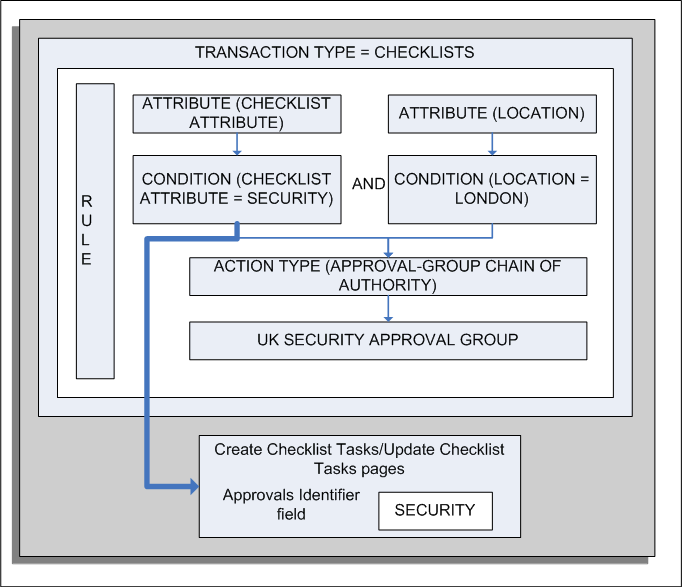
The following figures show an example use of AME components for checklists.
Using AME for Checklists - Example 1
This figure shows the standard AME components and their use in the Checklists functionality. The approval rule shown has the following outcome:
If the Checklist attribute is SECURITY and the Location attribute is London, then AME uses the UK SECURITY approval group to identify the task performers.
The SECURITY attribute value appears n the list of values for the Approvals Identifier field in the Create Task and Update Task pages.
Using AME for Checklists - Example 2
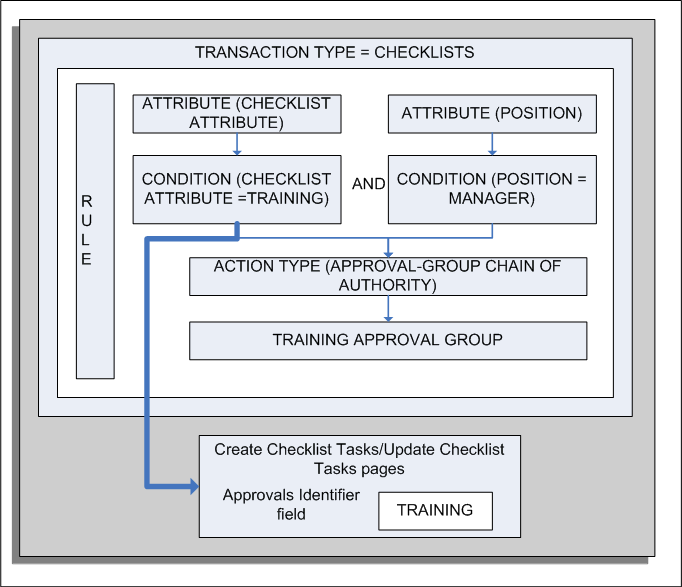
This example shows an approval rule that is designed to inform the training department about training sessions for new hires to the manager position in an enterprise. In this example:
If the Checklist attribute is TRAINING and the POSITION attribute is Manager, who is a new hire, then AME uses the TRAINING approval group to identify the task performers.
The TRAINING attribute value appears in the list of values for the Approvals Identifier field in the Create Task and Update Task pages.
You define AME components using the Approvals Management Business Analyst responsibility.
 To set up AME for checklists:
From the Business Analyst Dashboard, query the CHECKLIST transaction type (Transaction Type Key = CHECKLISTID) in the Approval Process Setup region. This region contains links to the setup pages for the AME components.
Note: For more information about the Approvals Management Business Analyst responsibility, see: AME Roles and Responsibilities.
Select an AME component to define. For example, select the Attributes link to display the delivered attribute CHECKLIST_ATTRIBUTE. If required, add additional attributes to your transaction type.
Select the Conditions subtab to define the conditions for your transaction type. You must define regular conditions for every possible value for the Checklist attribute, for example:
CHECKLIST_ATTRIBUTE is SECURITY
CHECKLIST_ATTRIBUTE is RESOURCES
CHECKLIST_ATTRIBUTE is REFERENCES
Additional Information: The condition values you define here are passed to the Create Checklist Tasks and Update Checklist Tasks pages and appear in the list of values (LOV) for the Approvals Identifier field (see figure). The values relate to the type of task, for example, a security task, resource allocation task, or reference check task.
If required, create List Modification conditions. For example, you can create a Final Approver condition and identify the approver.
Select the Approval Groups subtab to define the approval groups for your transaction type.
For example, you could create an approval group called UK Security to contain the list of performers who would carry out the task in question.
Note: Oracle recommends that you select the "First responder wins" voting regime for your approval groups. This ensures that only one performer carries out the task. When the performer completes the task and updates the notification, the associated workflow process automatically updates the task status to Completed or Rejected.
Select the Rules tab to define your rules by combining your attributes, conditions, action types, and approval groups. Each rule can contain multiple conditions.
Select the Test Workbench tab to create a test transaction for your rule.
See: Overview of Testing.